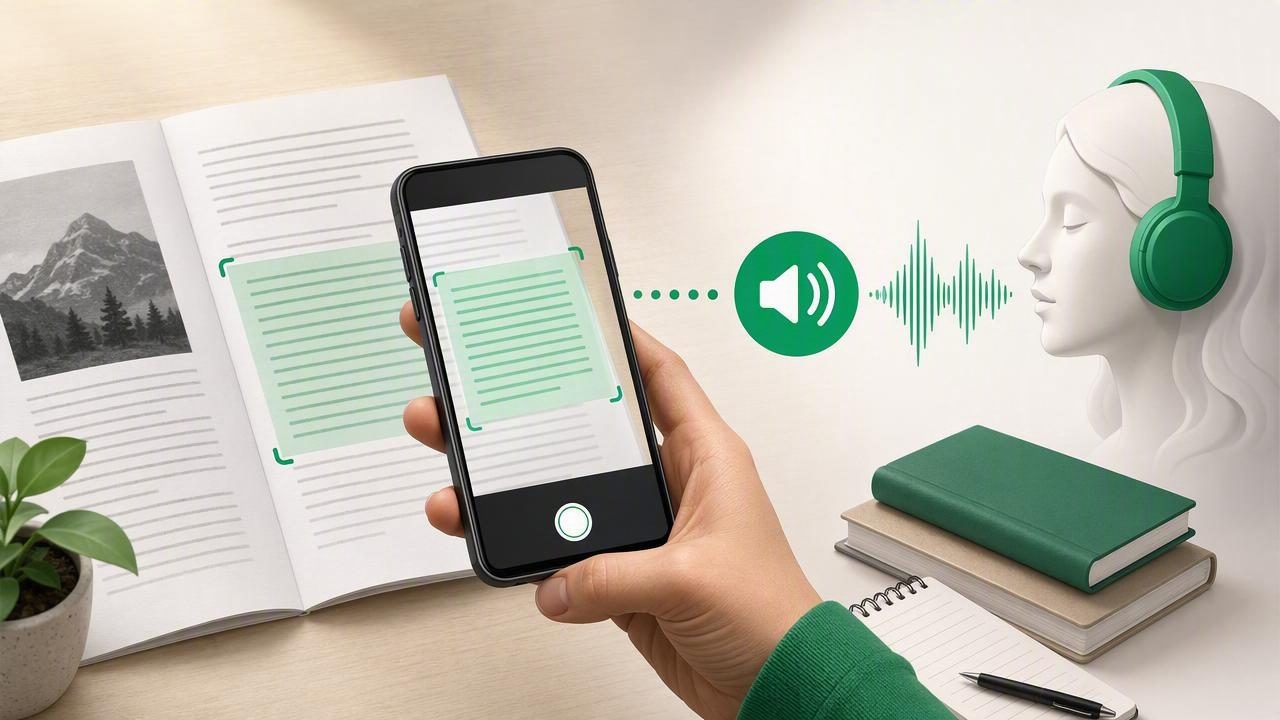
Finding the best camera scan to speech app to scan printed text and hear it can make everyday reading easier, faster, and more accessible. Whether you want to listen to a page from a textbook, read printed paperwork while commuting, review class handouts, or make paper books more usable, camera-based text-to-speech technology can turn physical pages into spoken audio in seconds.
These apps combine two helpful technologies: optical character recognition (OCR), which identifies words in a photo or scan, and text to speech (TTS), which reads those recognized words aloud. Instead of manually typing text from a printed page, you can capture it with an iPhone or iPad camera and listen with natural AI voices.
This guide explains how camera scan to speech works, what features matter most, who benefits from it, and how to choose an app that fits your reading habits.
What Is Camera Scan to Speech?
Camera scan to speech is a feature that lets you use your device camera to capture printed text and convert it into audio. For example, you could scan a page from a paperback book, a restaurant menu, a worksheet, a letter, or a printed article. The app processes the image, extracts the text, and narrates it through a selected voice.
On iPhone and iPad, this workflow can be especially practical because the camera, microphone, display, and audio controls are already in one portable device. You can scan a page at home, save the recognized text, and listen later through headphones, a speaker, or your car audio system.
A good scan-to-speech experience should do more than simply read raw text. It should preserve logical reading order, handle paragraphs reasonably well, offer clear voices, and let you control speed, pauses, and navigation.
How Does a Camera Scan to Speech App Work?
Most camera scan to speech apps follow a straightforward process:
- Capture the text: Take a photo of a printed page or import an existing image.
- Recognize the words: OCR analyzes letters, words, headings, and paragraphs in the image.
- Convert text to audio: The app sends the extracted text to a text-to-speech engine.
- Listen and review: Choose a voice, adjust playback speed, and follow along with highlighted text when available.
Image quality strongly affects results. OCR works best with a well-lit, flat page, sharp focus, readable font size, and high contrast between text and background. A tilted photo, curved book page, handwritten note, or reflective glossy paper may require a second scan or small adjustments.
Why Scan Printed Text and Hear It?
Listening to scanned text is not only a convenience feature. It can create a more flexible and inclusive way to read. People use camera scan to speech for many different situations:
- Students: Scan a worksheet, reading assignment, or library handout and review it while walking, cleaning, or traveling.
- Professionals: Listen to printed meeting notes, reports, reference materials, or mailed documents.
- People with dyslexia: Hearing words while seeing them can support comprehension and reduce visual reading fatigue.
- People with ADHD: Audio playback and synchronized highlighting may help maintain focus on longer passages.
- Busy readers: Convert short printed materials into an audio queue for a commute or workout.
- Low-vision readers: Use spoken narration as an additional way to access print.
- Language learners: Hear pronunciation while following the scanned text visually.
It is also useful for materials that do not come in a convenient digital format. A paper packet does not need to remain a paper-only resource when a quick camera scan can make it listenable.
Features to Look for in the Best Camera Scan to Speech App
Not every OCR or text-to-speech tool is designed for sustained listening. When comparing options, focus on the complete experience after the page has been scanned.
Accurate OCR for Printed Pages
The app should recognize common printed fonts accurately and keep paragraphs in the right order. Look for support for books, documents, forms, articles, and multi-page scans. If you frequently scan material in another language, check that the app supports OCR and narration for that language.
Natural-Sounding AI Voices
A robotic voice can make long listening sessions tiring. Natural AI voices with realistic pacing, clear pronunciation, and comfortable intonation are easier to follow, particularly for textbooks, articles, and longer documents. Voice choice matters because the best voice is often personal: some readers prefer a calm narration style, while others need a crisp, faster voice for review.
Playback Speed Controls
Speed controls help turn scanned text into a flexible study or productivity tool. A slower pace can be helpful for difficult material, while experienced listeners may prefer 1.5x, 2x, or even up to 3x playback for familiar content. Fine-grained speed settings are generally more useful than a few fixed presets.
Text Highlighting and Navigation
Synchronized highlighting lets you see the sentence or word currently being read. This is valuable for proofreading OCR results, improving focus, and following technical language. Also look for easy pause, rewind, skip, and resume controls. For long scans, the ability to jump between sections can save considerable time.
Offline Listening
Offline access is important if you scan documents before a flight, commute through poor coverage, or want to listen without relying on mobile data. Check whether the app can keep your processed text and chosen voices available after you leave Wi-Fi.
Privacy and Document Handling
Printed documents may include personal, work-related, or sensitive information. Read an app's privacy information before scanning confidential materials. Consider where OCR processing occurs, what content is stored, and whether you can delete scans easily after listening.
Quick Comparison Checklist
| Feature | Why It Matters | What to Check |
|---|---|---|
| Camera OCR | Determines how well print becomes usable text | Clear recognition and sensible paragraph order |
| Voice quality | Makes longer listening more comfortable | Natural voices and multiple voice options |
| Highlighting | Supports visual follow-along and proofreading | Sentence or word-level synchronization |
| Speed controls | Adapts reading to your pace | Slow speeds through 2x or 3x playback |
| Offline mode | Allows listening anywhere | Saved text and downloaded voices work offline |
| File support | Extends the app beyond camera scans | PDF, EPUB, DOCX, web links, and pasted text |
How to Get Better Results From Your Scans
Even the best app benefits from a clean image. Use these practical scanning tips before converting print to audio:
- Place the page under bright, even lighting and avoid heavy shadows.
- Hold the iPhone or iPad directly above the page rather than at an angle.
- Make sure the full page is visible, including the first and last lines.
- Tap the screen to focus before taking the photo.
- Flatten curled pages when possible, especially near the spine of a book.
- Scan one page at a time for dense books or complex layouts.
- Review the recognized text before starting a long listening session.
Tables, columns, footnotes, and decorative layouts can confuse OCR because they do not follow a simple left-to-right paragraph structure. If the narration sounds out of order, try cropping the image into smaller sections, such as one column at a time.
Camera Scan to Speech vs. PDF Read Aloud
Both features can make documents audible, but they begin with different source formats. PDF read aloud is best when the text is already in a digital PDF. Camera scan to speech is best when the source is physical print or an image.
In practice, many readers need both. You may scan a printed assignment today, listen to a PDF report tomorrow, and turn an EPUB book into audio the next day. Choosing a text-to-speech app that supports several formats can reduce friction because your listening library stays in one place.
Beyond scans and PDFs, useful formats can include EPUB ebooks, MOBI files, DOCX documents, copied notes, web articles, and pasted text. This flexibility matters for anyone building a daily listening routine rather than solving a one-time scanning task.
Who Should Use a Scan to Speech App?
A camera scan to speech app is a strong option for anyone who encounters useful information on paper but prefers to learn or work through audio. It can help students manage printed course packs, travelers understand printed confirmations, caregivers review instructions, and readers make personal book excerpts more accessible.
It is especially helpful when visual reading is difficult, tiring, or impractical. However, it should complement rather than replace careful review for legal, medical, financial, or safety-critical documents. OCR can misread characters, numbers, headings, and unusual layouts, so verify important details against the original page.
Final Thoughts
The best camera scan to speech app is one that accurately captures printed text and makes the resulting audio pleasant and easy to control. Prioritize reliable OCR, natural voices, highlighting, speed controls, offline access, and support for the other formats you already read.
If you want one iPhone or iPad workflow for camera scans, documents, ebooks, and articles, Focal Voice is worth exploring as a text-to-speech option that turns many kinds of content into listenable audio.
