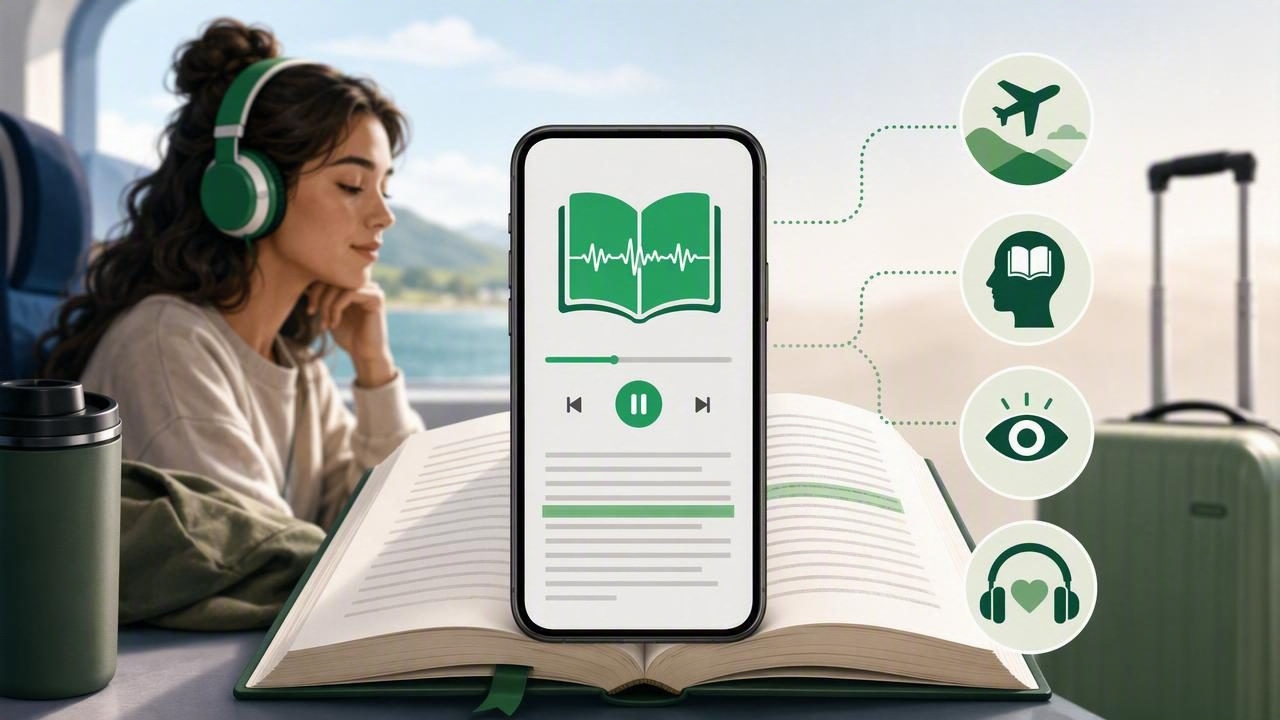
The best offline listening app to follow text with synchronized highlighting does more than read words aloud. It keeps audio and text connected, so you can see the exact sentence being spoken while staying productive without Wi-Fi or mobile data. For students, commuters, frequent travelers, and people with dyslexia or ADHD, this combination can make long documents, books, and articles substantially easier to finish.
Offline text-to-speech is especially useful when your connection is unreliable, expensive, or unavailable. A downloaded PDF, EPUB, DOCX file, or article can become a portable listening experience on an iPhone or iPad. Add natural AI voices, adjustable playback speed, and visible word or sentence highlighting, and reading becomes more flexible: you can listen, read silently, or do both at once.
This guide explains the features that matter most, how synchronized highlighting works, and how to choose an app that supports your actual reading routine rather than adding another distraction.
Why Offline Listening and Text Highlighting Belong Together
Listening to text is helpful on its own, but following along visually offers a different level of support. As the narrator reads, the app highlights the current word, line, or sentence. This gives your attention a clear anchor and helps prevent the common problem of realizing that audio has continued while your mind has drifted elsewhere.
Offline access makes that support dependable. You do not have to wait for a webpage to load on a train, use cellular data in the air, or lose your place when a connection drops. Once your material and voice are available on your device, you can continue reading nearly anywhere.
- Better comprehension: Hearing and seeing the same content can reinforce understanding, particularly with technical or unfamiliar material.
- Improved focus: Moving highlights provide a visual cue that encourages attention to stay with the text.
- Accessibility support: Multisensory reading can reduce friction for readers with dyslexia, ADHD, visual fatigue, or processing differences.
- Reliable travel reading: Downloaded content remains available in tunnels, rural areas, airplanes, and other low-connectivity settings.
- More efficient review: You can increase playback speed while retaining a visual guide to the passage.
What Makes the Best Offline Listening App?
Not every text-to-speech tool is designed for extended, focused reading. Basic device accessibility features can read selected text or screen content, but a dedicated offline listening app should help you import, organize, navigate, and follow longer materials. Look beyond the voice alone.
1. True Offline Playback
The word offline should mean that both your reading material and the selected voice can work without an active internet connection. Some services require a connection to generate speech in the cloud, even if the document itself is downloaded. Before relying on an app for travel or daily commuting, test it in airplane mode.
A useful offline workflow lets you download or import files before leaving home, then resume playback later without signing in again or reloading the document.
2. Accurate Synchronized Highlighting
For following text, timing matters. The highlight should move naturally with the narration and stay aligned when you pause, scrub forward, change speed, or jump to a new section. Sentence highlighting can be easier to follow in dense documents, while word-level highlighting may be preferable for language learners or readers who need closer guidance.
Also check whether highlighting works in the file types you use most. A feature that works beautifully in pasted text but not in a scanned PDF may not meet your needs.
3. Broad File and Content Support
Your reading queue probably includes more than one format. The most useful apps accommodate the sources people encounter every day:
- PDFs such as reports, lecture notes, manuals, and academic papers
- EPUB books for reflowable ebooks
- MOBI files from older ebook libraries
- DOCX documents, drafts, and shared work files
- Web links and saved articles
- Pasted text, notes, and copied emails
- Camera scans of printed pages, worksheets, or handouts
For scanned material, optical character recognition (OCR) is essential. The app must first recognize the printed text before it can narrate and highlight it meaningfully. Always review an OCR result for errors, especially with tables, faded print, handwriting, or multi-column pages.
4. Comfortable Voices and Useful Controls
A voice you can tolerate for two minutes is not necessarily one you can listen to for two hours. Natural AI voices can make extended document narration feel less mechanical, but choice still matters. Look for multiple voice options, clear pronunciation, language support, and the ability to adjust speed without making speech difficult to understand.
Speed controls are also practical. Many people begin around 1x to 1.25x, then increase gradually as they become familiar with a voice and subject. Speeds up to 3x can be valuable for review, but comprehension should remain the deciding factor.
Feature Checklist for Comparing Offline Text-to-Speech Apps
| Feature | Why It Matters | How to Test It |
|---|---|---|
| Offline voice playback | Lets you listen without Wi-Fi or data | Enable airplane mode and play a downloaded document |
| Synchronized highlighting | Helps you follow text and maintain attention | Pause, skip paragraphs, and change speed to check alignment |
| PDF and EPUB support | Covers common work, school, and book formats | Import one text-based PDF and one EPUB |
| OCR camera scanning | Turns physical pages into listenable text | Scan a printed page and compare recognition with the original |
| Bookmarks and progress saving | Makes long-form reading easier to resume | Close the app and verify that position is retained |
| Playback speed controls | Supports both close reading and rapid review | Try 1x, 1.5x, and a faster setting on the same section |
| Language and voice selection | Improves comfort and multilingual reading | Preview voices with names, terms, and dialogue |
How to Build an Offline Reading Routine on iPhone or iPad
A good app is only part of the solution. A repeatable setup process prevents last-minute problems and helps you get more value from listening sessions.
- Collect your reading in advance. Save PDFs, ebooks, web articles, and documents to one place before your commute, trip, or study block.
- Import and check formatting. Open each item and confirm that headings, paragraphs, and page order appear correctly. For scans, quickly correct obvious recognition mistakes.
- Choose and download a voice. Select a voice that is clear at your preferred pace and confirm that it remains available offline.
- Set a starting speed. Start slowly enough to follow the highlight comfortably. Increase speed only after you can summarize what you heard.
- Use bookmarks intentionally. Mark definitions, confusing sections, action items, and passages to revisit. This is more effective than trying to remember a timestamp later.
- Test before you leave. Turn on airplane mode, play the document, and make sure text highlighting, controls, and saved progress still work.
Practical Use Cases for Follow-Along Listening
Studying Dense Course Material
Students can listen to lecture PDFs or textbook chapters while following highlights on screen. This works well for an initial pass through difficult material, followed by a slower review of key paragraphs. If concentration drops, pause at the end of each section and write a one-sentence summary in your notes.
Reading for Work Without Staring at a Screen
Long proposals, policy documents, product briefs, and drafts can be tiring to read visually. Listening with synchronized text makes it easier to catch awkward phrasing, repeated words, and incomplete sentences. Writers often notice issues by ear that they skim past on the page.
Making Commutes More Productive
Download reading before leaving home, then listen through headphones or a car audio connection where safe and appropriate. Text highlighting is most useful when you can glance at your device during a stationary moment, such as waiting for transit, rather than while walking through busy areas or driving.
Supporting Accessible Reading
For some readers, audio reduces the effort needed to decode text, while highlighting helps maintain place recognition. There is no single best setting: one person may benefit from sentence-level highlighting and slower speech, while another may prefer word-level highlighting at 1.5x. The goal is not to force a conventional reading method; it is to make the content more accessible.
Common Mistakes When Choosing an Offline Listening App
- Assuming “download” always means offline narration. Verify voice playback in airplane mode.
- Choosing only by voice quality. File support, highlighting accuracy, navigation, and progress sync are equally important for long documents.
- Skipping format tests. Import the PDFs, EPUBs, or scans you actually use before committing to a tool.
- Starting at an overly fast speed. Faster is useful only when you retain the information.
- Ignoring privacy needs. Review how sensitive work documents, academic materials, or personal notes are processed and stored.
- Using audio as passive background noise. When comprehension matters, follow the highlight, pause, and actively review.
Should You Use a General Reader or a Dedicated Text-to-Speech App?
A standard ebook reader may be enough if you only read EPUB books and do not need narration. Device-level screen reading can be helpful for quick tasks. However, a dedicated text-to-speech app is usually the better choice when you need to combine PDFs, documents, web pages, scans, natural voices, offline access, and synchronized highlighting in one workflow.
Apps commonly compared in this category, including Speechify, NaturalReader, and ElevenReader, differ in supported formats, offline options, voice catalogs, and reading interfaces. The best choice is the one that handles your content reliably and makes it easy to return to the exact place you stopped.
Final Takeaway
The best offline listening app to follow text with synchronized highlighting should make reading more dependable, not more complicated. Prioritize true offline playback, accurate highlighting, the file formats you use, comfortable voices, and controls that support your pace. Test with a real PDF, ebook, or scan in airplane mode before making it part of your routine.
If you want to try this workflow on iPhone or iPad, Focal Voice supports document and web narration, offline listening, synchronized highlighting, and multiple reading formats in a single app.
