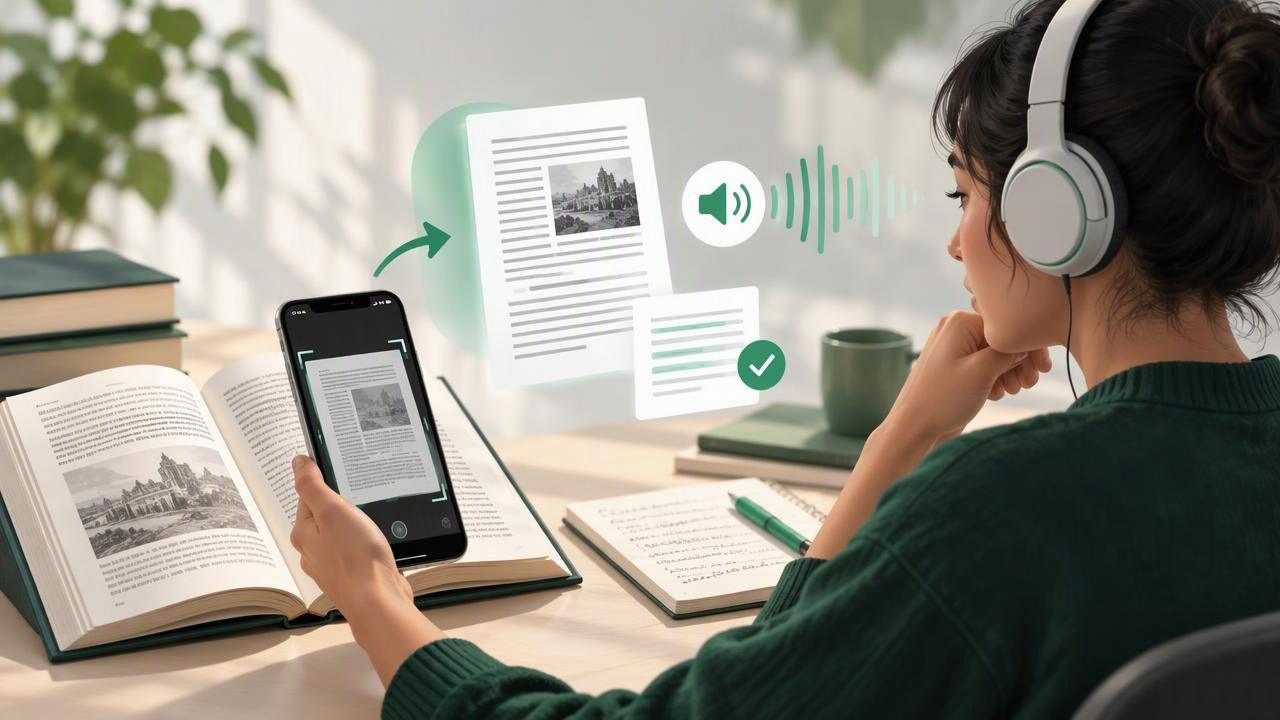
Research rarely happens entirely on a screen. A useful passage may be printed in a book, tucked into a handout, or captured in a paper document that cannot be copied and pasted. A camera scan to speech app can help turn those pages into listenable text, making it easier to review material while commuting, organizing notes, or taking a break from reading.
This guide explains how to scan printed text, convert it to speech, and use audio thoughtfully in a research workflow. It also covers the limits of optical character recognition (OCR), privacy considerations, and features to look for in a text-to-speech app for iPhone or iPad.
What does camera scan to speech mean?
A camera scan to speech workflow uses a device camera to capture printed words, then applies OCR to recognize the text. A text-to-speech engine can read the recognized text aloud using a digital voice. Some apps handle both steps in one place; others require you to scan with one tool and listen with another.
The result is not automatically a perfect digital copy. OCR may confuse similar-looking characters, skip small print, or read columns in the wrong order. Think of the scan as a convenient starting point that needs a quick visual check, especially when you are working with quotations, data, or technical language.
Why researchers may benefit from listening
Listening can add flexibility to a research routine. You might hear a printed chapter while walking between campus buildings, revisit a scanned article during a commute, or listen to background material while sorting references. Audio also offers a change of mode after a long period of screen reading. For some people, including readers with dyslexia or ADHD, hearing text alongside synchronized highlighting can make it easier to stay oriented. Individual preferences vary, so treat audio as an option rather than a replacement for every reading task.
Speech can be especially useful for reviewing familiar material. It helps you revisit an argument, check whether a paragraph makes sense, or refresh your memory of a source. Close analysis still benefits from looking at the original page, where layout, footnotes, figures, and emphasis may matter.
Printed sources that are useful to scan
- Book pages and chapters: Capture a passage when you do not have an accessible digital edition.
- Handouts and course readings: Make printed seminar material easier to review away from your desk.
- Archival documents: Create a listenable working copy of readable, permitted materials, while preserving the original image.
- Field notes and forms: Hear handwritten or printed notes only if the app can recognize the writing clearly; handwriting OCR is often less reliable.
- Conference materials: Convert a program or printed abstract into audio for quick orientation.
Scanning rules vary by institution, publisher, and jurisdiction. Follow copyright restrictions, archive policies, and any limits on copying or sharing a source. A scan for personal accessibility or research use does not automatically give permission to distribute it.
A practical camera scan to speech workflow
- Prepare the page. Place it on a flat surface with even lighting. Move objects that cast shadows, and keep the camera parallel to the page when possible.
- Capture one page at a time. Make sure the full text area is in focus and inside the frame. Avoid glare, curved bindings, and fingers covering words.
- Review the crop. Check that headers, footnotes, page numbers, and the ends of lines have not been cut off. Re-take unclear images before moving on.
- Run OCR and inspect the result. Look at headings, unfamiliar names, numbers, symbols, and any sentence that sounds strange when read aloud.
- Choose a voice and pace. Start at a comfortable speed. Increase playback gradually if you can still understand the material without losing key details.
- Listen with the page available. If the app highlights words as it speaks, follow along visually and pause when a citation or passage needs checking.
- Save and label the file. Use a descriptive title with a source abbreviation, page range, or date. Keep scans organized with the rest of your research materials.
This process is most effective when scanning is selective. Capture the sections you need rather than photographing an entire book by default. A smaller, clearly labeled audio library is easier to search and less likely to become a pile of unidentified files.
How to spot OCR problems before relying on audio
OCR can transform a page into editable, searchable text, but its accuracy depends on image quality, typeface, language, and page design. Older print, faded ink, marginalia, and narrow columns can all create errors. Equations, tables, superscripts, and footnotes are particularly challenging because their meaning depends on position as well as words.
Listen for clues: a sentence that suddenly stops making sense, a citation read as a string of random numbers, or a repeated phrase may signal recognition trouble. Compare that section with the image and correct the text if the app allows editing. For a critical quotation, verify every word against the original page and record the page number. Never cite OCR output as though it were a checked transcription.
When a scanned source includes a chart or complex table, use the audio to orient yourself, then inspect the visual source directly. A voice reader may announce labels in an order that hides the relationships between rows and columns.
Features to look for in a research-friendly app
The best choice depends on the material you handle and where you listen. When comparing a camera scan to speech app with a general text-to-speech reader, consider the whole workflow rather than voice quality alone.
| Feature | Why it matters |
|---|---|
| Built-in camera OCR | Reduces app switching and makes printed pages easier to capture. |
| Text correction | Lets you fix names, citations, and OCR mistakes before listening. |
| Highlighting and navigation | Helps you follow along, pause, and return to a specific passage. |
| File and export options | Makes it easier to organize scans alongside PDFs, notes, or other source files. |
| Offline playback | Supports listening when a network connection is unreliable or unavailable. |
| Privacy controls | Clarifies whether images or recognized text are processed on-device or uploaded. |
Also check language support, voice clarity, playback controls, and whether the app handles multi-page documents. Some readers focus on converting text into audio, while others emphasize document management or voice customization. Compare current features and privacy policies before choosing; capabilities can vary by platform and subscription level.
Use listening to support—not replace—research
Audio works well for orientation, review, and identifying passages to revisit. It is less suited to tasks that demand close visual inspection, such as interpreting a figure, checking punctuation in a quotation, or comparing several references line by line. Build a simple habit: listen first for the overall argument, then return to the page for evidence and details.
Keep notes linked to the source. Record the author, title, edition, and page number rather than relying on memory or an unlabeled recording. If you use a note-taking system, add a short tag such as “scan audio” so you can find the file again. Separate your own commentary from text copied or recognized from the source.
For sensitive research, consider whether a page contains personal, confidential, or restricted information. Review where the app stores scans, whether it syncs them, and how deletion works. Follow your institution’s data-management requirements before uploading research material to any service.
A simple listening strategy for scanned sources
Try a three-pass approach for a printed chapter or article. First, scan the title, headings, and opening paragraphs to establish context. Next, listen to the relevant section at a natural pace, saving pauses for unfamiliar concepts. Finally, check the original page and your notes for exact wording, page references, and visual information. This keeps audio useful without treating it as a substitute for source verification.
If you are reviewing a large reading list, split audio into manageable sections and give each one a clear label. Listening at a faster speed may save time once you are comfortable with the voice, but faster is not always better. Slow down for dense theory, unfamiliar names, or material you expect to quote.
Frequently asked questions
Can a phone read a photographed page aloud?
Yes, if the camera or reading app can recognize text with OCR and pass it to a speech engine. Results depend on image quality and page layout, so proofread important passages.
Can I scan an entire book?
That depends on copyright, access permissions, and your institution’s policies. Check the rules that apply before scanning or sharing a full book. For many research tasks, capturing selected pages is more practical.
Is camera scan to speech useful for academic papers?
It can help with printed papers and articles, particularly for reviewing prose. Equations, references, tables, and two-column layouts may be read incorrectly, so verify those visually.
Make scanned reading easier to revisit
A camera scan to speech workflow can turn hard-to-access print into a flexible listening option. Clear images, a quick OCR check, careful file labels, and source verification make the difference between convenient audio and unreliable text. Choose an app that suits your documents, privacy needs, and listening habits. For an iPhone or iPad workflow that combines camera scans with document narration, Focal Voice is one option to explore alongside other text-to-speech apps.
