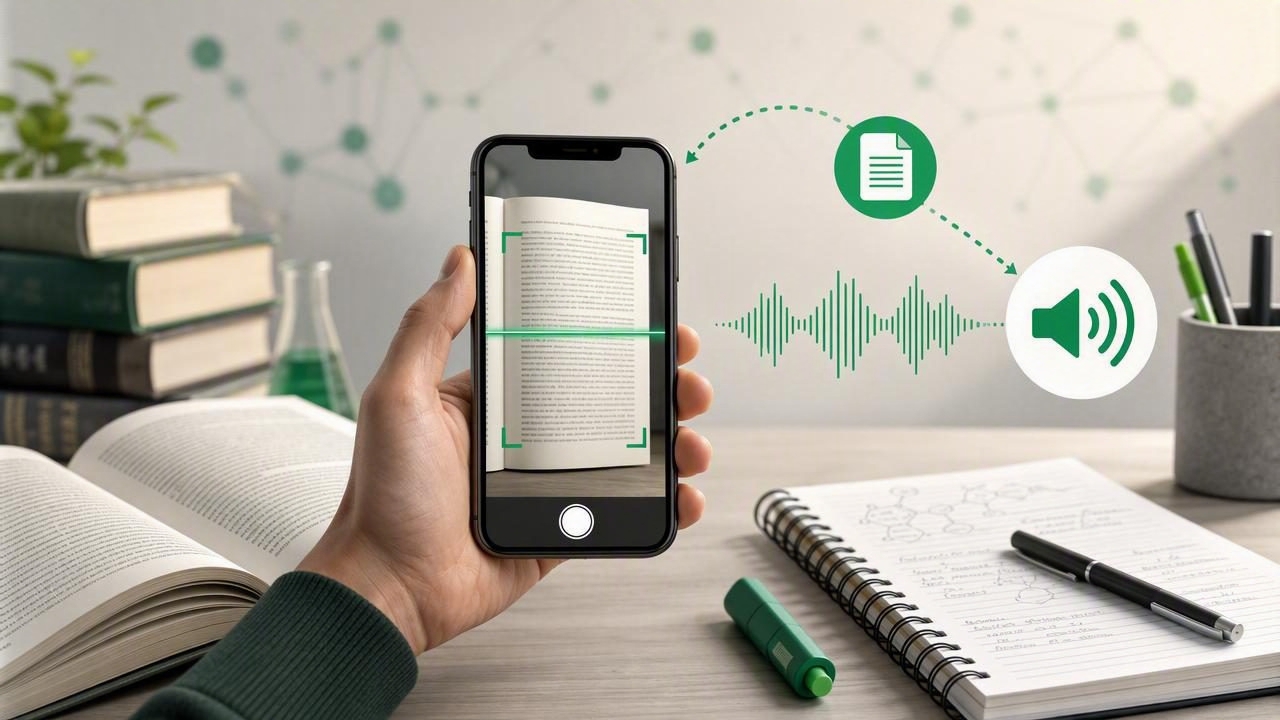
Researchers spend countless hours working through printed books, archived papers, annotated articles, library chapters, field notes, and conference handouts. While digital PDFs are convenient, important information is often trapped on paper. A camera scan to speech app for researchers helps bridge that gap by converting photographed text into audio you can hear while commuting, walking, organizing data, or taking a screen break.
Camera-to-speech technology combines optical character recognition (OCR) with text-to-speech. First, your iPhone or iPad camera captures a page. OCR identifies the words on that page and turns them into selectable digital text. Then, a natural AI voice narrates the result. Used thoughtfully, this workflow can make literature reviews more flexible, support accessibility needs, and help researchers revisit source material without being tied to a desk.
Why Researchers Need Camera Scan to Speech
Academic and professional research rarely happens in one format. You may have a digitized journal article in the morning, a physical monograph from the library in the afternoon, and printed interview transcripts during fieldwork. Reading everything visually can be exhausting, particularly when you need to compare multiple sources or review dense material repeatedly.
A camera scan to speech app gives printed material a second life. Rather than waiting until you can manually transcribe a passage, you can scan it, review the recognized text, and listen to it almost immediately. This is especially useful for:
- Literature reviews: Listen to key sections from books, chapter introductions, and historical sources while identifying themes.
- Archive visits: Capture permitted materials when no downloadable copy exists.
- Field research: Turn paper surveys, meeting handouts, or observation notes into audio for later review.
- Accessibility: Reduce visual fatigue and support researchers with dyslexia, ADHD, low vision, or reading-processing differences.
- Language study: Hear unfamiliar vocabulary, names, and sentence structures read aloud as you review sources.
- Time management: Turn low-attention moments, such as a commute or household tasks, into review time.
Listening does not replace close reading. For quotations, methods, data tables, citations, and nuanced arguments, you should always return to the original page. But audio can be an effective complementary format for orientation, repetition, and synthesis.
How Camera Scan to Speech Works
The quality of your listening experience depends on three stages: image capture, text recognition, and narration. Understanding these stages helps you get more reliable results from a camera scan to speech app for researchers.
1. Capture a clear image
Use your device camera to photograph a page or import an image you already captured. The best scans have flat pages, even lighting, readable type, and minimal glare. Book pages can be challenging because text near the binding may curve or disappear into shadows.
2. Use OCR to extract text
OCR analyzes the image and recognizes letters, words, paragraphs, and sometimes headings. Modern OCR can perform well with clean, printed documents, but it may struggle with handwriting, faded ink, unusual fonts, multi-column layouts, marginal annotations, formulas, and footnotes.
3. Review and correct the text
Before relying on narration, compare the extracted text with the source. Correct obvious errors in names, dates, technical terms, and quoted material. Even a small OCR mistake can change the meaning of a finding or make a citation difficult to locate later.
4. Listen with text-to-speech
Once the text is recognized, text-to-speech converts it to audio. Natural AI voices can make long passages easier to follow than older robotic speech. Look for features such as adjustable speed, synchronized highlighting, bookmarks, and offline listening so you can tailor the experience to your research routine.
A Reliable Scanning Workflow for Academic Sources
A consistent process produces cleaner text and saves time when you need to scan many pages. Follow this practical workflow before adding scanned content to your research notes.
- Check permission and copyright restrictions. Libraries, archives, publishers, and research institutions may have specific rules for copying or photographing material. Scan only what you are permitted to capture, and use it within applicable copyright and fair-use or fair-dealing rules.
- Prepare the page. Place the document on a dark, uncluttered surface. Flatten it gently without damaging bindings. Remove shadows caused by your hands or phone.
- Improve the lighting. Bright, diffused light works best. Avoid overhead glare on glossy pages and avoid flash if it creates reflections.
- Frame the entire text area. Keep the camera parallel to the page and include page edges when possible. Do not crop off headers, footnotes, page numbers, or figure labels that may matter later.
- Scan in manageable batches. For a chapter, capture a few pages at a time, review them, and name the file before moving on. This prevents a large, confusing camera roll.
- Proofread the OCR output. Verify headings, proper nouns, quotations, statistics, and citations. If a page has two columns, make sure the reading order is correct.
- Label the source immediately. Add the author, title, publication year, page number, and archive or library reference. Audio files without source metadata quickly lose research value.
- Listen strategically. Use normal speed for difficult theoretical passages and faster playback for familiar background material. Pause to save notes, questions, and promising quotations.
What Makes a Good Camera Scan to Speech App for Researchers?
Not every scanner or text-to-speech tool is designed for serious reading. A basic scanner may create an image but offer no useful way to listen. A generic voice reader may narrate copied text but make source management difficult. The best setup connects capture, correction, organization, and playback.
| Feature | Why It Matters for Research |
|---|---|
| Accurate OCR | Reduces cleanup time and preserves terminology, citations, and names. |
| Natural AI voices | Makes extended listening less tiring and improves comprehension. |
| Synchronized highlighting | Helps you verify passages against the extracted text while listening. |
| Playback speed controls | Lets you slow down complex arguments or review familiar sections faster. |
| Offline listening | Supports work in archives, transit, rural field sites, and low-connectivity locations. |
| Folders or document organization | Keeps projects, source types, and reading queues easy to locate. |
| Export and sharing options | Helps move text or notes into your citation manager or project workflow. |
| Privacy controls | Important when scans contain unpublished work, participant information, or sensitive records. |
Also consider whether the app supports documents you already use. A flexible research reading workflow may include scanned pages alongside PDFs, DOCX files, EPUB books, web articles, and pasted notes. Keeping these formats in one listening queue can reduce app-switching and make a review plan easier to maintain.
How to Listen Without Losing Research Accuracy
Audio is excellent for understanding the overall shape of an argument, but research requires precision. The key is to use listening as part of a deliberate verification system rather than treating narrated OCR as a final source.
- Keep page references visible. Add page numbers to your notes so you can find the original wording again.
- Mark uncertain passages. If OCR seems to misread a phrase, flag it instead of assuming the narration is correct.
- Do not cite from audio alone. Confirm every direct quotation, number, and citation against the original document.
- Separate source text from your interpretation. Capture quotations in one field and your commentary in another.
- Use short listening blocks. After 15 to 30 minutes, pause and write a brief summary of the argument, evidence, and unresolved questions.
Listening is most valuable when it creates more opportunities to engage with a source, not when it removes the need to evaluate that source critically.
Common Problems and How to Fix Them
Glare, shadows, or blurry pages
Move to indirect natural light, stabilize your device with both hands, and tap the screen to focus before capturing. Retake a page rather than spending longer correcting poor OCR later.
Incorrect reading order in columns
Multi-column academic journals can confuse OCR. Scan each column separately if possible, or manually split the page into sections before listening. Check that the narration does not jump from the left column to the right column mid-sentence.
Footnotes interrupt the main text
Footnotes are valuable, but they can disrupt audio flow. Consider scanning the main body first and footnotes separately. When reviewing, label them clearly so you know where a claim is sourced.
Equations, tables, and charts do not narrate well
OCR is not a substitute for visual analysis of quantitative material. Review tables, equations, graphs, and image captions directly. Use audio for surrounding explanation, then return to the visual source for exact values and structure.
Handwriting is poorly recognized
Neat printed handwriting may work, but cursive, abbreviations, and aged handwriting often require manual transcription. For field notes, consider dictating a clean summary immediately after scanning while the context is fresh.
Build a Better Research Listening Routine
The most useful camera scan to speech workflow is not about listening to every page at maximum speed. It is about matching the format to the task. Use audio to preview a source before close reading, revisit a theory chapter, absorb background literature, or reflect on a transcript during a walk. Use visual reading when you need to annotate exact language, inspect a figure, or verify a citation.
Create a weekly queue with a mix of scanned excerpts and digital documents. For example, scan a chapter introduction from a library book, add a PDF article for your methods review, and save a web article relevant to your project. During listening, pause at the end of each item to record a two- or three-sentence takeaway. These brief summaries can become the foundation of your literature matrix or research journal.
For iPhone and iPad users, tools such as Focal Voice can bring scans, documents, web links, and pasted research notes into a single text-to-speech workflow, making it easier to turn otherwise idle time into focused review time.
Final Takeaway
A camera scan to speech app for researchers can make paper-based knowledge more portable, accessible, and reusable. The strongest results come from clear scans, careful OCR review, organized source labels, and a habit of verifying important details against the original. When used alongside—not instead of—close reading, camera scan to speech can help researchers keep moving through demanding reading lists while protecting accuracy and scholarly rigor.
