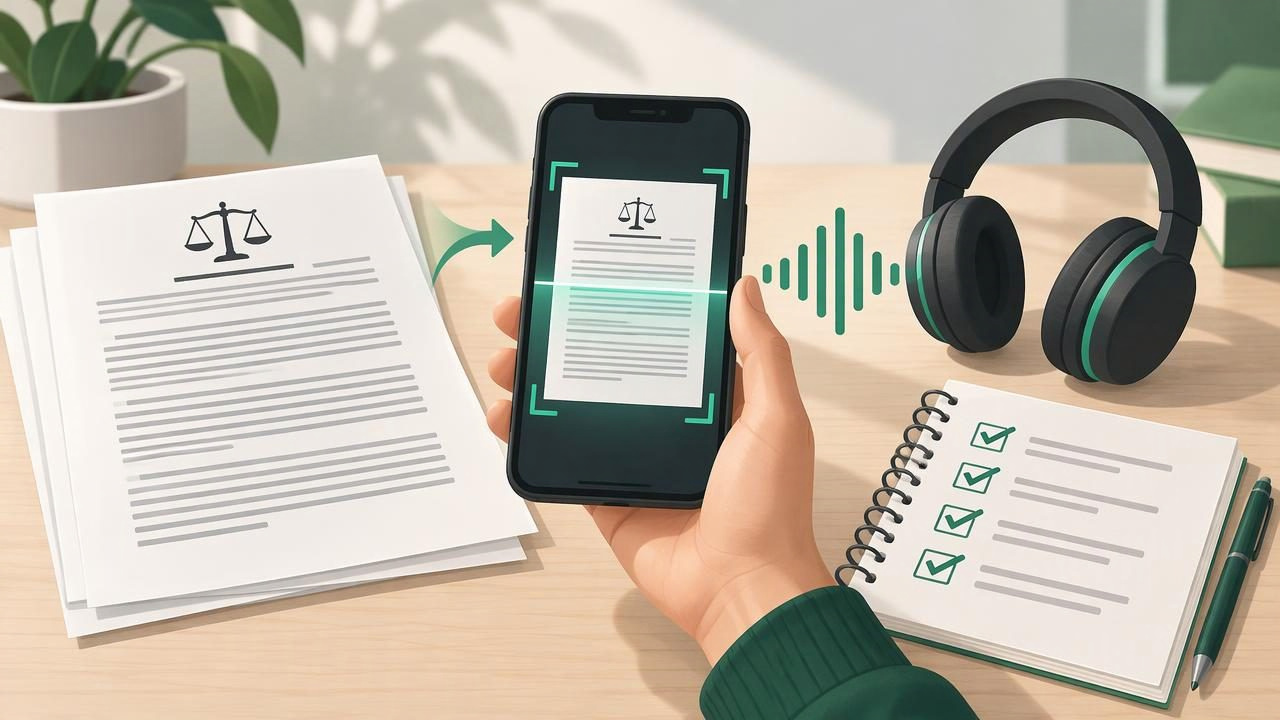
Contracts can be dense, repetitive, and easy to skim too quickly. Listening to a contract read aloud offers another way to review its wording, especially when you are working with a printed copy or need a break from the screen. With a camera scan-to-speech app, you can capture printed pages, convert the text, and listen on an iPhone or iPad.
Audio can help you notice awkward phrasing, missing words, or clauses that deserve a second look. It does not replace careful reading or legal advice, and a scan can introduce errors. Use the checklist below to prepare, scan, listen, and verify a contract more deliberately.
What a camera scan-to-speech workflow can do
A camera scan-to-speech app uses optical character recognition (OCR) to identify text in a photo or scanned page. The app then turns that recognized text into speech. Depending on the tool, you may be able to follow synchronized highlighting, pause or replay a sentence, adjust playback speed, or save the audio for offline listening.
This can be useful for a paper agreement, a printed set of terms, or a page that is difficult to read on a small screen. It can also support a second-pass review: listen while following the text, then return to the original document to confirm important details. Keep in mind that OCR is not infallible. Small print, shadows, unusual formatting, signatures, and tables can all affect recognition.
Before you scan: contract review checklist
Set up the review before opening the camera. A little preparation makes it easier to catch omissions and reduces the chance that you will rely on a flawed scan.
- Confirm you have the complete document. Check for a title page, numbered pages, attachments, schedules, exhibits, and signature pages. Note the page count.
- Protect sensitive information. Contracts may contain names, addresses, account details, pricing, or confidential terms. Review the app’s privacy and data-handling information before uploading or processing a document, and avoid sharing audio or text unnecessarily.
- Choose a quiet place. A low-noise setting makes it easier to hear names, dates, amounts, and distinctions such as “may” versus “must.” Headphones can help, but keep the volume comfortable.
- Have the source document ready. You will need to compare the recognized text with the original, especially around numbers, defined terms, and any clause that sounds unclear.
- Decide what you need to verify. Make a short list of questions, such as when the agreement starts, how it can end, what payment is due, or which party has a particular obligation.
Camera scan-to-speech checklist
1. Prepare the pages
Place the contract on a flat, well-lit surface. Smooth curled pages and keep the camera parallel to the paper. Avoid glare from overhead lights and shadows cast by your hands or phone. Capture one page at a time unless the app clearly supports multi-page scanning and keeps the page order intact.
Make sure every edge of the text is visible. Do not crop out page numbers, footnotes, headings, or text close to the margins. If a page contains a table or narrow columns, take extra care: the OCR may read across columns in the wrong order.
2. Scan and check the OCR
Review each captured image before moving on. Retake blurry, tilted, dark, or incomplete pages. After the app recognizes the text, compare a few lines on the screen with the printed page. Check unusual names, dates, dollar amounts, percentages, section numbers, and words that look similar.
Pay particular attention to negations and conditions. A missed “not,” “unless,” or “except” can change the sense of a clause. If the app provides editable text, correct clear OCR mistakes before listening. If you cannot confirm a passage, return to the image instead of guessing.
3. Organize the document
Give the scan a clear file name and check the sequence of pages. If the app allows it, split a long contract into sections or add bookmarks for clauses you want to revisit. Preserve headings and paragraph breaks where possible; formatting helps you locate a passage in the original and understand how a sentence fits into the agreement.
For a contract already saved as a PDF, importing the file may produce cleaner text than photographing a printout. A scan is most useful when the document exists only on paper or when a camera capture is the most practical option.
4. Listen at a careful speed
Begin at a comfortable pace rather than choosing the fastest playback setting. Natural-sounding voices and clear pronunciation can make long listening sessions easier, but no voice can interpret legal meaning for you. Follow along with synchronized highlighting if available, and pause after a section to check the wording on the page.
Replay sentences that include multiple conditions, exceptions, deadlines, or responsibilities. You can increase playback speed for familiar boilerplate later, but slow down when reviewing a clause that affects your obligations. Listening at up to 3x may suit some people for a second pass; it is not a good substitute for close review of complex language.
5. Take notes without changing the source
Write down questions, page numbers, and section headings separately. Keep your notes distinct from the contract itself so you do not mistake a personal reminder for agreed wording. For example: “Section 6.2: confirm whether notice must be given 30 days before renewal.” The goal is to create a focused list to discuss with the other party or a qualified professional.
Clauses worth replaying and checking
Listening can help you notice how a sentence sounds, but it cannot tell you whether a term is fair, enforceable, or appropriate for your situation. Consider replaying passages about:
- Payment: amounts, due dates, late fees, taxes, and reimbursement rules.
- Duration and renewal: the start date, end date, automatic renewal, and notice deadlines.
- Termination: who can end the agreement, what notice is required, and whether fees or duties continue afterward.
- Responsibilities: what each party must deliver, maintain, approve, or keep confidential.
- Liability and dispute processes: limits, indemnity language, governing law, and how disagreements are handled.
- Definitions and exceptions: terms used throughout the contract and words that narrow or qualify a promise.
These are prompts for closer attention, not a complete legal checklist. The relevant issues depend on the document and your circumstances.
Common scan-to-speech mistakes to avoid
- Listening without checking the scan. A fluent voice can make incorrect OCR sound convincing. Verify the text against the original.
- Relying on audio alone. Keep the visual document available to confirm punctuation, headings, tables, and page references.
- Scanning in poor lighting. Glare, blur, and low contrast can turn a key number or word into a recognition error.
- Using high speed from the beginning. Fast playback can obscure distinctions in dense clauses. Start slower and adjust only when comprehension stays strong.
- Assuming a summary is enough. If an app offers AI-generated summaries or podcast-style explanations, treat them as orientation tools, not replacements for the full contract.
- Ignoring privacy settings. Consider whether a document contains confidential or personal information before using a cloud-based feature.
Can listening help with focus or accessibility?
For some people, combining audio and visible text makes it easier to stay engaged with lengthy material. It may be helpful for people with dyslexia, ADHD, visual fatigue, or other reading preferences, though individual needs vary. Listening can also fit into a commute or another suitable routine, but avoid reviewing important legal terms while driving or doing anything that requires your full attention.
Offline playback can be useful when a connection is unavailable, provided the document and audio are stored securely on your device. If you use a text-to-speech app regularly, look for practical features such as OCR, adjustable speed, natural AI voices, highlighting, reliable page order, and clear controls for deleting sensitive files.
Final contract read-aloud checklist
- Confirm that the contract and every attachment are present.
- Scan pages in good light and check that text, page numbers, and footnotes are visible.
- Review OCR against the source, especially dates, amounts, names, and negations.
- Listen at a comfortable speed while following the original or highlighted text.
- Replay unclear clauses and note questions by page and section.
- Verify every concern in the original document and seek qualified advice when needed.
- Handle the scanned file, notes, and audio with appropriate care for confidential information.
A camera scan-to-speech app can make a printed contract easier to revisit and give you another way to engage with dense wording. The safest approach is to use audio as a review aid, not as proof that every word was captured correctly or as a substitute for legal guidance. Focal Voice is one iPhone and iPad option for turning camera scans and documents into listenable audio, alongside other text-to-speech tools.
