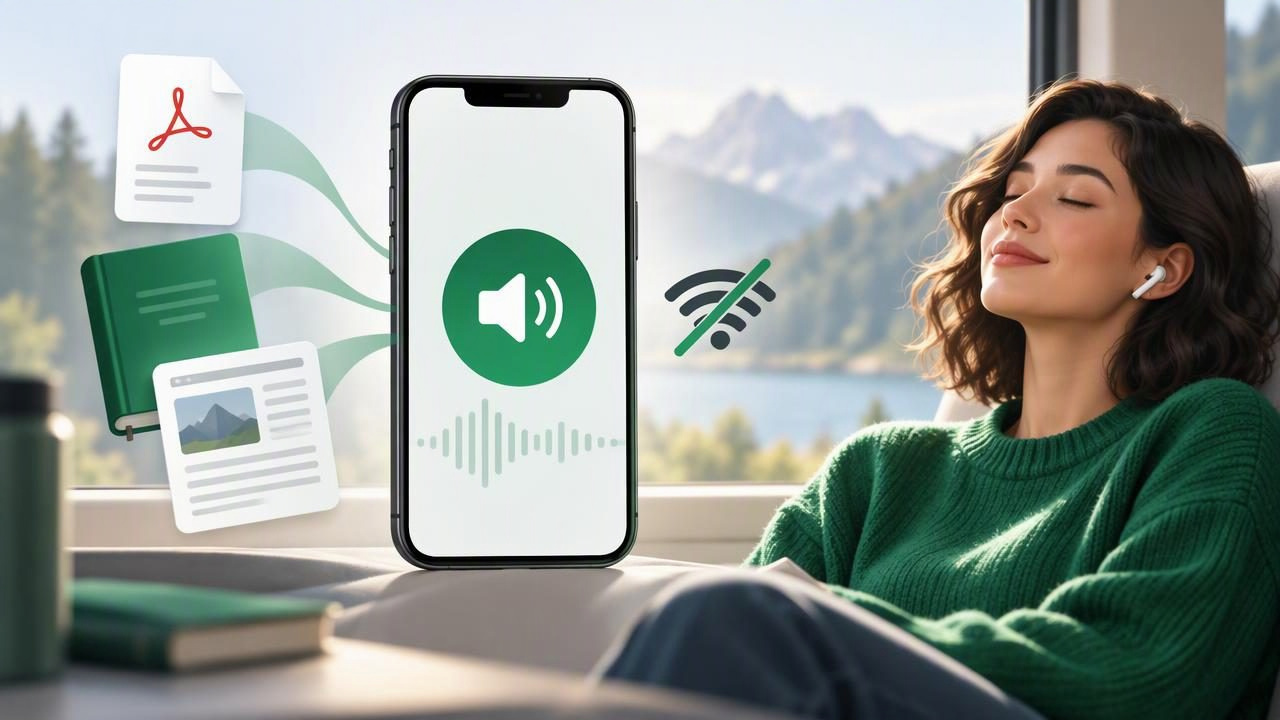
An offline text to speech app can turn a PDF, ebook, saved article, or set of notes into audio you can play without Wi-Fi or mobile data. That is useful on flights, during a commute through patchy coverage, and anywhere you would rather save data or avoid interruptions. But offline playback is not always as simple as downloading an app: the document, audio voice, or both may need to be prepared in advance.
This guide explains what offline text to speech means, which features to check on iPhone and iPad, and how to build a dependable listening routine. Whether you want to study by listening or make a long report easier to review, a little preparation can prevent playback problems later.
What does offline text to speech mean?
Text to speech (TTS) converts written words into spoken audio. An offline text to speech app can continue narrating when your device has no internet connection, but apps handle offline use in different ways. Some rely on voices already available on the device. Others require you to download a voice pack, import a file before you go offline, or generate audio while connected.
It is worth distinguishing offline reading from offline access. An app might open a downloaded PDF without internet, for example, but still need a connection to create narration in a particular AI voice. Ask whether the voice, document, and playback controls will all work offline—not just whether the app itself opens.
Why use an offline text to speech app?
- Keep listening through connection gaps: Audio can continue in airplane mode or where reception is unreliable.
- Prepare for travel: Save reading material before a flight, train ride, or long drive as a passenger.
- Reduce data use: Download or prepare content over Wi-Fi instead of streaming or processing it on mobile data.
- Listen with fewer distractions: Offline playback can make it easier to focus on a chapter, article, or study guide.
- Support different reading needs: Listening alongside synchronized text highlighting can help some people with dyslexia, ADHD, visual strain, or dense material.
Listening is not a replacement for every kind of reading. Charts, equations, footnotes, and complex page layouts may still need a visual check. Think of narration as another way to access and review text, rather than a guarantee that every page will sound perfect.
Features to check before choosing an app
Use the checklist below to compare an offline text to speech app for your actual reading habits. App descriptions can use the word offline broadly, so confirm details in the feature list or by testing the app in airplane mode.
| Feature | What to check |
|---|---|
| Offline playback | Can you listen without a connection after importing the content? |
| Voice availability | Does your preferred voice or language work offline, and must it be downloaded first? |
| File support | Can it read your PDFs, EPUB or MOBI books, DOCX files, and saved articles? |
| Reading controls | Are speed, skipping, sleep timer, and pause or resume easy to use? |
| Text tracking | Does the app highlight the current sentence or word as it speaks? |
| Storage and privacy | How much space do voice packs or prepared audio use, and where is your text processed? |
Voice quality matters, but so does reliability. A natural voice is less tiring during a long session, while clear pronunciation can make names and technical terms easier to follow. If available, preview more than one voice and listen to a paragraph from the kind of material you use. A voice that sounds good for a short sample may not suit an hour of textbook narration.
How to prepare a document for offline listening
- Choose the right source. Import a file from your device or save a web article while you still have internet. For paper handouts, use a camera scan feature that converts the page into readable text.
- Check the text before you leave. Preview the beginning and a few pages in the middle. If a PDF is a scan, confirm that text recognition worked and that columns, headers, and page numbers are not being read in a confusing order.
- Set up the voice. Select your language and preferred voice. Download any voice pack the app requires, and make sure the app has finished preparing the material if it uses online processing.
- Test without a connection. Turn on airplane mode and start playback. Try pausing, resuming, changing speed, and jumping to another section. A quick test is more useful than discovering a missing voice halfway through a trip.
- Plan for storage and battery. Keep only the books or documents you need for the journey, and charge your device. Offline playback still uses battery, especially during a long session.
This simple routine also works for study materials. Import lecture notes or readings at home, then listen during a walk or while doing a low-attention task. Use synchronized highlighting when you want to follow the text, and make a note of sections that deserve a closer visual review.
Choose an app that fits your file formats
Not every listening app handles every source equally well. EPUB files are designed for ebooks and often reflow cleanly. MOBI support can matter if your library includes books in that format. PDFs may preserve a fixed page layout, which can be convenient for reports but challenging when pages have columns or scanned text. DOCX files are useful for notes and drafts, while web article support lets you save reading from a browser.
Before committing, test a representative file—not just a short, well-formatted sample. Check chapter navigation, headings, footnotes, and how the app handles links or captions. If you often work with printed material, look for camera scan to speech and examine whether the recognized text is accurate enough to listen to. Correcting a scan first can improve pronunciation and prevent narration from stumbling over errors.
Balance natural voices, speed, and control
Playback speed is personal. A slower pace can help with unfamiliar concepts, while experienced listeners may prefer faster narration for review. If an app offers speeds up to 3x, increase gradually rather than assuming the maximum will be comfortable. A short passage at each setting can help you find the point where you remain engaged without losing comprehension.
Good controls make offline listening more practical. Look for easy chapter or paragraph skipping, a sleep timer, and a clear way to return to your last position. Synchronized highlighting can help connect spoken and written words; it is especially useful when you want to listen and read at the same time. If you plan to switch between several documents, check whether progress is saved separately for each one.
Compare offline capabilities, not just app names
Speechify, NaturalReader, ElevenReader, and other text-to-speech tools can differ in supported formats, voice options, pricing, and offline behavior. Features may also depend on the plan, device, or version. Rather than assuming one app is best for everyone, compare how each handles your most common file and the exact voice you want to use.
Ask these practical questions during a trial: Can you import your document easily? Does the narration work after disconnecting? Is offline voice access included, or does the selected voice need a connection? Can you listen at your preferred speed? Is the subscription required for the features you need? A free trial can reveal workflow limitations before you move a large reading library into an app.
Privacy deserves attention too. Some services process text online to produce particular voices or features. If you work with private notes or sensitive documents, read the service's privacy information and understand whether content is uploaded. Offline playback does not automatically mean that the original document was never processed online.
Common problems and quick fixes
- Playback stops when Wi-Fi is off: Reconnect and check whether the app needs to download a voice, finish processing the file, or save the article locally.
- A scanned PDF sounds garbled: Improve the scan if possible, use a clearer image, or correct recognized text before listening.
- The app skips sections: Check the document's structure and test another import method. Complex layouts can confuse reading order.
- The voice sounds unnatural: Try another voice or language setting, and check punctuation and spelling in pasted text.
- Storage runs low: Remove finished downloads or unused voice packs, and keep space available for new material.
Frequently asked questions
Can an iPhone read a PDF aloud without internet?
Yes, if the PDF is available on the device and the text-to-speech app supports offline playback with a voice that works without a connection. Test both the file and voice in airplane mode before relying on them.
Can I listen to an ebook offline?
Often, yes. Import or download the ebook and check that the format is supported. EPUB and MOBI handling varies by app, and DRM-protected books may not be compatible with every reader.
Does offline text to speech always save battery?
Not necessarily. It can reduce data use, but audio playback still consumes power. Battery impact depends on your device, screen settings, headphones, and how the app generates speech.
Can I use an AI podcast feature without a connection?
It depends on how the app creates the episode. Two-host AI podcast-style narration may require online generation, even if a completed episode can later be played offline. Generate and test it before disconnecting.
Make offline listening part of your routine
The best offline text to speech app is one that supports your files, preferred voices, and real-world listening habits. Check exactly what works without internet, prepare your content in advance, and test playback before you need it. For reading on the go, studying by listening, or making long documents easier to revisit, that small bit of planning can make audio a dependable part of your day. Focal Voice is one iPhone and iPad option to explore if you want to try narration for documents, ebooks, articles, and notes.
