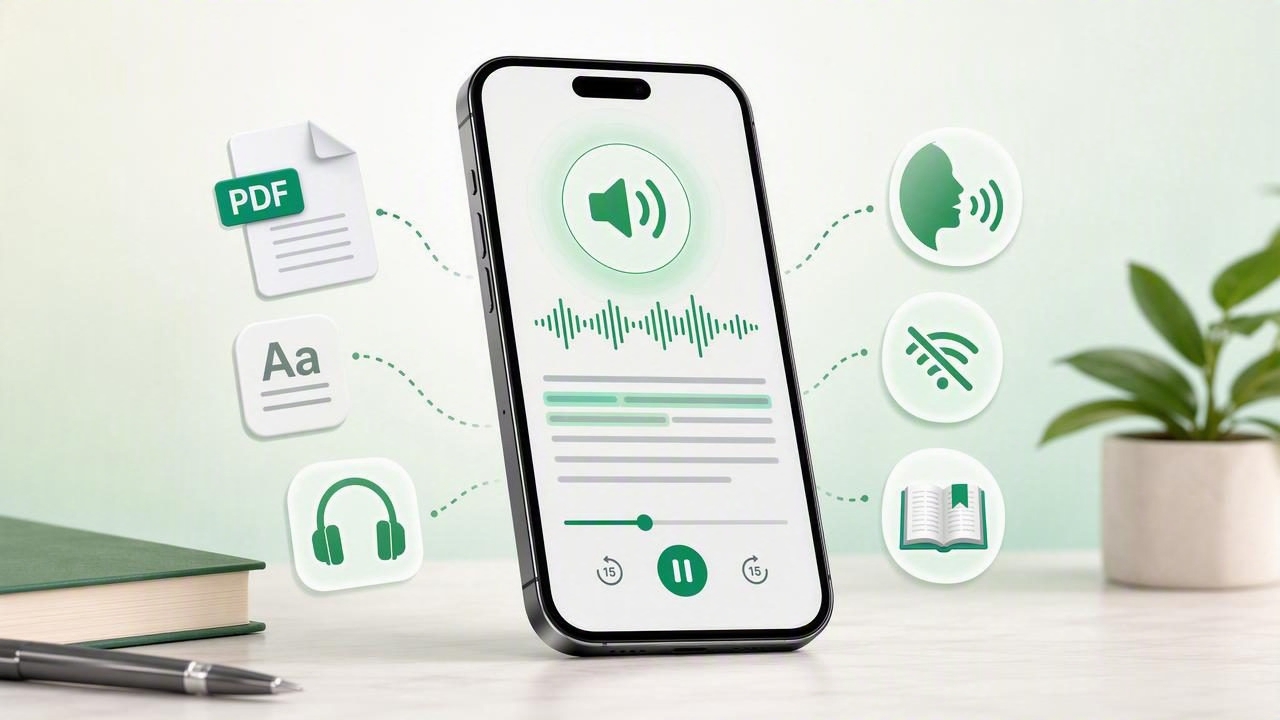
A text to speech app for iPhone can turn reading time into listening time. Whether you want to get through a long PDF, listen to an EPUB novel during a commute, review notes before an exam, or make web articles more accessible, the right app can make your iPhone a more flexible reading tool.
Not every text-to-speech app works the same way. Some are primarily screen readers, while others focus on narrating documents, books, saved articles, and scans. Some offer basic system voices, while others provide more natural AI voices. The best choice depends on what you read, where you listen, and how much control you need over the experience.
This guide explains the features worth comparing before choosing a text to speech app for iPhone, plus practical ways to get more value from listening to written content.
Why Use Text to Speech on iPhone?
Text-to-speech technology converts written words into spoken audio. On an iPhone, that can help you keep up with reading when looking at a screen is inconvenient or tiring. Instead of being limited to audiobooks that already exist in audio format, you can listen to many of your own files and saved materials.
People use text to speech for different reasons:
- Commuting: Listen to articles, reports, and books while walking, driving, or using public transportation.
- Studying: Review class materials, research papers, lecture notes, and assigned reading in a different format.
- Accessibility: Support reading for people with dyslexia, ADHD, visual fatigue, low vision, or other reading challenges.
- Productivity: Turn waiting time, chores, and repetitive tasks into useful listening sessions.
- Proofreading: Hearing your writing read aloud can make awkward phrasing, missing words, and repeated sentences easier to notice.
Listening is not always a replacement for focused reading, especially when analyzing complex charts, equations, or visual layouts. However, it can be an effective complement. Many readers absorb information better when they can see the words and hear them at the same time.
Start With the Content Formats You Actually Read
The most important question is simple: what do you want to listen to? A useful text to speech app for iPhone should support the file types and sources that fit your routine. Before downloading an app, make a short list of the materials you use most often.
PDFs and Research Documents
PDF support is essential for students, professionals, and anyone working with reports, manuals, academic papers, or downloadable forms. A strong PDF read aloud experience should preserve a sensible reading order and make it easy to pause, resume, skip ahead, and find your place later.
PDF quality matters because document layouts can be complicated. Multi-column pages, footnotes, tables, headers, and scanned pages may not always read perfectly. Look for an app that handles standard text-based PDFs well and offers scanning or optical character recognition options for image-only documents.
EPUB and MOBI Books
If you have a personal ebook collection, confirm that the app supports the formats you own. EPUB is widely used for reflowable ebooks, while MOBI files may still appear in older libraries and exported book collections. An EPUB to audiobook workflow can be particularly useful when a title does not have a commercial audiobook edition.
Book-friendly features include chapter navigation, bookmarks, progress tracking, sleep timers, and the ability to continue from the same position across listening sessions. These details make a document narrator feel less like a utility and more like a dependable reading companion.
Web Articles, Notes, and Pasted Text
Many of the best things to listen to are not files at all. They are newsletters, long-form articles, recipes, saved web pages, project briefs, and messages copied from other apps. If you regularly save links to read later, choose an app that can import a web address and extract the readable article text.
Quick text input also matters. Pasting text into an app is useful for short passages, email drafts, meeting notes, and AI-generated summaries that you would rather hear than read.
Camera Scans and Printed Pages
Camera scan to speech tools expand what you can listen to. You can capture a page from a textbook, printed handout, mail notice, menu, or workplace document, convert it into selectable text, and hear it aloud. Accuracy will depend on lighting, image sharpness, handwriting, and page layout, but this feature is valuable when paper is the starting point.
Natural Voices Make a Major Difference
Voice quality shapes whether text to speech becomes a habit or an occasional emergency tool. Robotic speech can be understandable, but it may be tiring over a long article or book chapter. More natural AI voices typically use smoother pacing, clearer pronunciation, and more realistic intonation.
When comparing voices, listen for:
- Clear pronunciation of names, abbreviations, and technical terms
- Natural pauses around commas, headings, and paragraphs
- A pace that remains understandable when sped up
- A voice style you can comfortably hear for 30 minutes or more
- Language and accent choices that match the content you read
Voice preference is personal. A voice that sounds engaging to one person may feel distracting to another, so it is worth testing several options with the same document. If you read content in more than one language, look for broad multilingual support rather than assuming every voice handles every language equally well.
Playback Controls Are More Important Than They Seem
Good narration is only part of the experience. Useful playback controls help you adapt listening to the content and situation. For a familiar article, you may be comfortable listening at 2x or even 3x speed. For dense academic material, slowing down may improve retention.
A capable text to speech app for iPhone should ideally include the following:
| Feature | Why It Matters |
|---|---|
| Adjustable playback speed | Lets you move quickly through simple content or slow down for difficult material. |
| Synchronized highlighting | Shows the current sentence or word so you can read and listen together. |
| Skip controls | Makes it easy to replay a sentence or move past a section. |
| Bookmarks | Helps you save important passages for review later. |
| Sleep timer | Useful for evening reading without leaving audio running all night. |
| Progress memory | Lets you resume where you stopped, even after closing the app. |
Synchronized highlighting deserves special attention. For students and readers with dyslexia or ADHD, seeing words highlighted while hearing them can support attention, decoding, and comprehension. It also reduces the frustration of losing your place in a long document.
Check Offline Listening Before You Need It
Internet access is not guaranteed on flights, underground trains, rural commutes, or crowded public spaces. Offline listening lets you prepare content while connected and keep listening later without relying on mobile data or unstable Wi-Fi.
Before committing to an app, check what “offline” means in practice. Some services allow downloaded audio only for selected content. Others may need an initial connection to process a document or generate a voice. Consider your typical use case:
- Do you travel frequently or take flights?
- Do you want to listen in areas with poor reception?
- Do you need files to remain available during a workday?
- Does your mobile plan have limited data?
For people who use document narration as part of a daily routine, reliable offline access can be more valuable than a long list of features they rarely use.
Consider Accessibility and Focus Features
Text to speech is an important accessibility tool, but accessibility needs vary. A student with dyslexia may benefit most from simultaneous highlighting and easy font controls. Someone with ADHD may prefer shorter listening segments, bookmarks, and speed adjustment. A user with low vision may prioritize voice navigation and dependable audio playback.
Look for an interface that does not create extra friction. Importing content should be straightforward, controls should be easy to locate, and playback should work consistently from the lock screen or headphones. The goal is to reduce the effort required to start listening.
A useful reading tool is one that fits naturally into your day. If importing a document takes too many steps, you are less likely to use it when it matters.
AI Podcast Generation: When Conversation Helps
Some newer apps can transform source material into a two-host, podcast-style discussion. Rather than narrating every sentence, AI podcast generation can present key ideas in a conversational format. This may be useful for reviewing a report, introducing a difficult topic, or getting a high-level overview before reading the original material.
It is best to treat these episodes as a supplement, not a substitute for the original source. A generated discussion may simplify details, omit nuance, or interpret the structure differently than you would. For important academic, legal, medical, or professional documents, return to the source text and verify specific claims.
How to Test a Text to Speech App for iPhone
Free trials are useful because they let you test an app with your own material. Avoid judging an app based only on a demo paragraph. Instead, use a realistic sample: a PDF with headings, an EPUB chapter, a web article, and a scanned page if scanning matters to you.
- Import a document you genuinely need to read.
- Test two or three voices for comfort and pronunciation.
- Try playback at normal speed, 1.5x, and a faster setting.
- Check whether highlighting follows the text accurately.
- Lock your phone and test headphone or lock-screen controls.
- Download content, disable Wi-Fi, and confirm offline playback works.
- Review pricing, usage limits, and which features require a subscription.
This approach also makes comparisons between apps such as Speechify, NaturalReader, ElevenReader, and other document narration tools more meaningful. The “best” option is not necessarily the one with the most marketing claims; it is the one that handles your content smoothly and makes listening easy enough to become routine.
Make Listening Part of Your Reading Workflow
Once you choose an app, create a small system. Save longer web articles to a listening queue. Import tomorrow’s reading before leaving Wi-Fi. Use bookmarks for sections you need to cite or discuss. For dense material, listen once at a comfortable speed and then review highlighted passages visually.
For iPhone and iPad users who need one place to turn PDFs, ebooks, links, notes, and scans into spoken audio, Focal Voice is one option to explore during a trial. Whichever tool you choose, prioritize the formats, voice quality, and playback controls that make reading more accessible and practical for your life.
