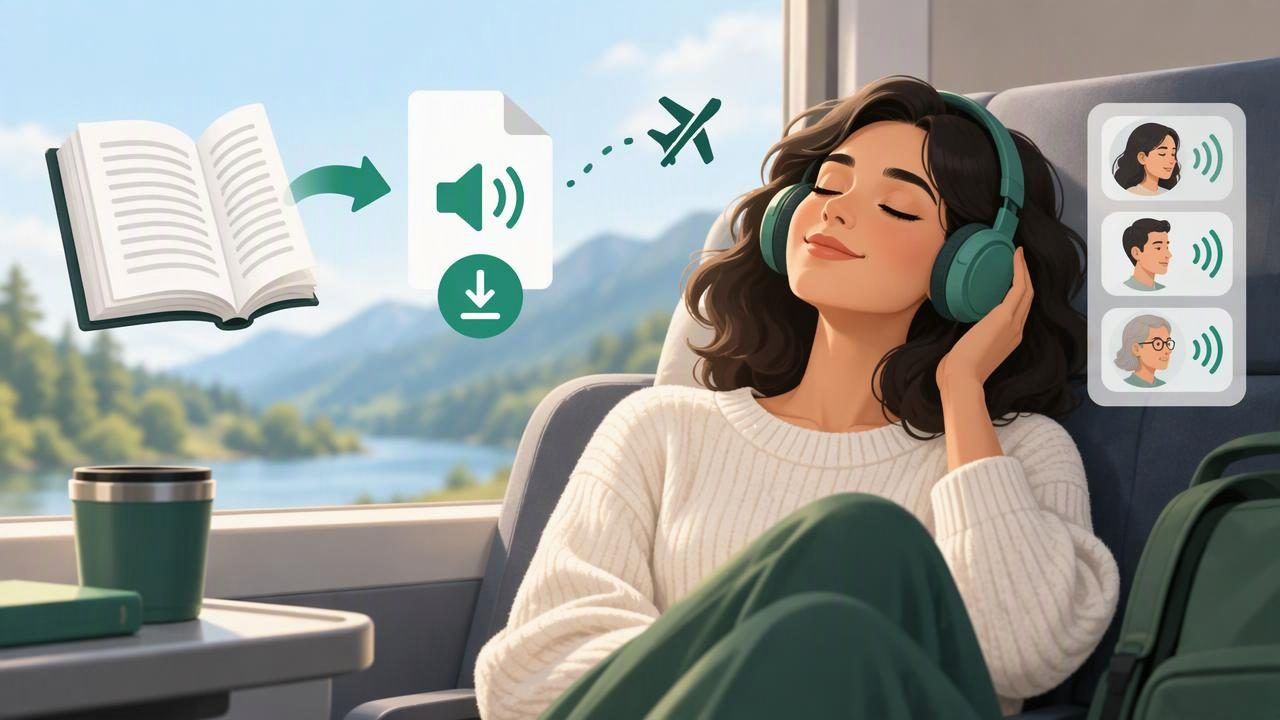
Want to listen to a book without relying on Wi-Fi or mobile data? With the right text-to-speech app, you can import a compatible ebook, download or save it for offline use, and listen wherever you go. The process is especially useful for commuting, traveling, studying, or reducing screen time. A little preparation helps prevent missing files, interrupted playback, and confusing narration once you are away from an internet connection.
This guide explains how to download a book for offline listening with a text-to-speech app, which formats to check, and how to confirm that your book and audio are ready before you leave home.
Choose a book file you can use
Start by checking the book’s format and where it came from. Many text-to-speech apps can import common documents and ebook files, but supported formats vary. EPUB is a widely used ebook format, while MOBI appears in some older ebook collections. PDFs and DOCX files may also work, though their layout can affect how smoothly text is read aloud.
Use books you own, files offered by a library or publisher for your use, or public-domain titles from legitimate sources. A book downloaded inside a retailer’s reading app may be protected or restricted to that app. That does not necessarily mean another text-to-speech app can open it. Check the source’s terms and the listening app’s import options rather than trying to bypass copy protection.
Prepare your iPhone or iPad
Before importing a book, make sure your device has enough storage. Ebook files are often small, but scanned PDFs, illustrated books, and saved audio can take up more room. If you expect to be offline for several hours, also charge your device and consider bringing headphones or a power bank.
Download the book file to a location you can find, such as the Files app or a cloud storage folder. If the file is only available in an email attachment or web page, save a copy to your device first. Keeping the original file makes it easier to import again if you remove it from the listening app later.
Step-by-step: set up offline book listening
- Install a text-to-speech app. Choose an iPhone or iPad app that supports your file type and offers offline playback. Review its import instructions and whether offline access is included in the free or paid plan.
- Locate the ebook. In Files, find the EPUB, MOBI, PDF, or other supported document. If it is in a ZIP archive, extract it first. Confirm that the book opens normally before importing it.
- Send it to the app. Use the Share menu and select the text-to-speech app, or choose the app’s import option and browse to the saved file. The exact labels can differ between apps and iOS versions.
- Wait for processing to finish. The app may need to analyze the book, identify its text, and create a listening position. Keep the app open until the title appears in your library and its text is available. Large files may take longer.
- Save the book for offline use. Look for a download, offline, or save-to-device control in the book’s options. Some apps store imported files locally by default; others may need you to explicitly download content or audio. Check the app’s help page if the setting is unclear.
- Test playback before leaving. Start the book, listen to a few sentences, pause, and resume. Then turn on Airplane Mode and try again. This is the most reliable way to check whether the book is actually available offline.
Book download and audio download are not always the same
One important detail: an ebook saved offline is not automatically a pre-recorded audiobook. A text-to-speech app may generate narration as you play, using the text stored on your device. That can work without a connection if the app supports offline voices and has everything it needs downloaded. Other apps may stream certain voices or require internet access for processing.
Check what “offline” means in the app you use. Does it store the source document only, or also the voice resources needed to read it? Does it support the voice you selected without a connection? If you need guaranteed access on a flight or in a low-signal area, test the complete setup in Airplane Mode before you go.
Set up comfortable narration
Choose a voice that is easy to follow over a long session. Natural AI voices can sound more conversational than basic system voices, but preferences are personal. Try a short sample before committing to a full chapter. If the app offers multiple languages, select the language that matches the book so names and pronunciation are more likely to sound appropriate.
Begin at a moderate speed, then increase it gradually as the narration becomes familiar. Listening at up to 3x can help experienced listeners move through familiar material, but higher speed is not always better for new or technical subjects. Use synchronized highlighting if available: seeing each sentence while it is read can help you keep your place and return to a passage later.
For a PDF, check a few pages for columns, footnotes, headers, or scanned images. These elements can cause text to be read in an awkward order. If the PDF contains page images rather than selectable text, look for an OCR or camera-scan feature that can recognize printed words. Review the recognized text before listening, especially if accuracy matters for study or work.
Troubleshoot common offline problems
- The book does not appear in the library: Confirm that the import finished, then try sharing the original file to the app again. Check whether the format is supported and whether the file is damaged or password-protected.
- Playback stops when the connection disappears: The selected voice, document processing, or another feature may require internet access. Test a different offline-compatible voice and download any required resources while connected.
- The app reads symbols or page furniture: Try a cleaner ebook file or adjust reading settings if the app allows it. For PDFs, check whether text extraction is available and whether columns are being interpreted correctly.
- There is not enough storage: Remove downloads you no longer need, then save the book again. Keep the source file somewhere accessible so you can re-import it later.
- You lose your place: Use the app’s bookmarks, listening history, or synced highlighting. Before closing the app, pause normally and confirm it remembers your position.
Make offline listening part of your routine
For a commute, download a chapter or book before leaving and connect headphones before starting. For travel, prepare several titles and test each one offline. For studying, listen to a section after reading it, then revisit difficult passages at a slower speed. Some apps can also turn imported material into a two-host, podcast-style conversation. That can offer a fresh way to review content, though it is best treated as a supplement rather than a replacement for the original text.
Offline listening can also make reading more flexible for people with dyslexia, ADHD, visual fatigue, or other access needs. Features such as adjustable speed, highlighting, and background playback may help, but the most useful setup depends on the listener. Experiment with short sessions and breaks to find a pace that supports attention and comprehension.
What to compare in a text-to-speech app
When comparing apps, look beyond the number of voices. Check supported formats, import steps, offline behavior, playback controls, and whether your progress is saved. If you regularly read PDFs, test a real PDF rather than relying on an app’s feature list. If you use EPUB or MOBI files, verify import compatibility before building a library.
Also consider pricing and limits. Some apps offer a free way to try text-to-speech, while full access to advanced voices or features may require a subscription. Compare the terms that matter to your routine: offline access, listening time, voice options, and the ability to manage your documents. Avoid assuming that all apps store files or audio in the same way.
Quick questions
Can I listen to an ebook without Wi-Fi?
Often, yes, if the book is stored on your device and the app’s narration method works offline. Test it in Airplane Mode before you depend on it.
Can text-to-speech turn every ebook into an audiobook?
No. Compatibility depends on the file format, the app, and any restrictions on the book. Protected titles may only work in the service where you obtained them.
Should I download the whole book or one chapter?
For a long trip, saving the complete book can be convenient. If storage is limited or you are testing a new app, start with one chapter and confirm playback first.
Listen with confidence
The essential routine is simple: use a book file you are allowed to access, import it, save the content and any required voice resources, then test playback without a connection. Checking these details at home can save frustration later. If you want an option for importing ebooks and documents on iPhone or iPad, Focal Voice is one app to explore alongside your own format and offline-access needs.
