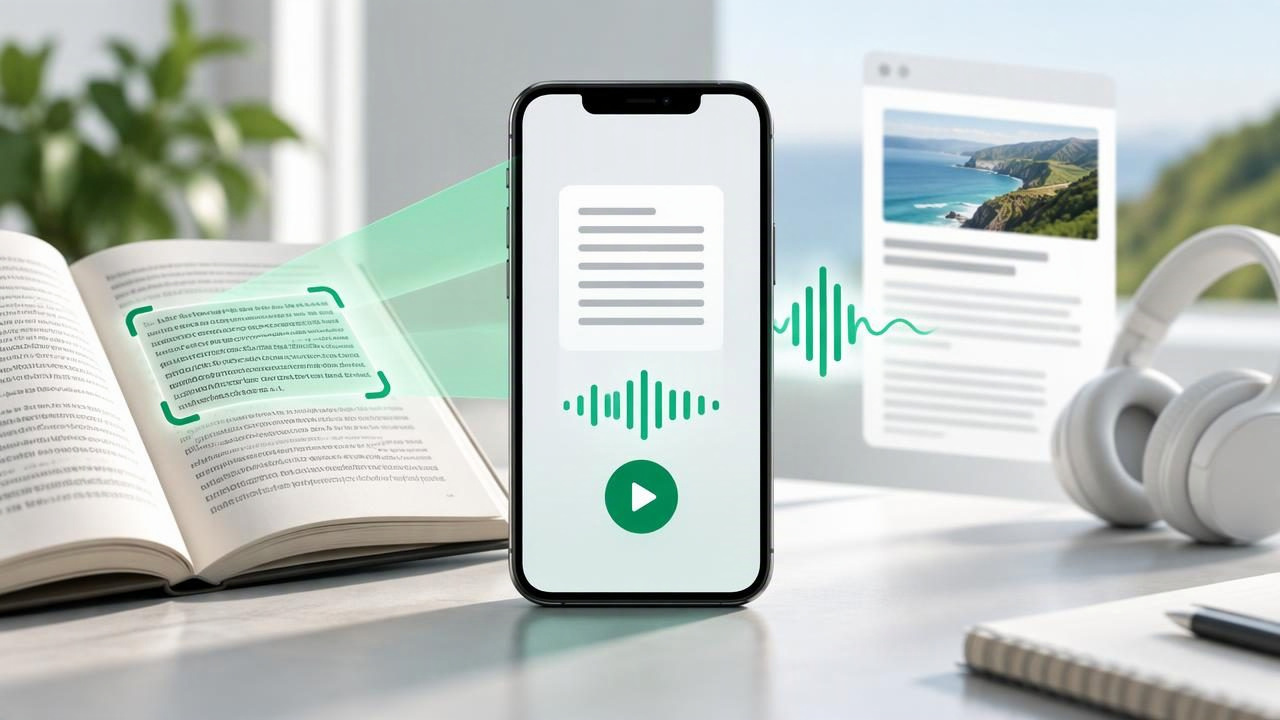
Printed pages and online articles do not have to compete for your attention. With an iPhone or iPad, you can capture text from a physical page, turn a web article into audio, and listen while walking, commuting, or taking a screen break. The right tools make it easier to move between reading formats without retyping passages or staring at a display.
This guide explains how to scan printed text and hear it with a web article listener, what to look for in text-to-speech tools, and how to get clearer, more useful audio. Whether you are reviewing class material, reading a long feature, or making information more accessible, a simple workflow can help.
What is a web article listener?
A web article listener is a tool that converts online text into spoken audio. Depending on the app, you might share a link, paste a URL, open a page in a built-in browser, or send selected text from Safari. The tool extracts the article and reads it aloud using a synthetic voice.
This is different from listening to a podcast or audiobook: the audio is generated from the words on the page, so you can use it with articles that do not have a recorded version. Some tools also highlight each sentence as it is spoken, let you adjust playback speed, or save content for offline listening.
Scanning works in a similar way, but starts with a physical source. Your phone’s camera captures a page, and optical character recognition (OCR) identifies the printed words. Once the text is recognized, a text-to-speech app can narrate it just like a digital document.
How to scan printed text and hear it
The exact buttons depend on the app, but the process usually follows these steps:
- Choose a well-lit surface. Lay the page flat and avoid shadows, glare, or a strong angle. Clear, evenly lit text gives OCR a better chance of recognizing the words correctly.
- Open a scanning or text-to-speech app. Look for a camera, scan, or import option. Some apps include scanning and narration together; others let you scan with one tool and share the recognized text to another.
- Frame the page. Keep the full text area inside the camera view. Hold the phone steady and capture one page at a time if the layout is dense.
- Review the recognized text. Check headings, names, numbers, columns, and punctuation. OCR can confuse similar characters or read a multi-column page in the wrong order.
- Start narration and adjust playback. Choose a voice, set a comfortable speed, and use highlighting if available to follow along visually.
For a short handout, scanning and listening immediately may be all you need. For a book chapter or a packet of notes, save the text or document first, name it clearly, and organize it so you can return to the right place later.
How to listen to a web article on iPhone or iPad
Start with an article page that contains readable text rather than only images or a video. If your listener supports link import, copy the URL or use the share menu to send the page to the app. If extraction fails, try opening the article in a browser’s reader view, then share or copy the simplified text.
Before pressing play, check that the app has captured the article itself rather than menus, advertisements, captions, and recommended stories. A clean text view usually creates a smoother listening experience. You can then select a voice and language, set the speed, and begin playback. Many listeners remember your position, making it easier to pause and pick up later.
For pages that require a login, sit behind a paywall, or rely heavily on dynamic content, a listener may not be able to retrieve the full article from its link. In that case, use the publisher’s accessible text view, copy the permitted text, or check whether the app can read the page directly in its browser.
Build a reliable scan-to-audio workflow
Moving between paper and the web is easiest when you use one routine for both. Capture printed material when you have a few minutes, then add web links as you find them. Keep items in a single reading list or in clearly labeled collections such as class notes, work research, and saved articles.
- Use descriptive names: Include the topic, source, or date so files are easy to find.
- Check the beginning: Listen to the first minute to confirm the text was extracted in the right order.
- Mark useful sections: Use bookmarks or notes if you need to revisit a definition, quote, or key argument.
- Download before you go: Save content for offline listening if you expect limited or unreliable internet access.
- Keep original sources: Save the document or web link alongside the audio version for reference and citation.
This routine can turn a stack of handouts and a browser full of open tabs into a manageable listening queue. It also makes it less likely that a scan or article will disappear in a general downloads folder.
Features that make text-to-speech easier to use
Not every listener offers the same experience. When comparing options, consider how well each one handles both captured pages and online content. A useful app should do more than produce sound: it should make listening comfortable, understandable, and easy to resume.
| Feature | Why it matters |
|---|---|
| OCR accuracy | Recognizes printed words and preserves their order, especially in longer or complex documents. |
| Article extraction | Removes clutter from web pages so narration focuses on the article. |
| Natural voices | Makes longer listening sessions sound less mechanical and easier to follow. |
| Speed controls | Let you slow down unfamiliar material or move faster through familiar text. |
| Synchronized highlighting | Shows which words or sentences are being spoken, supporting visual tracking. |
| Offline playback | Lets you listen to saved content without relying on a live connection. |
Some text-to-speech apps also support PDFs, EPUB and MOBI books, DOCX files, pasted text, and notes. If you plan to combine paper scans with books and articles, broader format support can reduce the need to switch between several tools.
Choose a comfortable voice and speed
A voice that sounds pleasant in a short preview may feel tiring over a full chapter. Test a few options with the kind of material you expect to hear: conversational articles, academic writing, or technical instructions. Natural-sounding AI voices can make narration feel more fluid, but clarity and pronunciation matter more than novelty.
Playback speed is personal, too. Start near the default setting and increase it gradually, giving yourself time to adjust. A brisk pace can work for familiar material, while a slower pace may be better for dense arguments, unfamiliar vocabulary, or detailed instructions. If the app supports different speeds for different files, set them according to the content rather than choosing one speed for everything.
Headphones can help in busy environments, but listening aloud through a speaker may be more comfortable at home. Keep the volume at a safe level and pause when you need to concentrate on something else.
Use listening for accessibility and learning
Audio can offer another way to access written information. People with dyslexia may find that hearing text alongside synchronized highlighting supports word recognition and reduces the effort of decoding a page. Some people with ADHD find narration helpful for staying engaged or getting started on lengthy reading. Needs vary, so experiment with voice, speed, short sessions, and visual support to see what works for you.
Listening can also fit into study routines. Hear scanned lecture notes during a walk, review a web article on the bus, or replay a section before class. For active learning, pause after an important point and summarize it in your own words. Audio is not a substitute for every kind of close reading: formulas, diagrams, tables, and heavily formatted pages may still need visual review.
For best results, treat narration as one part of your workflow. Listen for the overall argument, then return to the source when you need to inspect a chart, confirm a quotation, or take detailed notes.
Common problems and quick fixes
- The scan reads words incorrectly: Improve lighting, flatten the page, capture a sharper image, and correct the extracted text before listening.
- Columns are narrated out of order: Scan one column or page at a time, or crop the image to isolate the reading area.
- The article includes unwanted page elements: Try reader view, select only the article text, or paste a clean version if permitted.
- Audio stops when you leave the app: Check background playback settings and confirm the app is allowed to continue audio playback.
- Listening is difficult to follow: Lower the speed, switch voices, use highlighting, or break the material into shorter sessions.
OCR and article extraction are not perfect, particularly with faded print, unusual fonts, handwritten notes, or complicated layouts. A brief review before playback can prevent small errors from becoming confusing when heard aloud.
Compare apps around your real reading habits
When comparing text-to-speech options such as Speechify, NaturalReader, ElevenReader, or other iPhone apps, test the same scan and web article in each one. Compare extraction quality, voice clarity, speed controls, file support, highlighting, offline access, and how easily you can resume a session. Also check which features are included in the free version and which require a subscription.
The best choice depends on what you read most. If you mainly listen to online stories, prioritize article cleanup and simple link sharing. If you work from paper, test camera scanning and OCR. If you switch among PDFs, ebooks, documents, and web pages, look for a flexible library and dependable playback across formats.
Turn more reading into listening
Scanning printed text and using a web article listener can make information easier to access wherever your day takes you. A clear scan, a clean article import, and a comfortable voice are the foundations. Add saved files, speed controls, and synchronized highlighting to create a routine that works for studying, commuting, or taking a break from screens.
Try the process with one printed page and one article you have been meaning to read. Once you know which features matter to you, you can choose a tool that fits your habits. Focal Voice is one option for turning scans, documents, books, and web links into audio on iPhone and iPad.
