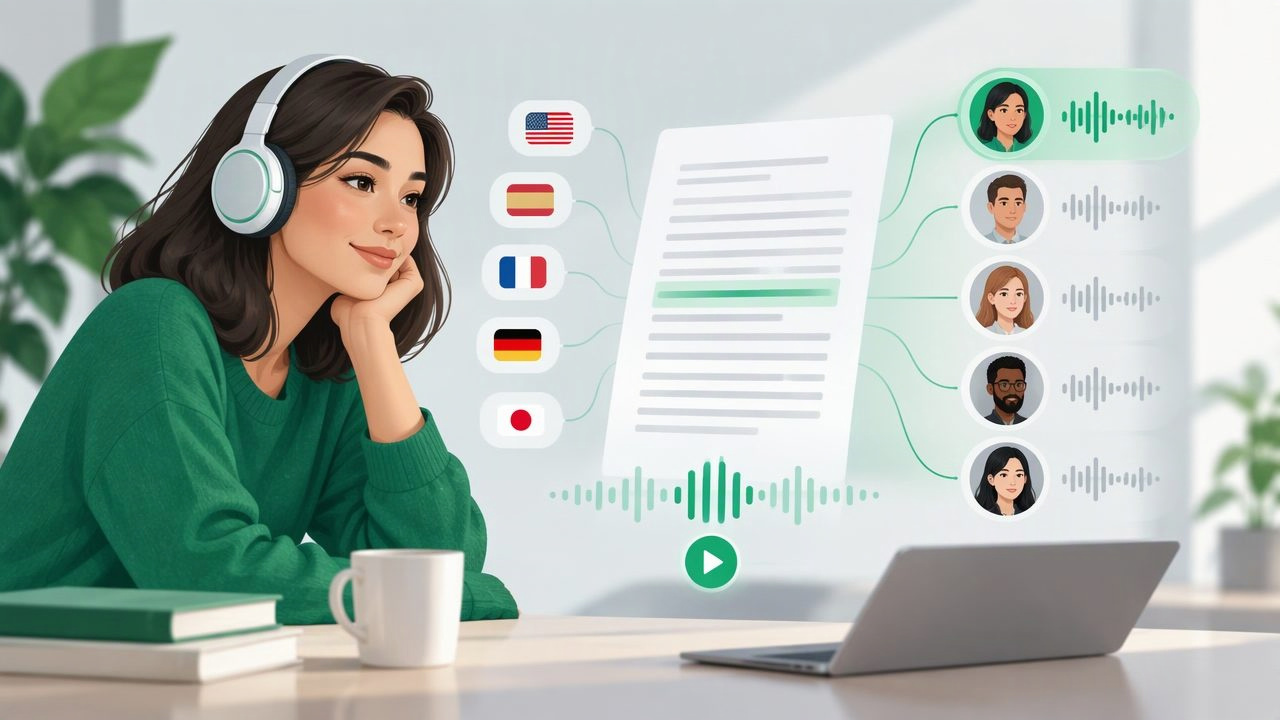
A document narration app can turn a PDF, ebook, article, or set of notes into audio you can listen to while commuting, studying, or taking a break from the screen. But the listening experience depends on more than pressing play. The right voice, language, and pronunciation settings can make narration easier to follow—and the wrong combination can make even a well-written document sound confusing.
Use this checklist to switch voices and languages confidently, prepare documents for narration, and troubleshoot common playback problems. Whether you are listening to a novel, a work report, or a language lesson, a few quick checks can make the audio feel more natural and useful.
Why voice and language settings matter
Voice choice affects tone, pacing, and how comfortable a long listening session feels. Some people prefer a warm, conversational voice for a book; others find a clear, measured voice easier to follow in a technical PDF. Language settings matter just as much. A narrator needs to recognize the language of the text to pronounce words, names, and sentence patterns correctly.
These settings can also support different listening goals. A language learner may want narration in the language they are studying, while someone reviewing a bilingual document may need to move between two languages. If you have dyslexia, ADHD, low vision, or simply prefer listening to reading, finding a voice you can comfortably follow may help you stay engaged with the material.
Before you switch: a quick document check
Start by checking the source material. A narration app can only read the text it can access. Select a PDF, EPUB, MOBI file, DOCX document, webpage, or note, then preview the opening lines before starting a long session.
- Confirm the text is selectable. Some PDFs are just images of pages. If you cannot select words, use an app with optical character recognition (OCR) or scan-to-speech features.
- Check the document language. A file may contain English text with French quotations, or a Spanish article with English product names. Identify the main language and any sections likely to need special handling.
- Look for reading-order problems. Multi-column pages, tables, footnotes, headers, and page numbers can interrupt narration. Preview a few paragraphs to see what the app will read.
- Choose a useful starting point. Begin at a heading or paragraph boundary, not halfway through a sentence. This makes it easier to judge whether the voice and pronunciation are working.
The voice-and-language switching checklist
Menu names vary between apps, but the basic process is similar. Use this sequence whenever you start a new document or change listening goals.
- Open the narration controls. Find the voice, speech, or playback settings. Some apps place them beside the play button; others put them in a settings menu.
- Set the language first. Choose the language that matches the passage you are about to hear. If your app offers automatic language detection, treat it as a helpful starting point rather than a guarantee.
- Select a voice for the task. Preview available voices when possible. Listen for clear consonants, comfortable pacing, and a tone that suits the content. A voice that sounds pleasant for a short article may become tiring during a long book.
- Test a representative passage. Play a paragraph containing names, numbers, abbreviations, or specialist terms. A simple opening sentence may not reveal pronunciation problems.
- Adjust speed after choosing the voice. Begin at a moderate pace. Increase playback gradually if you can still understand the narration without straining. Many listeners find that the best speed differs between fiction, study material, and familiar documents.
- Check pronunciation and emphasis. If the app provides a pronunciation dictionary or custom pronunciation feature, use it for recurring names, acronyms, or technical words. If not, try another voice or language variant.
- Save or remember the setup. If the app supports voice presets or per-document settings, keep a configuration for common tasks such as language practice, work documents, or leisure reading.
- Recheck after changing sections. A document may switch languages partway through. Pause at a clear boundary and change the language or voice before continuing.
Choosing a voice that fits the document
There is no universally best narrator. The useful question is whether a voice makes this particular material easy to understand over the time you plan to listen. A natural-sounding AI voice may offer smoother phrasing and more expressive delivery than older, robotic speech, but naturalness alone does not guarantee clarity.
| Listening task | Voice qualities to try | What to check |
|---|---|---|
| Long-form book | Steady, relaxed, and comfortable over time | Does the voice remain pleasant after several minutes? |
| Study notes | Clear, even pacing with distinct pronunciation | Can you follow key terms and pause to review them? |
| Work report or contract | Measured delivery and crisp enunciation | Are numbers, dates, names, and headings read correctly? |
| Language practice | A suitable language and accent variant | Can you distinguish sounds and repeat phrases accurately? |
| Web article on the go | Conversational but easy to hear in your environment | Can you understand it with normal background noise? |
For a long session, comfort matters more than novelty. Try two or three voice options on the same short passage instead of switching repeatedly during a chapter. Compare clarity, pace, and how much effort it takes to concentrate. Headphones, speaker quality, and surrounding noise can also affect your impression, so test the voice in the setting where you expect to listen.
Working with documents in more than one language
Mixed-language files need a little extra planning. A narration app may use one voice for an entire document, even when a paragraph includes quotations or terminology from another language. This can lead to mispronounced words or unnatural letter-by-letter reading.
For short foreign-language phrases, you may be able to keep the main voice and use a pronunciation tool for a few recurring terms. For longer passages, pause at a heading or paragraph break and switch to a voice that matches the new language. If your app supports selecting text, narrating only the relevant passage can be easier than changing settings for a whole file.
When listening for language learning, decide whether you want comprehension practice or pronunciation practice. For comprehension, choose a clear voice and a pace that lets you understand the meaning. For pronunciation, use a language and accent variant that reflects your learning goal, then replay short sections. Listening at a very high speed may be useful for familiar material, but it is rarely the best place to start with new vocabulary.
Common problems and practical fixes
The narrator speaks the wrong language
Check the selected voice and language rather than assuming the app will detect every passage. If the document is mixed-language, change settings at a natural section break. Also confirm that the file itself contains readable text; OCR errors can make a language detector misidentify a passage.
Names or specialist terms sound incorrect
Try a different voice, a regional language variant, or a pronunciation feature if available. Check whether the document spells out an abbreviation or includes unusual punctuation that is confusing the narrator. For important material, verify names and figures against the original rather than relying on audio alone.
The voice sounds unnatural or tiring
Reduce playback speed, preview another voice, or take a short listening break. A high speed can make pauses and phrasing feel compressed. If you are listening in a noisy place, clearer headphones or a quieter environment may help more than changing the voice.
The app reads page furniture instead of the text
Look for settings that remove headers, footers, or page numbers, or use a reader view when available. For a scanned PDF, run OCR and check the extracted text. If a table or two-column layout is read in the wrong order, consider listening to a cleaner source file or selecting one section at a time.
Save settings for offline listening
If you plan to listen without an internet connection, prepare before you leave Wi-Fi. Download or import the document, confirm it opens correctly, and check whether the selected voice is available offline. Offline support can vary by app and voice, so test a short passage in airplane mode rather than discovering a limitation during a commute.
For a reliable setup, save the file locally, choose the language and voice, set a comfortable speed, and start playback briefly. Then pause, close the app if appropriate, and confirm that you can resume where you left off. This is especially useful for long PDFs, EPUB books, and study materials you plan to revisit.
A final checklist before pressing play
- Is the document text readable and in the right order?
- Does the selected language match the passage?
- Is the voice clear and comfortable for this task?
- Have you tested names, numbers, or technical vocabulary?
- Is the playback speed easy to follow?
- Will the file and voice work offline if you need them?
Taking a minute to check these details can make document narration more accurate, comfortable, and useful. The same routine works whether you are turning an ebook into audio, listening to a PDF read aloud, reviewing notes, or practicing another language. Apps such as Focal Voice bring documents and listening controls together on iPhone and iPad, while the best choice for you depends on the formats, voices, languages, and offline features you need.
