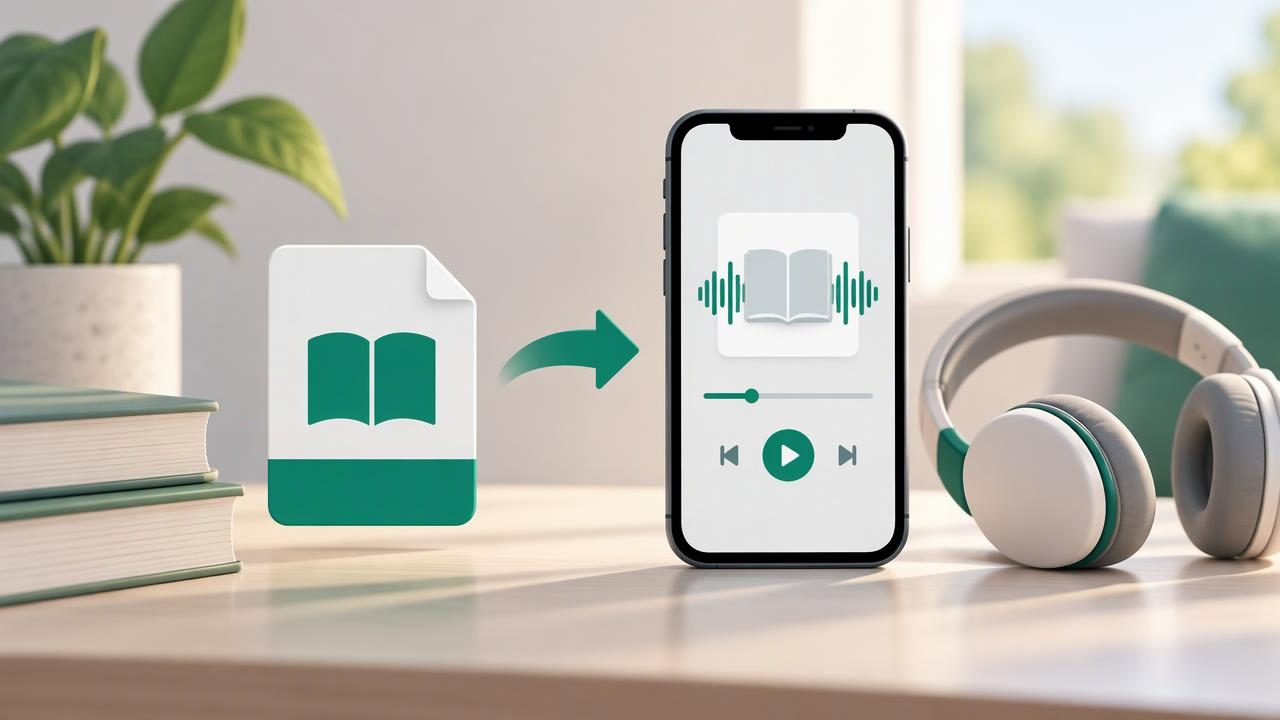
If you have an EPUB book you would rather listen to, you do not necessarily need to find a professionally recorded audiobook edition. A text-to-speech app can read compatible ebook files aloud, letting you listen while commuting, walking, or taking a break from the screen. The process is usually straightforward, but file protection, formatting, voice quality, and playback controls can all affect the result.
This guide explains how to turn an EPUB into an audiobook on an iPhone or iPad, what to check before you import a book, and how to make the listening experience more comfortable. It also covers options for Android and desktop users, plus practical fixes for common problems.
What Does It Mean to Convert an EPUB to an Audiobook?
An EPUB is a digital book format designed to display text on screens. Converting it to an audiobook can mean one of two things: generating an audio file from its text, or using a text-to-speech reader that speaks the book while you listen. Many mobile apps use the second approach. They keep the EPUB as text and create speech during playback, so you can adjust the voice and speed without exporting a separate audio file.
This differs from a narrated audiobook recorded by a human performer. Text-to-speech is convenient and can work with books that have no commercial audio edition, but the voice may not interpret character dialogue, humor, or complex names as a narrator would. For nonfiction, reference material, and personal reading, a natural AI voice can still make an EPUB easier to access.
Before You Start: Check the EPUB File
First, locate the actual EPUB file on your iPhone, iPad, or computer. It may be in the Files app, attached to an email, or saved from a publisher or ebook store. If the book is inside an ebook app, look for an export or share option. Some purchased titles are protected by digital rights management (DRM), which can prevent them from being opened by another reader or converted to audio.
- Confirm the format: Check that the file ends in .epub. A PDF or MOBI file may need a reader that supports that format instead.
- Check for DRM: Use the book through its authorized app if restrictions prevent importing it elsewhere. Do not try to remove copy protection.
- Use a complete file: If an import fails, download the book again or ask the source for a fresh copy.
- Consider permission: Keep personal copies for your own use and follow the publisher’s terms and applicable copyright rules.
How to Turn an EPUB Into an Audiobook on iPhone
The exact button names vary between apps, but the basic workflow is similar. Choose an iPhone text-to-speech app that supports EPUB, import the book, and start narration.
- Install an EPUB-compatible text-to-speech app. Review its supported formats, language options, offline capabilities, and free-versus-subscription features before choosing.
- Find the EPUB in Files. Open the Files app and browse to the book. If it is in Mail or another app, use the share button to send or save a copy to Files.
- Import the book. Tap Share, choose the reader or use its import option, and wait for the file to load. If the app does not appear in the share sheet, check its instructions or save the file locally first.
- Review the text. Open the book and check the chapter headings, paragraph breaks, and first page. Some ebooks include a cover, contents page, footnotes, or other elements that may be read aloud.
- Choose a voice and speed. Preview available voices in the book’s language. Start at a comfortable pace, then adjust after listening to a few paragraphs.
- Press play and test the controls. Confirm that pause, skip, sleep timer, and background playback work as expected before settling in for a longer session.
With the right app, playback can continue while your screen is locked. Some readers also offer synchronized highlighting, which follows the spoken text and can help you keep your place. If you want to listen without a connection, download the book and any required voice data in advance, then test playback in airplane mode.
Make the Listening Experience Sound Better
A few small adjustments can make computer narration easier to follow, especially over a long chapter. Choose a voice that sounds clear to you rather than relying on a label such as “natural.” Listen to a sample that includes both dialogue and ordinary prose; some voices handle one better than the other. If the book contains unfamiliar names, try another voice or use any pronunciation tools the app provides.
Speed is personal. A slower setting can help with new material or dense writing, while experienced listeners may prefer faster playback. Increase it gradually rather than jumping straight to the maximum. Some apps support playback up to 3x, but the fastest setting is not automatically the most useful—particularly for poetry, textbooks, or books with many technical terms.
Also check how the reader handles chapter changes and punctuation. If it announces page numbers, navigation labels, or footnotes too often, look for reading or cleanup settings. For a practical test, listen to a few minutes from the middle of the book. The opening pages may not reveal problems with formatting, tables, or chapter transitions.
Common EPUB-to-Audiobook Problems and Fixes
The book will not import
Make sure it is a supported, unprotected EPUB rather than a link to a book inside another service. Save it to Files, check that the download is complete, and retry the import. If it remains inaccessible, use the book in its original authorized reader or contact the seller for help.
The narration reads strange symbols or contents pages
EPUB files can contain navigation menus, image captions, page markers, and publisher information. Look for a setting to skip front matter or change how the app processes navigation. If the source file is poorly formatted, a different reader may interpret its structure more cleanly.
The voice sounds robotic or mispronounces words
Try another voice in the correct language and preview it before starting a long session. Confirm that the text itself is in a selectable language, since books with mixed-language passages may confuse automatic detection. Where possible, add custom pronunciations for names and specialist vocabulary.
Playback stops when the screen locks
Check whether background audio is supported and whether the app has permission to continue playback. Battery-saving settings, a weak connection, or an app that streams its voice may also interrupt listening. Download the book or voice for offline use if that option is available.
Text-to-Speech App or Traditional Audiobook?
A professionally narrated audiobook is often the better choice when performance, character voices, and expressive storytelling matter most. It may also include production choices that make a novel more engaging. Text-to-speech is useful when you already own an EPUB, want to listen to material without an audiobook edition, or value adjustable speed and synchronized text.
Availability is another difference. A book’s publisher may sell audio and ebook editions separately, and not every title has both. A text-to-speech app can read many supported personal documents as well as ebooks, but compatibility depends on file protection and formatting. Consider trying both approaches when you have a choice: the best format depends on the book, your listening environment, and how you like to learn.
| Feature | Text-to-speech reader | Recorded audiobook |
|---|---|---|
| Voice and performance | Generated voice; often adjustable | Human narration and interpretation |
| Existing EPUB support | May read a compatible file directly | Requires an available audio edition |
| Speed control | Often flexible, sometimes up to 3x | Usually includes playback-speed options |
| Text tracking | May highlight spoken words | Depends on the audiobook service |
Listen for Study, Accessibility, and Everyday Reading
Listening can help you review material when reading on a screen is tiring or inconvenient. Students might replay a chapter after class, listen to notes while walking, or pair narration with highlighted text. For some people with dyslexia or ADHD, audio offers another way to engage with written material. It is not a universal substitute for reading, but having both options can make information more accessible and flexible.
For better recall, pause after a section and summarize the main point in your own words. Use bookmarks or notes if the app supports them, and revisit important passages at a slower speed. During a commute, choose a familiar book or set up playback before leaving so you are not handling your phone while moving. Download content beforehand if you expect limited service.
These habits apply beyond ebooks. Some text-to-speech tools can also narrate PDFs, DOCX files, web articles, pasted text, and camera scans. A tool that handles several kinds of content can be useful when your reading list includes class handouts or online sources as well as books. Certain apps can even turn a document into a two-host, podcast-style conversation, though generated dialogue should be treated as a listening format—not as a replacement for checking the original source.
Choosing an App for EPUB Listening
When comparing options such as Speechify, NaturalReader, ElevenReader, or other text-to-speech apps, focus on how you plan to listen rather than feature lists alone. Verify EPUB support on your device, test the voices in your preferred language, and check whether speed controls, offline listening, highlighting, and background playback fit your routine. Also review import limits, subscription terms, and the app’s handling of documents before uploading sensitive material.
Try a representative passage before committing. A short sample can reveal whether a voice is comfortable, whether chapter navigation works, and whether the reader skips or repeats content. If you use both iPhone and iPad, check that your books and listening position can be accessed across devices in the way you expect.
Start Listening to Your EPUB
To turn an EPUB into an audiobook, start with a compatible, accessible file, import it into a text-to-speech reader, then test the voice, formatting, and playback controls. Choose a comfortable speed, download content when offline access matters, and follow copyright restrictions for the books you use. Once your setup works, you can listen to more of your existing ebook library without waiting for a separate audiobook release. Focal Voice is one iPhone and iPad option for listening to EPUBs and other supported content, alongside the alternatives worth comparing.
