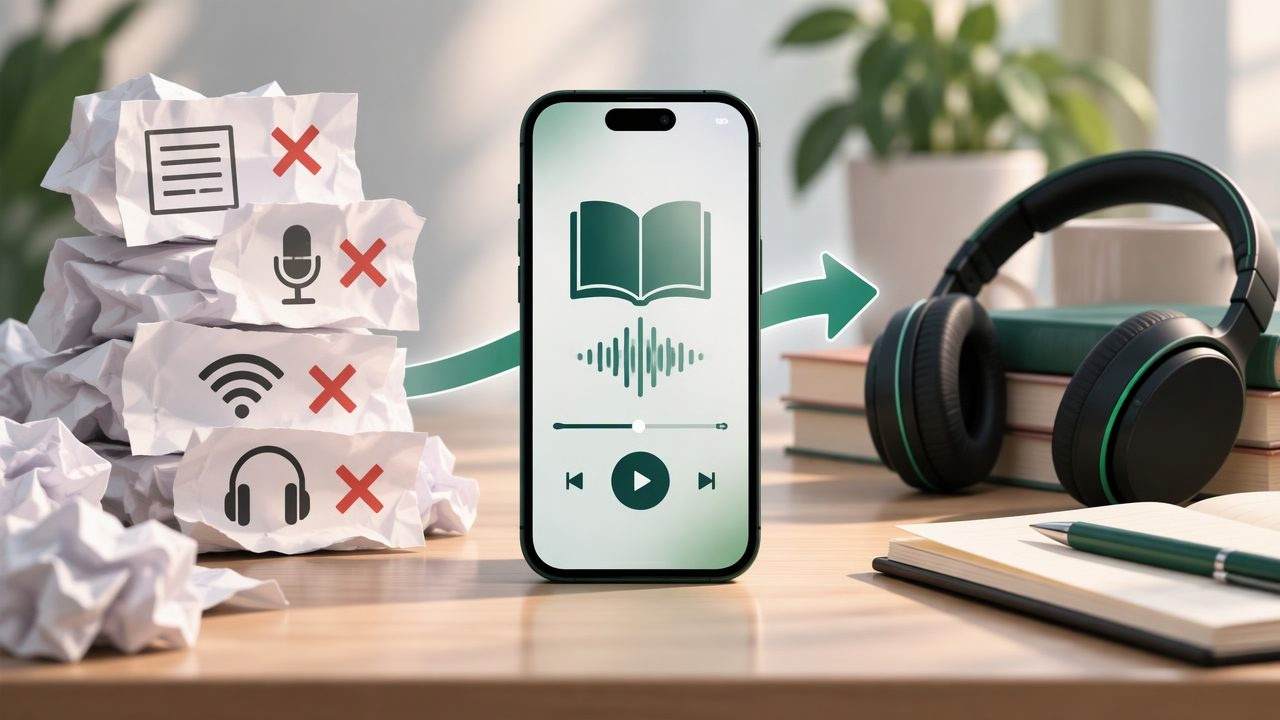
Turning a book, document, or article into audio on your iPhone can make reading fit more naturally into a busy day. But the result depends on more than choosing a voice and pressing play. Poor source formatting, distracting playback settings, and a lack of preparation can make an audiobook difficult to follow.
These iPhone audiobook creator mistakes to avoid are common whether you are converting an EPUB, listening to a PDF, or using text-to-speech for notes and web articles. Learn how to prevent them so your audio is clearer, easier to navigate, and more useful for studying, commuting, or relaxing.
What an iPhone audiobook creator does
An audiobook creator app turns text into spoken audio. Depending on the app and source material, you might import an EPUB or MOBI book, open a PDF or DOCX document, paste text, or send a web article for narration. Many text-to-speech apps also offer synchronized highlighting, adjustable playback speed, and downloadable or offline listening.
This is different from simply buying a professionally narrated audiobook. Text-to-speech generates narration from the text you provide, so the source file's layout, language, and editing all affect the listening experience. A few checks before you begin can prevent hours of frustration later.
1. Choosing the wrong source file
Not every file is equally ready for narration. A clean EPUB or DOCX usually contains selectable text and clear paragraph breaks. A PDF might instead be a collection of page images, contain columns, or place headers and footers throughout the text. If the app cannot identify the reading order, the voice may jump between sections or read page numbers aloud.
How to fix it: Preview the source before converting it. Select a sentence or copy a short passage to check that the text is readable and in the right order. If a PDF contains scanned pages, look for an app feature that recognizes text from images, often called OCR or camera scan to speech. For complex layouts, try a more accessible format when one is available.
2. Skipping a quick proofread
Text-to-speech reads what is on the page, including typos, duplicated paragraphs, stray captions, and odd line breaks. A small formatting error can become much more noticeable when spoken. Scanned material may also contain OCR mistakes: a letter can be misread as a number, or a word may be split in the middle.
How to fix it: Review the title, opening paragraphs, headings, and any critical passage before listening at length. For a long book, check a few pages from different sections. Correct obvious errors in the original document if possible. When editing is not practical, use navigation or skipping controls to move past repeated or irrelevant material.
3. Treating a PDF like a regular book
A PDF is designed to preserve a page's appearance, not necessarily to provide a smooth reading sequence. Sidebars, footnotes, multi-column articles, tables, and references may be read in an unexpected order. This is especially common with academic papers, reports, and newsletters.
How to fix it: Listen to a short section first and check whether the narration follows the page logically. If the app offers text selection or a reading mode, use it to confirm the intended order. For study material, consider importing a clean text version or copying the relevant section into a document. You can also skip visual elements that do not contribute to your understanding.
4. Picking a voice without testing it
A voice that sounds pleasant in a brief sample may not suit a full chapter. Pronunciation, pacing, and tone can affect how easily you follow a story or technical document. A voice that works well for casual articles may be less comfortable for a long study session. Listening in another language can introduce additional pronunciation challenges.
How to fix it: Test candidate voices on a representative passage, not just a single sentence. Include dialogue, names, or specialized vocabulary if those appear in your material. Consider the voice's clarity at your usual listening volume and speed. If your app offers voices in several languages, choose one that matches the text rather than relying on the device's default.
5. Setting playback speed too high
Faster playback can save time, but speed is not a shortcut if you stop understanding the material. Dense nonfiction, unfamiliar subjects, and language-learning content often need more attention than a familiar novel. Even listeners who comfortably use faster playback may benefit from slowing down for new ideas or complex instructions.
How to fix it: Begin at a comfortable pace and increase speed gradually. Use a slower setting for difficult sections, then return to your preferred pace for familiar passages. Some text-to-speech apps support playback up to 3x, but the best speed is the one at which you can still follow and remember the content. Take short pauses when you need to reflect or make notes.
6. Forgetting to check offline access
Assuming a title is ready for offline listening can cause problems on a flight, train, or route with patchy reception. An app may need an internet connection to import a source, generate audio, or prepare a file. Offline availability can vary by app and by the type of content you are using.
How to fix it: Prepare the book or document while connected to the internet. Check whether the audio or source is actually available offline, then test it by temporarily switching off Wi-Fi and cellular data. Downloading or preparing material ahead of time also helps avoid using mobile data during a commute. Review storage space if you plan to keep multiple books on your device.
7. Ignoring navigation and highlighting features
Listening from beginning to end is not always the most effective way to use an audiobook creator. You may want to revisit a paragraph, find a chapter, or follow along visually while studying. Without checking navigation features, it is easy to lose your place or repeat more material than necessary.
How to fix it: Learn how to pause, seek, move between sections, and resume playback before starting a long session. If synchronized highlighting is available, use it to connect spoken words with the text on screen. Add bookmarks or notes where the app supports them. These small habits make it easier to review information and return to important passages.
8. Expecting generated audio to work like a studio audiobook
Natural AI voices can make digital text more comfortable to hear, but generated narration is not automatically the same as a human performance. It may not convey every character's emotion, interpret a joke, or pronounce an unusual name exactly as you would. This matters most when tone and performance are central to the experience.
How to fix it: Match the tool to the purpose. Text-to-speech can be convenient for articles, documents, books, and study materials, especially when listening is more practical than reading on screen. For a dramatic novel or a title with an official audiobook edition, compare the available experiences and choose the one you prefer. Previewing a passage helps set realistic expectations.
9. Using audio without a listening plan
Pressing play while doing several demanding tasks can reduce comprehension. Audio may help you make use of otherwise unoccupied time, but it does not guarantee that every detail will stick. This is particularly important when listening to instructions, course material, or information you need to remember.
How to fix it: Choose a listening moment that suits the content. A familiar article may fit a routine walk, while a difficult chapter may deserve a quiet session. After a section, pause to summarize the main point or record a note. For study sessions, combine listening with synchronized text, highlights, or a short review rather than treating audio as a substitute for every other learning method.
A quick iPhone audiobook setup checklist
| Before you press play | What to check |
|---|---|
| Source | Confirm the file opens and the text appears in the right order. |
| Text quality | Look for OCR errors, repeated sections, and broken formatting. |
| Voice and language | Preview a representative passage using a suitable voice. |
| Playback | Start at a comfortable speed and adjust as needed. |
| Offline access | Prepare the content and test access before leaving a connection. |
| Navigation | Know how to pause, seek, bookmark, and resume. |
Make listening work for your needs
The best iPhone audiobook workflow starts with the right source and a few minutes of setup. Check text quality, test the narration, choose a useful speed, and prepare content before you expect to listen offline. During playback, use navigation and review features to stay oriented instead of letting audio run unattended.
These habits apply whether you want to listen to web articles, turn an EPUB into audio, review a PDF aloud, or hear notes while traveling. If you are comparing text-to-speech tools, assess the file types, voices, languages, playback controls, and offline options that matter for your routine. Focal Voice is one option for turning documents and other text into audio on iPhone and iPad, but the right choice is the one that fits how you read and listen.
