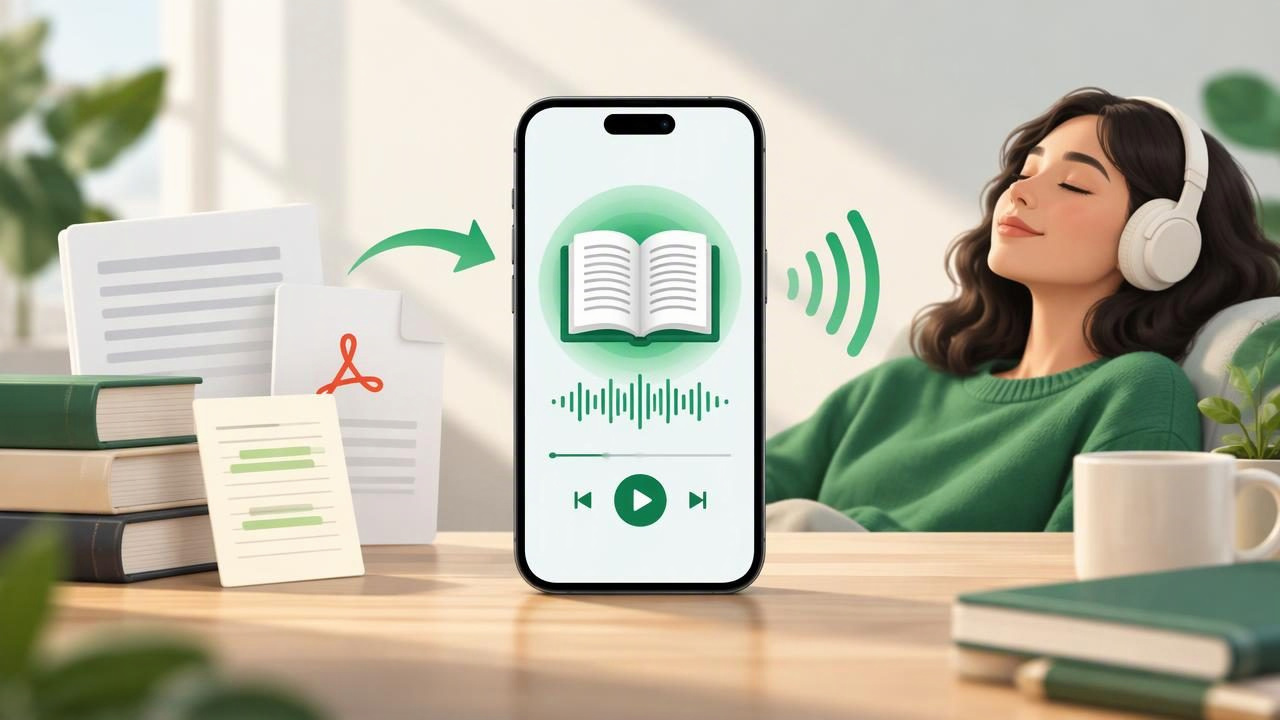
Want to listen to a book, article, or set of class notes instead of reading it on screen? An iPhone audiobook creator can turn many kinds of text into spoken audio, so you can learn or catch up while walking, commuting, or taking a screen break. You do not need recording equipment or a studio. A text-to-speech app can read your files aloud using a chosen digital voice.
The best results start before you press play. Choose a compatible source, tidy up the text, select a voice and speed that feel comfortable, then save the material for listening when you are away from Wi-Fi. These beginner tips will help you build a useful listening routine and avoid common frustrations.
What an iPhone audiobook creator does
A text-to-speech app converts written words into synthesized speech. Depending on the app, you may be able to import PDFs, EPUB or MOBI books, DOCX files, web links, articles, notes, and text captured with your camera. The app then narrates the content, often with controls for voice, pace, and navigation.
This is different from recording a traditional audiobook. You are not hiring a narrator or creating a professionally produced audio file; you are making text easier to hear for personal use. Some apps also offer features such as synchronized text highlighting, offline playback, or AI-generated, two-host discussions based on your content. Availability varies, so check an app’s feature details before relying on a specific option.
1. Start with a clean, compatible source
Choose one short item for your first test, such as a few pages of an ebook or a short article. Importing a small sample makes it easier to spot formatting or pronunciation problems before you commit to a long listening session.
- For a PDF: Check whether the words are selectable. A scanned page may be an image rather than searchable text, so it may need optical character recognition (OCR) or a camera scan feature.
- For ebooks: EPUB is commonly used for reflowable books, while MOBI support depends on the app. Confirm the file type is supported before importing.
- For documents: DOCX files and notes can be convenient for study material, drafts, and work documents.
- For online reading: Try a web link or article import if the app supports it. Check that the main text—not menus and advertisements—was captured.
Use files you own, have permission to access, or are otherwise allowed to use. A text-to-speech app does not change the copyright status of a book or article.
2. Preview and tidy the text before listening
Digital documents are not always arranged for narration. A PDF may have two columns, page numbers, headers, footnotes, or a repeated copyright line. When read aloud, those elements can interrupt the meaning. Preview the imported text and remove clutter if the app allows editing, selecting, or skipping sections.
For a scanned page, check the OCR result carefully. A misread name, symbol, or number can change the meaning of a sentence. Zoom in on unclear sections and correct important errors where possible. For a web article, make sure the headline and body are present and that navigation text has not been mixed into the narration.
Long chapters are easier to manage when divided into sections. If you cannot split the file, use bookmarks or the app’s navigation controls to mark useful stopping points. A little preparation can make a big difference to a smooth listening experience.
3. Pick a voice that suits the material
Listen to a sample before starting a full chapter. A natural-sounding voice should be clear and comfortable over time, not merely impressive in a short preview. Try a different voice if names, abbreviations, or technical terms sound awkward. Some text-to-speech apps offer voices in multiple languages, which can help when listening to language-learning material or multilingual documents.
Match the voice to the content and your setting. A calm voice may suit a novel or long report, while a more energetic voice may help keep your attention on a short article. Use headphones in noisy places, but keep the volume low enough to hear your surroundings when walking near traffic or in public areas.
4. Set a listening speed you can follow
Many apps let you adjust playback speed, sometimes up to 3x. Faster playback can help when reviewing familiar material, but the highest setting is not automatically the most effective. Start at normal speed and increase it gradually until you can still understand and remember the main points.
Use a different pace for different tasks. Slow down for dense research, unfamiliar vocabulary, or instructions. Try a moderate increase for a familiar chapter or a review of notes. If you catch yourself rewinding repeatedly, lower the speed. The goal is comprehension, not a record-breaking playback rate.
5. Use highlighting and navigation to stay oriented
Synchronized highlighting shows which sentence or word is being spoken, helping you follow along without losing your place. It can be especially useful when learning new terms, listening to a complex PDF, or switching between reading and audio. If highlighting is available, try it during your first session, then decide whether it helps or distracts you.
Learn the basic playback controls before you begin: pause, skip forward or back, change speed, and return to a bookmark. For study material, pause after a section and summarize the main idea in your own words. Listening can make reading more accessible for people with dyslexia or ADHD, but personal needs differ. Pair audio with written notes or visual text when that better supports your focus.
6. Prepare for listening without an internet connection
If you plan to listen on a flight, train, or in an area with unreliable service, test offline playback beforehand. Import the file and download any voice or audio resources the app requires while connected to Wi-Fi. Then switch to airplane mode briefly and confirm that the content still plays. Do not assume every app stores every document or voice for offline use.
Also consider battery life and storage. A long listening session can use power, particularly if the screen stays on. Lock your iPhone when possible, use headphones with playback controls, and keep a charger or power bank available for a long commute. Remove downloads you no longer need if storage becomes limited.
7. Make listening part of a practical routine
Audio works well when it fits a task that does not require all of your attention. Try listening to an article while preparing a meal, reviewing lecture notes on a walk, or hearing a chapter during a commute. Avoid playing dense material when you need to watch the road, handle machinery, or focus on another demanding task.
For studying, break a long session into manageable sections. Listen once for the overall idea, then revisit key passages and write down questions or facts to remember. A two-host AI podcast-style feature, when available, can turn user-provided material into a conversational recap. Treat that format as a supplement, not a replacement for checking the original text, especially when accuracy matters.
How to choose an app for your first audiobook
Rather than choosing by the number of features alone, test an app with the files you actually use. Compare import options, voice quality, navigation, offline listening, and pricing. Some tools focus on natural narration, while others emphasize study controls or content summaries. Free trials can help you check whether a workflow feels comfortable before subscribing.
| What to test | Why it matters |
|---|---|
| File support | Confirms that your PDFs, ebooks, documents, or links open correctly. |
| Voice and pace | Helps you find narration you can follow for longer sessions. |
| Text highlighting | Keeps spoken audio and visible text aligned when you want to follow along. |
| Offline access | Lets you listen in places without reliable internet, if supported. |
| Cost and limits | Clarifies what is included in a free tier and what requires a subscription. |
Popular options such as Speechify, NaturalReader, and ElevenReader may differ in supported formats, voices, and features. Their plans and capabilities can change, so compare current app listings and test your own documents rather than relying only on a feature checklist.
A simple first-session checklist
- Choose a short, readable file you are allowed to use.
- Import it and review the extracted text for missing or repeated content.
- Preview two or three voices and select the clearest one.
- Begin at a comfortable speed, then adjust if comprehension remains strong.
- Use a bookmark or pause point to make returning to the material easy.
- Test offline playback if you expect to listen without internet access.
Common beginner mistakes to avoid
Importing a whole library at once: Test a small file first so you can resolve compatibility issues. Ignoring scan quality: OCR errors can make narration confusing, so inspect scanned pages. Starting at maximum speed: Build pace gradually and prioritize understanding. Assuming every app works offline: Verify downloads in advance. Listening without a goal: Decide whether you are relaxing, reviewing, or learning, then choose an appropriate pace and listening environment.
Frequently asked questions
Can an iPhone read a PDF aloud?
Yes, with a compatible text-to-speech app or accessibility feature. A text-based PDF is usually easier to process than a scanned image. Scans may require OCR before the words can be narrated accurately.
Can I turn an EPUB or MOBI book into an audiobook?
A text-to-speech reader may narrate a supported EPUB or MOBI file, but format support varies by app. This typically means listening inside the app, not necessarily exporting a standard audiobook file.
Is faster listening better for studying?
Not always. Faster playback may save time when reviewing familiar ideas, but slower narration can improve comprehension of new or complicated topics. Adjust speed to the task and check what you remember afterward.
Start small and improve your setup
Your first listening setup does not need to be perfect. Begin with one short file, make sure the text is clean, and experiment with voice and speed. Once you know what works, add bookmarks, offline access, and a regular listening routine. If you want an iPhone and iPad option that handles documents, ebooks, articles, and scans, Focal Voice is one app to consider while comparing tools against your own needs.
