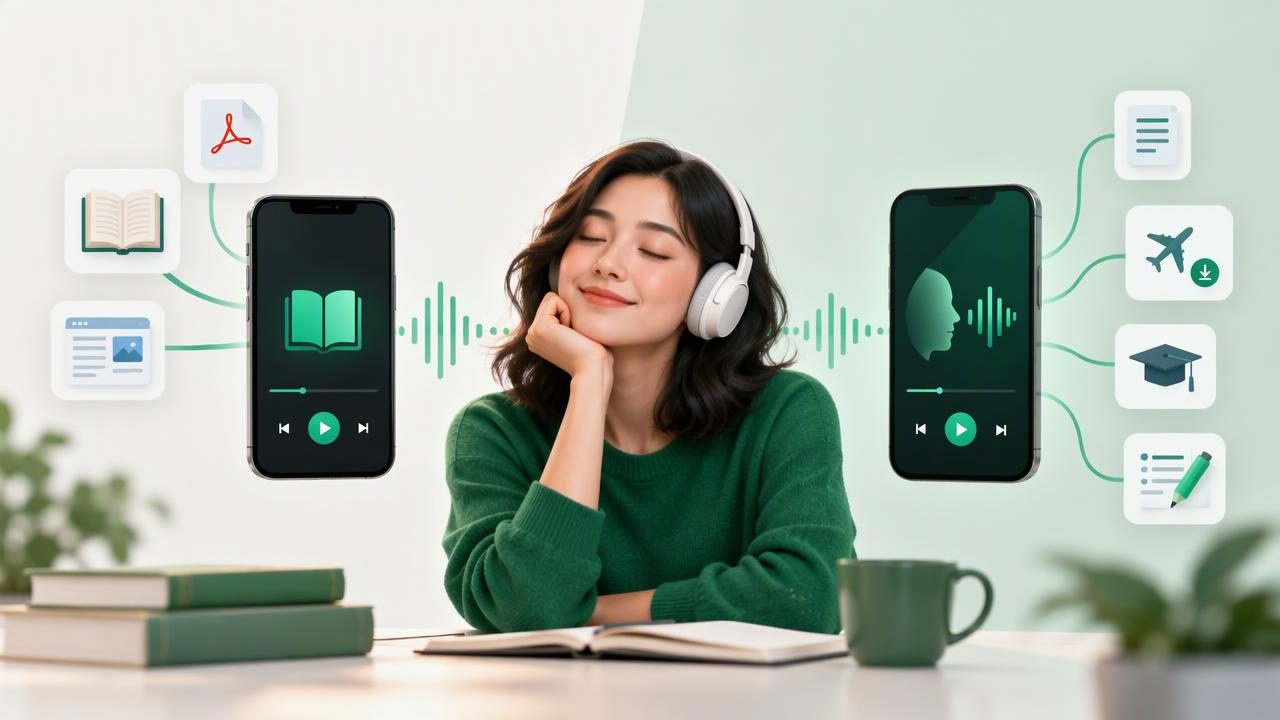
Want to listen to a PDF, ebook, article, or set of notes on your iPhone? A text-to-speech app can turn reading material into audio, but different tools are built around different needs. When comparing an iPhone audiobook creator vs Speechify, it helps to look beyond voice quality and ask how each app handles your files, listening habits, and daily workflow.
Speechify is a well-known text-to-speech service, while an iPhone audiobook creator generally describes an app or feature that turns your own reading material into listenable audio. These categories overlap, but they are not always identical. This guide explains what to compare, which features matter, and how to choose a practical option for reading on the go.
What Is an iPhone Audiobook Creator?
An iPhone audiobook creator converts text you provide into spoken audio. Depending on the app, you might import a PDF or ebook, open a web link, paste text, or scan a printed page with your camera. The app then reads the content aloud using a synthetic voice. Many tools also provide playback controls, bookmarks, and highlighting that follows the narration.
This is different from buying a professionally narrated audiobook. An audiobook creator generates narration from text, so it can work with personal documents and reading that may not have an official audio edition. It can be useful for listening to class material, reports, saved articles, and compatible ebook files.
Speechify also offers text-to-speech features for reading content aloud. The important question is not simply whether a product can speak text. It is whether its supported sources, listening controls, and pricing fit the way you want to use it.
iPhone Audiobook Creator vs Speechify: Key Differences to Check
Features and plan limits can change, so check each app’s current App Store listing and subscription details before committing. Use the comparison below as a framework rather than assuming every feature is included in every plan.
| What to compare | iPhone audiobook creator | Speechify |
|---|---|---|
| Main purpose | Make personal documents and text listenable | Text-to-speech tools for reading content aloud |
| Content sources | May support PDFs, ebooks, documents, links, pasted text, or scans | Check which import and reading options are available in the app and plan |
| Listening tools | Look for speed controls, highlighting, and bookmarks | Compare available playback controls and supported platforms |
| Offline use | Confirm whether imported content and audio work without a connection | Check offline access requirements for your intended use |
| Cost | Some apps offer a free trial or limited free use | Review current free and paid plan limits |
1. Check the Content You Need to Hear
Start with your real reading list. If most of it consists of PDFs, verify that the app can import them and read the document’s text in the right order. Complex layouts, scanned pages, columns, and footnotes can affect narration. For a scanned handout, you may need optical character recognition (OCR), which converts the image of a page into selectable text before the app can read it.
If you read ebooks, check the formats you use. An EPUB to audiobook workflow can be convenient for compatible EPUB files, while a MOBI reader may matter if your library includes MOBI documents. File support can vary, and digital rights management may prevent some purchased books from being imported into a third-party app. Check compatibility before building your routine around a particular title.
For online reading, test how the app handles web links. Some services can extract an article from a page, while others may read navigation menus, captions, or unrelated text. Pasting a cleaned-up article into a reader can be a useful backup when automatic extraction is messy.
2. Listen to the Voice, Not Just the Demo
A voice that sounds pleasant for a short sample may become tiring during a long chapter. Listen to a few paragraphs from the kind of material you actually use. Pay attention to pronunciation, pacing, pauses, and how the voice handles abbreviations, names, and technical terms. Natural AI voices can make extended listening more comfortable, but “natural” is subjective.
Language support matters too. If you switch between languages, confirm that the app offers suitable voices for each one and check whether it identifies the language automatically. A mismatch can make otherwise clear text difficult to follow. It is also worth testing speed settings: some listeners prefer a steady pace, while others want to increase playback after becoming familiar with a subject.
3. Compare Playback and Reading Controls
Useful controls make a bigger difference than a long feature list. Look for simple play and pause, a sleep timer, skipping by sentence or paragraph, and a speed range that suits you. Reading at up to 3x can help some experienced listeners review familiar material, but higher speed is not automatically better. For dense or unfamiliar content, a slower pace may improve comprehension.
Synchronized highlighting shows which words or sentences are being read. This can help you follow along, return to a passage, and stay oriented in a long document. It may also support readers with dyslexia or ADHD, though individual needs vary and text-to-speech is not a substitute for professional advice or accessibility accommodations.
4. Decide Whether Offline Listening Matters
Offline listening is valuable on flights, in areas with unreliable reception, or when you want to limit mobile data use. Do not assume that installing an app means every document or voice will work offline. Check whether you need to download a file first, whether audio is generated on the device or online, and whether selected voices require an internet connection.
Before leaving Wi-Fi, open the document and test playback in airplane mode. This quick check can reveal whether the file, voice, and relevant controls are actually available without a connection. It is a particularly useful step for anyone planning to listen during a commute or travel day.
5. Consider How You Learn and Work
For studying, listening can be a helpful second way to revisit notes, readings, or review material. Try pairing audio with synchronized text, then pause to summarize the main idea in your own words. A tool that can make two-host AI podcast-style episodes from your content may offer a more conversational format for reviewing key themes. Treat generated dialogue as a study aid, not as a guaranteed accurate summary: verify names, quotations, and important facts against the original document.
For work, prioritize reliable document narration and easy navigation. If you listen to articles, focus on clean web extraction and a queue that makes it simple to continue later. If you scan paper, test the camera scan to speech workflow with a page that includes headings and columns. The best app is the one that handles your everyday material without a lot of cleanup.
6. Compare Plans Before You Subscribe
Free access may be limited by listening time, voice selection, file imports, or other features. Paid plans can differ in what they unlock, and prices or terms may change. Read the current subscription information carefully, including trial length, renewal timing, and cancellation steps. If offline access, faster playback, or a particular file format is essential, confirm that it is included in the plan you are considering.
Whenever possible, test both options with the same short PDF, article, or ebook. That makes it easier to compare setup time, voice quality, pronunciation, and controls fairly. A polished sample sentence tells you less than ten minutes with your own content.
Which Option Should You Choose?
Choose based on your primary task, not the label. A text-to-speech service such as Speechify may suit you if its reading tools and supported sources match your routine. An iPhone audiobook creator may be a better fit if you want to turn a mix of personal documents, ebooks, web pages, and notes into audio. In either case, confirm iPhone compatibility, file support, offline behavior, voice options, and plan limits.
- For PDFs and reports: Test text extraction, navigation, and highlighting.
- For ebooks: Confirm the format is supported and the file is not restricted.
- For commuting: Check downloads, background playback, and quick controls.
- For study: Look for speed adjustment, highlighting, and reliable handling of technical terms.
- For printed pages: Try OCR with the kinds of layouts you expect to scan.
Frequently Asked Questions
Can I turn any iPhone document into an audiobook?
Not necessarily. An app can only read content it can access and interpret. File format, document layout, OCR quality, and digital rights restrictions can all affect whether narration works.
Is Speechify the same as an audiobook app?
Speechify is a text-to-speech service that reads supported content aloud. A traditional audiobook app usually plays professionally produced recordings. An audiobook creator generates spoken audio from text, so the terms describe different but overlapping experiences.
Is listening faster than reading?
It depends on the listener, subject, and playback speed. Audio can make it easier to fit reading into walks or chores, but complex material may require pauses, rereading, or a slower pace. Try a short session and check what you remember.
Make the Comparison With Your Own Material
The most reliable way to compare an iPhone audiobook creator vs Speechify is to test the same content in each app. Check whether your files import cleanly, whether the narration is comfortable, and whether the controls support your routine. If you want another option to evaluate, Focal Voice lets iPhone and iPad users turn supported documents, books, articles, and scans into audio, with features that vary by plan.
