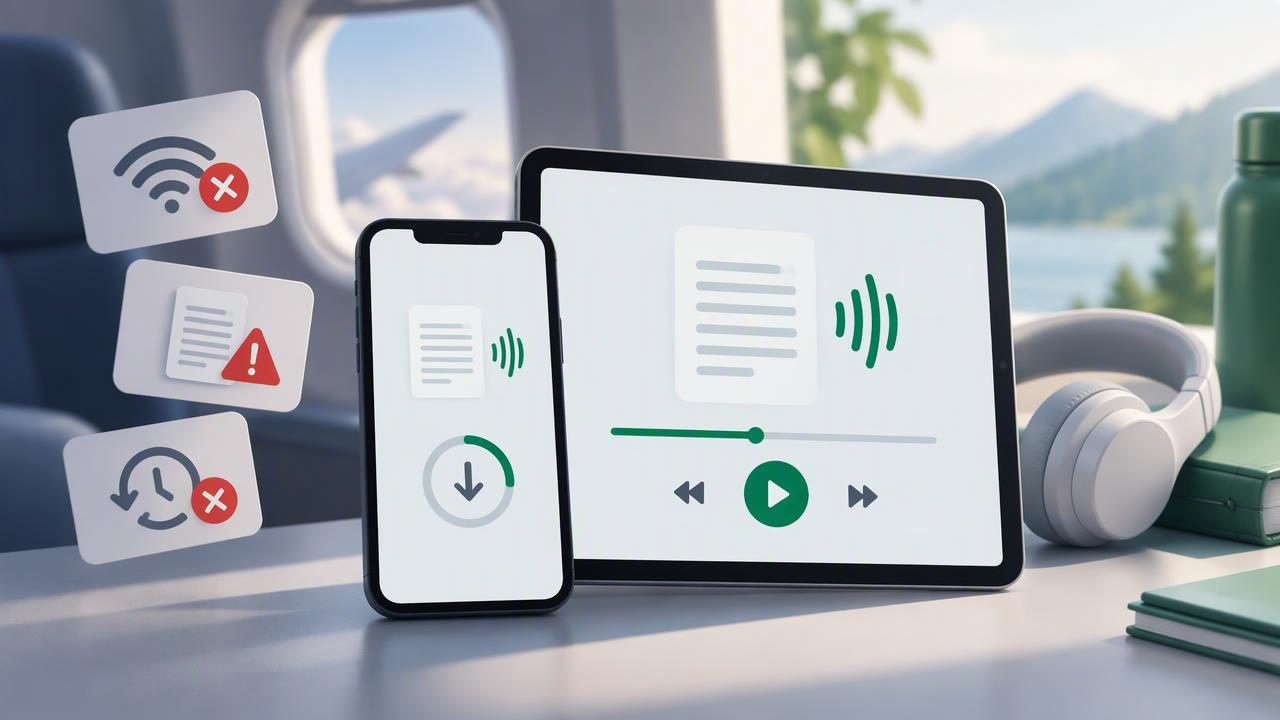
An offline listening app can make books, articles, PDFs, and study notes easier to enjoy when you are commuting, traveling, or trying to reduce screen time. But downloading a file is not always the same as being ready to listen without internet. A missing audio file, unsupported format, or forgotten playback setting can interrupt a trip or study session.
Whether you use text to speech for iPhone or iPad, a dedicated audiobook app, or a reader that narrates documents, a little preparation goes a long way. Here are the most common offline listening app mistakes to avoid, plus practical ways to make sure your content is ready before you lose your connection.
What offline listening actually requires
Offline playback depends on more than a saved title in your library. The app may need access to the original document, a downloaded audio version, or voice data stored on your device. Some apps generate speech as you listen, while others prepare audio in advance. Features such as synchronized highlighting, voice selection, and playback speed may also work differently without a connection.
Because apps handle content differently, do not assume that a visible book or document is available offline. Check the app’s download behavior and test a title before relying on it. The following mistakes are common across text-to-speech readers, audiobook apps, and reading tools.
1. Assuming that saved content is downloaded
A bookmark, library entry, or file listed in an app does not necessarily mean it is stored locally. It may simply point to content in cloud storage or a web page that still needs an internet connection. This is especially easy to overlook when you save a link or import a file from a cloud service.
How to avoid it: Look for a download indicator, offline label, or storage option, then wait for the download to finish. Open the content while you still have internet, close the app, and try it again in Airplane Mode. If it will not open or play, it was not ready for offline use.
2. Forgetting to test playback before leaving
A download can appear complete and still have a problem. The file might be incomplete, the selected voice may require a connection, or the app may not have finished preparing narration. Discovering the issue on a plane or in a low-signal area is frustrating.
How to avoid it: Test the exact book, article, or document you plan to hear. Play at least a minute, skip forward, pause, and resume. If you rely on a particular voice or language, verify those settings too. A quick test in Airplane Mode is more reliable than checking the download icon alone.
3. Ignoring file format and access restrictions
Not every reader supports every file type. A PDF may contain scanned page images rather than selectable text, while a DOCX, EPUB, or MOBI file may have formatting or access restrictions that affect narration. Some purchased books also use digital rights management that prevents importing them into another app.
How to avoid it: Check supported formats before transferring files. Open the document and confirm that text can be selected or read aloud. If a PDF is a scan, use optical character recognition (OCR) to recognize the words first. For protected books, use the store or reading app that has permission to play them rather than trying to bypass restrictions.
4. Leaving too little storage space
Audio takes up space, and long books or several downloads can quickly fill an iPhone or iPad. Some apps also need temporary storage while they prepare speech. When space is low, downloads may fail, pause, or disappear as the operating system frees storage.
How to avoid it: Check device storage before a trip or study session. Remove titles you have finished, clear unneeded downloads, and keep room for new files. If the app lets you choose audio quality or download only selected chapters, use those options when storage is limited. Avoid deleting a source document until you know the app has retained everything needed for playback.
5. Waiting until the last minute to download
Large books, lengthy reports, and batches of readings can take time to import or prepare. Downloads may also slow down on a weak connection, and some apps need to process a document before narration is available. Starting just before you head out leaves little time to troubleshoot.
How to avoid it: Download and prepare content while you have a dependable Wi-Fi connection. For a long journey, do this the night before. Confirm that the progress indicator has finished and that the file opens. If you need several readings, prepare them in order of priority so the most important content is ready first.
6. Depending on a web link without saving the article
A link that works at home may fail offline because the page is hosted online, updated dynamically, or blocked by a sign-in screen. Advertisements, pop-ups, and complicated page layouts can also make web articles difficult to convert into clean narration.
How to avoid it: Use the app’s save or import feature to capture the article for offline use, rather than relying on a browser tab. Review the imported text for missing sections, navigation menus, or repeated captions. When an article is essential, keep a second copy in a supported format, such as a downloaded document, if the source allows it.
7. Choosing a voice or language that is not available offline
Natural AI voices can make long listening sessions more comfortable, but some voice options are streamed or require a network connection. The same may be true for certain languages. Changing a setting after you go offline could leave you with no narration or a voice that sounds very different from the one you expected.
How to avoid it: Select your preferred language and voice before disconnecting, then test playback offline. If your app offers downloaded voice models, install the ones you use in advance. Keep in mind that voice availability varies by app, device, and language, so confirm the options on your own iPhone or iPad.
8. Not checking speed, navigation, and battery needs
Playback at a faster rate can help you review familiar material, but a speed that feels comfortable for a short article may be tiring for a dense textbook. Navigation can matter just as much: if you cannot find headings, chapters, or your previous position, it is easy to lose your place. Audio playback also uses battery, particularly during a long day away from a charger.
How to avoid it: Set a realistic speed before your session and adjust it as the material changes. Test skipping between chapters and resuming after a pause. Charge your device, carry a power bank when practical, and consider lowering screen brightness or locking the screen while listening. For study, synchronized text highlighting can make it easier to follow along when the screen is available.
9. Forgetting privacy and account requirements
Some apps need you to sign in periodically, verify a subscription, or sync a library before certain features work. A shared device may also contain private notes, work reports, or personal documents that you would rather not leave accessible. Offline use does not automatically remove those concerns.
How to avoid it: Check whether your chosen app requires account verification for offline playback, and complete it while connected. Use device passcodes and review where imported files are stored. If you handle confidential material, check the app’s privacy information and avoid importing sensitive documents into a service unless its policies fit your needs.
A quick offline listening checklist
Before you leave home, run through this short checklist:
- Confirm that each book, PDF, EPUB, MOBI file, or article is fully downloaded.
- Open the content and test playback in Airplane Mode.
- Verify your selected voice, language, and playback speed.
- Check that scanned PDFs have readable text or have been processed with OCR.
- Make sure there is enough storage and battery for the session.
- Test pause, resume, chapter navigation, and synchronized highlighting if you use it.
- Keep a backup copy of essential material when permitted.
This routine takes only a few minutes, but it can prevent many common interruptions. It is especially useful for commuters, travelers, students, and anyone using document narration as an accessibility aid.
Frequently asked questions
Can text-to-speech apps read PDFs offline?
Many can, but the PDF and the app’s voice features must be available locally. Text-based PDFs are generally easier to narrate. Scanned PDFs may need OCR first, and some apps require an internet connection for particular voices or processing features. Test your specific file offline before depending on it.
Will an app keep my place when I lose internet?
Often, but behavior varies. Some readers save playback position on the device; others rely on account syncing. Pause and resume a downloaded title in Airplane Mode to see what happens. If the position matters, note the chapter or page as a simple backup.
Is downloaded audio better than on-demand narration?
Neither approach is always better. Pre-generated audio can be dependable for long offline sessions, while on-demand narration may use less storage and allow flexible voice or speed changes. Check how your app works and choose based on your connection, available storage, and listening habits.
Make offline listening dependable
The best way to avoid offline listening problems is to plan for the moment your connection disappears. Download early, check file compatibility, test the voice and controls, and leave enough room for storage and battery. These habits make it easier to listen to books, web articles, and study materials without interruption.
If you are comparing text-to-speech tools, look for clear offline controls, support for the formats you use, and reliable playback on your device. Focal Voice is one option for iPhone and iPad users who want to turn documents and other reading material into audio; whichever app you choose, test its offline features before you need them.
