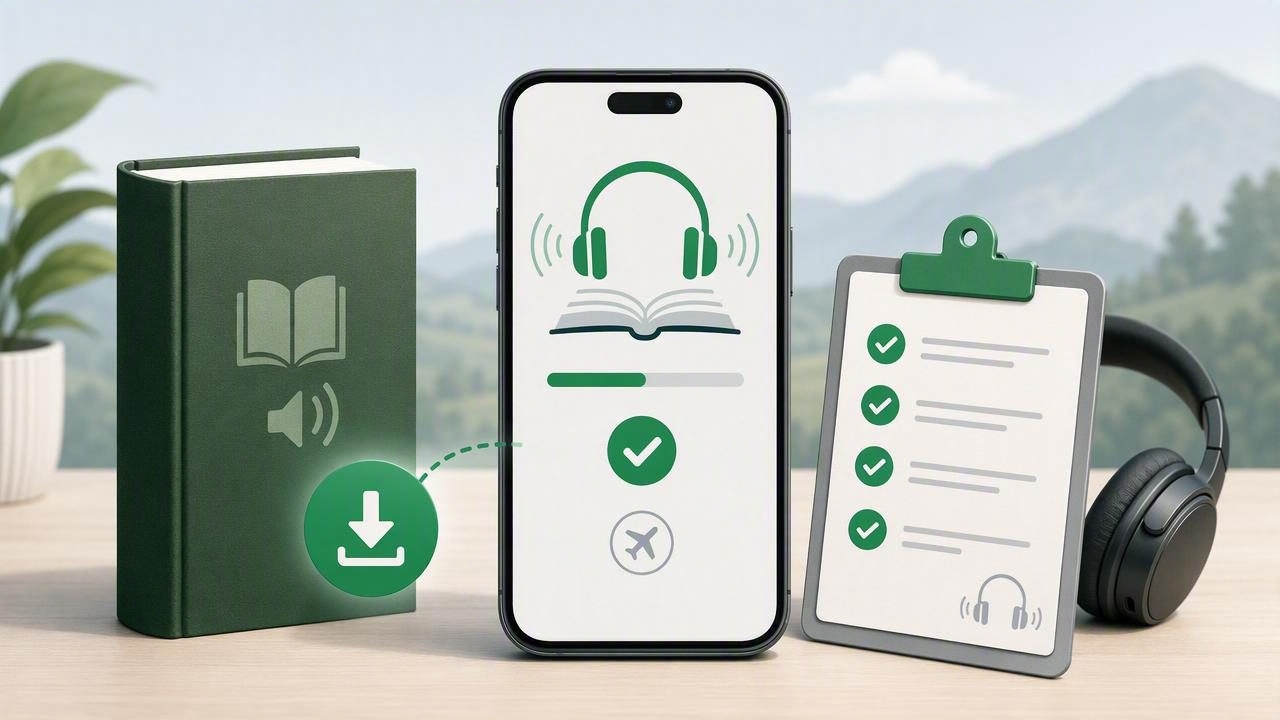
Whether you are boarding a flight, taking the train, working in a low-signal area, or simply trying to reduce mobile data use, offline listening can turn unread books and documents into time you can actually use. The key is preparing your content before you lose your connection.
This practical guide provides a download a book for offline listening checklist with text to speech app features and habits in mind. It applies to ebooks, PDFs, course materials, saved web articles, Word documents, and personal notes on iPhone and iPad. Use it to make sure your content, voice, audio settings, and device are ready before you leave Wi-Fi behind.
Why Offline Listening Matters
Text to speech lets a device narrate written material using a digital voice. When the required file and voice data are available locally, you can listen without relying on cellular service or public Wi-Fi. That matters for more than travel. Offline access can make a reading routine more dependable during commutes, workouts, chores, study sessions, and breaks between appointments.
It is also useful for readers who find sustained visual reading difficult. Listening with synchronized text highlighting can support focus for people with dyslexia, ADHD, visual fatigue, or simply a packed schedule. Instead of choosing between reading and daily responsibilities, you can pair a chapter with a walk or listen to an assigned article while preparing dinner.
Offline listening is not the same as streaming. A book may appear in an app library while still requiring an internet connection to open, download a voice, or generate narration. Preparing in advance avoids the frustrating moment when a title will not play just as your plane enters airplane mode.
The Offline Listening Checklist
Run through the following list before a trip or before adding a new book to your audio routine. The exact labels vary by app, but the preparation process is broadly the same.
- Confirm that you have the actual book file. Make sure the PDF, EPUB, MOBI, DOCX, or supported ebook file is saved on your iPhone or iPad, not merely visible as a cloud placeholder.
- Import or open it in your text to speech app. Give the app time to finish processing the document, especially for long PDFs or image-heavy files.
- Download the title for offline use. Look for a download icon, an “available offline” setting, or a local-files indicator. Do this while on stable Wi-Fi.
- Download your preferred natural AI voice. Some voices require an online connection unless their voice package has been saved to the device.
- Test playback in airplane mode. This is the most reliable check. Turn on airplane mode, open the document, and play a few minutes.
- Check your resume position. Pause, close the app, reopen it, and ensure it remembers where you stopped.
- Set playback speed and sleep timer. Choose settings you can comfortably follow before starting your journey.
- Charge your device and headphones. Downloading is only helpful if your listening setup has enough power to last.
Step 1: Choose a File Format That Works Offline
Your first task is identifying what kind of content you have. Text-based documents are usually easiest to narrate because the app can access selectable text directly. Scanned pages may need optical character recognition (OCR) before they can be read aloud accurately.
| Content type | What to check before downloading | Offline listening tip |
|---|---|---|
| EPUB ebook | Confirm the EPUB opens fully and chapters are visible. | Download the entire book, not only the current chapter. |
| Check whether text can be selected and searched. | For scanned PDFs, run OCR or use camera scan to speech first. | |
| MOBI file | Verify that the app supports MOBI import. | Open several sections to confirm formatting is readable. |
| DOCX document | Review headings, tables, and footnotes for sensible reading order. | Save a local copy before leaving cloud access. |
| Web article | Save the full article rather than relying on a browser tab. | Remove ads and navigation clutter if the app offers reader mode. |
| Printed pages | Capture clear, well-lit scans with straight page edges. | Proofread important names, formulas, and numbers after OCR. |
For a digital book, use a legitimate source and retain the original file when possible. Some commercially protected books have restrictions that prevent importing into third-party apps. In that case, check the seller’s offline options or use an accessible edition provided by the publisher or library service.
Step 2: Make Sure “Downloaded” Really Means Local
Cloud storage can be misleading. A file may show up in the Files app, but still need to be fetched from iCloud Drive, Google Drive, Dropbox, or another service before it opens. If you see a cloud icon, a loading spinner, or an error when disconnected, it is not ready for offline use.
Open the book once on Wi-Fi and navigate through several chapters. For very long titles, keep the app open until any import, indexing, or conversion work is complete. A text to speech app may create local caches to support smoother narration, search, synchronized highlighting, bookmarks, and quick position recovery.
Then inspect storage usage. Audiobook-style playback, downloaded voices, and imported documents can occupy meaningful space, particularly on a device with limited capacity. Delete duplicate files and completed downloads before a long trip rather than discovering a storage warning mid-download.
A quick local-file test
1. Connect to Wi-Fi and open the book.
2. Start narration and listen for 30 seconds.
3. Turn on Airplane Mode.
4. Close and reopen the app.
5. Resume playback from a different chapter.
If the title opens, the selected voice speaks, and your place is retained, you are in good shape. If not, reconnect and look for a download control for either the document or the voice.
Step 3: Download a Voice You Can Listen to for Hours
Voice quality affects comprehension. A natural-sounding voice with consistent pacing can make a dense nonfiction chapter or academic paper easier to follow. However, a voice that sounds excellent while streaming may not always be available offline. Check whether the app distinguishes between online AI voices and downloadable system voices.
Before committing to a 12-hour book, listen to a few paragraphs containing dialogue, dates, technical terms, and headings. Choose a language and accent that feel comfortable, then test speed. Many people start near 1x and gradually move to 1.25x or 1.5x. Experienced listeners may use 2x or even 3x for familiar material, but faster is not automatically better if retention suffers.
- Use a slower pace for new concepts, literature, legal text, or complicated instructions.
- Increase speed slightly for reviews, familiar chapters, or simple articles.
- Enable synchronized highlighting when you can look at the screen; it can help you reconnect after distractions.
- Use a sleep timer for bedtime listening to avoid losing your place overnight.
Step 4: Prepare for Study, Travel, and Daily Listening
A single offline book is helpful, but a small queue is better. Download a mix of long and short material so you can match content to the time available. A 400-page textbook may be ideal for a flight, while two short saved articles work better for a 15-minute commute.
For studying by listening, create bookmarks at chapter starts, key definitions, and sections you expect to revisit. If notes are supported, write brief labels such as “exam topic,” “quote,” or “review later.” Listening is especially effective as a second pass after visual reading: read a difficult section first, then hear it again while following the highlighted text.
For travel, download content the day before rather than at the gate. Airports, stations, and hotels often have congested Wi-Fi, and large books may take longer than expected to process. Bring wired headphones or fully charged wireless earbuds, and consider downloading one extra title in case your first choice does not fit your mood.
Common Offline Listening Problems and Fixes
The book opens, but playback will not start
The document may be local while the selected voice is not. Switch to a downloaded voice, or reconnect briefly and download the preferred voice package. Also verify that the app has not paused because of an audio output issue.
The narration skips pages or reads nonsense
This often happens with scanned PDFs, multi-column layouts, charts, headers, or poor OCR. Try a cleaner scan, crop unnecessary margins, or use a text-based version of the document. Review important passages visually, especially if the material includes formulas, citations, or specialized vocabulary.
The app cannot find the document offline
Re-import the file from a local folder on the device and wait for processing to finish. Avoid moving or renaming source files during import. If storage is low, clear space and download the item again.
Battery drains too quickly
Lower screen brightness, lock the screen during audio playback, close unused apps, and use downloaded content instead of cellular streaming. A modest playback speed may also make long sessions more comfortable, since you are less likely to rewind repeatedly.
Build an Offline Listening Habit
The best system is simple: whenever you add a book or document, immediately import it, download it, select a voice, and perform a brief airplane-mode test. Make this part of your weekly reset alongside charging devices and planning your schedule.
Look for a text to speech tool that handles the formats you actually use, offers reliable offline listening, and makes it easy to follow along. Features such as document narration, web article saving, camera scan to speech, adjustable speed, bookmarks, and natural voices can make the process smoother. If you also want a conversational review of your materials, some apps can create two-host AI podcast-style episodes from your content.
For iPhone and iPad readers who want to turn PDFs, EPUBs, MOBI books, documents, and notes into portable listening, Focal Voice is one option to explore after comparing offline support and voice choices that fit your needs. With the checklist complete, your next book is ready whenever your connection is not.
