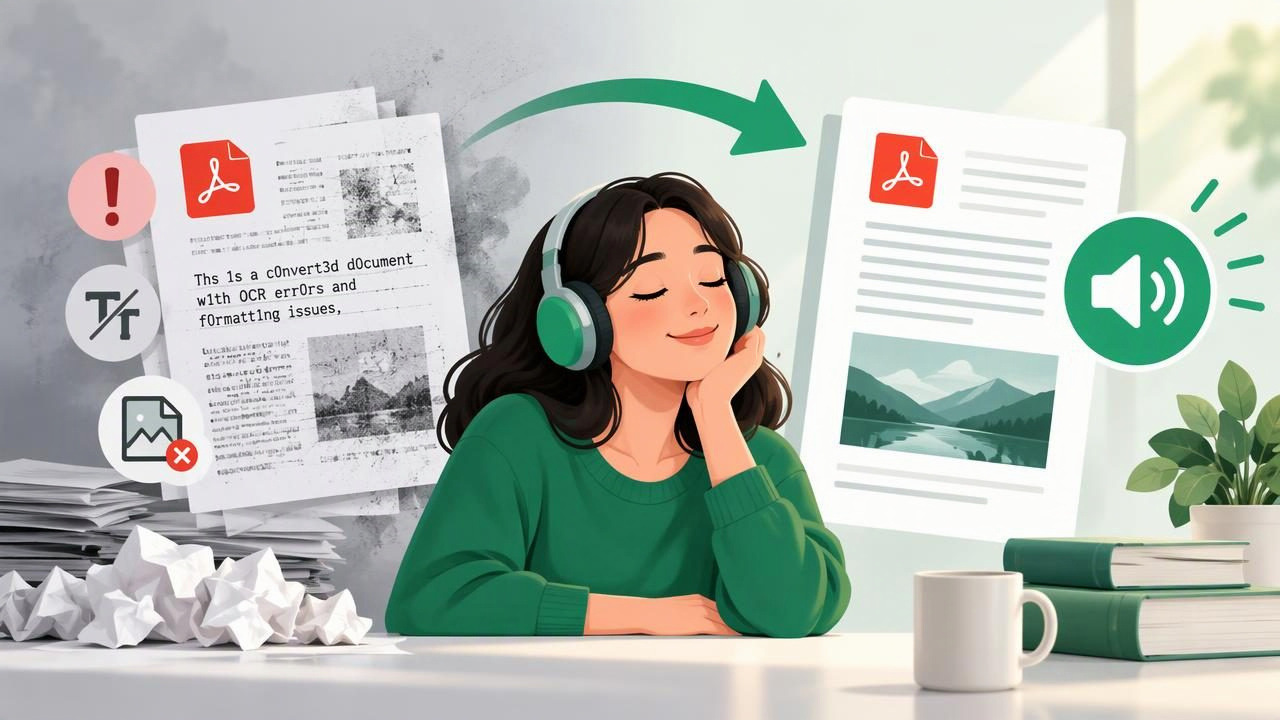
A PDF read aloud app can turn reports, textbooks, articles, and scanned pages into audio you can listen to almost anywhere. But the experience depends on more than pressing play. Poor text recognition, distracting formatting, an unsuitable voice, or an unrealistic playback speed can make listening harder than reading.
Whether you use text to speech on an iPhone or iPad for studying, accessibility, work, or convenience, a few small adjustments can make a major difference. Here are common PDF read aloud app mistakes to avoid—and practical ways to get clearer, more useful audio.
1. Assuming every PDF contains selectable text
Some PDFs are digital documents with text that an app can identify directly. Others are scans: each page is essentially a picture. If you press play on a scanned document and hear nothing, skip pages, or get strange words, the problem may be the file rather than the voice.
How to fix it: Check whether you can select and copy a sentence in the PDF. If not, choose an app with optical character recognition (OCR), which detects printed words in images and converts them into text. For a scan, use a clear, well-lit image with straight pages and readable type. Review the recognized text before listening, especially when the document includes names, numbers, or technical terms. OCR is useful, but it is not infallible.
2. Ignoring columns, headers, and page layout
A PDF may look orderly on screen but become confusing when read aloud. A two-column article can be spoken across both columns line by line. Page numbers, running headers, footnotes, and captions may interrupt the main text. Tables can be especially difficult if their rows and columns are extracted in the wrong order.
How to fix it: Preview a few pages before starting a long listening session. Look for an option to clean up, reflow, or extract the document text. If the PDF is a journal paper or textbook, test a section with columns, a figure, and a table. For a short document, copying the relevant passage into a clean text file may be quicker than listening to a badly ordered page.
3. Choosing a voice without testing it
A voice that sounds pleasant for a sentence may become tiring over an hour. Synthetic speech can also mispronounce unfamiliar names, abbreviations, or specialist vocabulary. Choosing a voice only by accent or apparent realism does not guarantee that it will be comfortable for your material.
How to fix it: Test several natural AI voices using a paragraph from the actual PDF. Listen for clear pronunciation, steady pacing, and a tone that suits the content. A conversational voice may work well for an article, while a measured delivery may be easier for dense study material. If the app allows pronunciation adjustments, add tricky terms before listening to the full file.
4. Starting at the fastest playback speed
Faster audio can save time, but increasing speed too quickly often reduces comprehension. Dense arguments, new concepts, and unfamiliar vocabulary need more processing time than an easy narrative. The right pace also varies by listener and task; a speed that works for reviewing familiar notes may not work for learning a topic for the first time.
How to fix it: Begin at a comfortable pace, then increase it in small steps. Pause after a difficult section and slow down when the subject becomes more complex. Some PDF read aloud apps support playback up to 3x, but that is an option—not a target. Use speed as a control for your attention, not as a measure of productivity.
5. Listening without following the text
Audio alone can make it hard to locate a definition, revisit a claim, or tell which paragraph is being read. This is particularly inconvenient when you are studying or checking a document for details. At the same time, staring continuously at the screen defeats one of the main reasons to listen.
How to fix it: Look for synchronized highlighting that marks the spoken words or sentence. Follow along when the material is new, then listen without watching when the structure becomes familiar. When a point matters, pause and add a note or bookmark if the app supports it. Highlighting can also help some readers with dyslexia or ADHD by making the connection between spoken and written words easier to follow, though individual preferences differ.
6. Forgetting to check the document before pressing play
PDFs can contain blank pages, repeated sections, unreadable symbols, or long legal disclaimers that you do not need narrated. Starting playback without checking may waste time and make the audio feel disorganized. A file name alone may not tell you whether it is the correct version.
How to fix it: Confirm the document and skim its table of contents or first pages. Remove or skip irrelevant pages when possible, and identify the section you actually need. For work or study, make sure you have the current version before importing it. A brief check at the beginning can prevent a much longer interruption later.
7. Treating a read-aloud app as a substitute for every reading task
Listening is useful for getting through long passages, reviewing familiar ideas, or accessing text when reading visually is difficult. It is less suited to every detail-oriented task. Comparing figures, proofreading punctuation, scanning a reference list, or interpreting a complex equation may require looking at the page. Audio can also make it easy to drift if you are doing something demanding at the same time.
How to fix it: Match the format to the task. Listen to narrative sections, explanations, and notes; return to the visual PDF for diagrams, tables, and close editing. For high-stakes material, use audio as another way to review—not as your only verification method. During a commute, choose content that does not require constant pausing or visual reference.
8. Relying on internet access without a backup plan
Some apps need a connection to import files, process scans, or generate certain voices. Assuming everything will work offline can leave you without audio on a flight, train, or in an area with weak reception. Even when a document has already been imported, an online voice may not be available without a connection.
How to fix it: Before travelling, download the document and test playback in airplane mode. Check whether the voice itself works offline, not just whether the file appears in your library. If you depend on listening for work or study, keep a second copy of the PDF in a familiar location. Offline listening is most useful when you verify it before you need it.
9. Importing sensitive PDFs without checking privacy
Documents can contain personal, medical, academic, or business information. An app may process files on your device or use online services for features such as OCR and voice generation. Do not assume that every feature handles data in the same way, or that a read-aloud app has the same privacy practices as your file-storage provider.
How to fix it: Read the app’s privacy information and check how uploads, cloud processing, and deletion work. For confidential material, choose a service and workflow approved by your organization, or use on-device options when available. Avoid importing sensitive files simply to test an app. Convenience is important, but so is knowing where your document goes.
10. Skipping a short setup test
Importing a large book and immediately starting a long session makes it harder to identify what is wrong. The voice, text extraction, volume, and navigation may all need adjustment, and discovering that halfway through a chapter is frustrating.
How to fix it: Run a one-minute test with a representative page. Check pronunciation, reading order, highlighting, skip controls, and audio output. Make sure you know how to pause, resume, and return to a section. This simple habit is especially helpful when using an unfamiliar PDF read aloud app on a new device.
A quick checklist for better PDF listening
- Confirm whether the PDF has selectable text or needs OCR.
- Test a page with columns, footnotes, or tables before committing.
- Choose a voice that stays comfortable over time, not just one that sounds impressive at first.
- Start at a manageable speed and adjust according to the material.
- Use synchronized highlighting or bookmarks when you need to follow and review.
- Test offline playback before travelling or losing connectivity.
- Check privacy practices before importing confidential documents.
Frequently asked questions
Why does my PDF read aloud app skip words?
The document may be a low-quality scan, use an unusual font, or have a complicated layout. Try OCR, improve the scan quality, or use a text extraction or reflow option. If only a few terms are wrong, check whether you can adjust their pronunciation.
Is a PDF read aloud app useful for studying?
It can help you review readings and notes while walking, commuting, or taking a screen break. Listening does not automatically guarantee learning, however. Pause to summarize important ideas, revisit difficult sections, and use the original document to inspect diagrams or exact wording.
Can I listen to a PDF without internet access?
Often, but offline support depends on the app, file, and voice. Download or import the PDF in advance and test playback with your device disconnected. Confirm that the selected voice is available offline as well.
Make the audio work for the document
The most common PDF read aloud app mistakes are usually preventable: using an unrecognized scan, overlooking layout problems, choosing the wrong pace, or expecting audio to replace every kind of reading. Test a representative page, adjust the settings to suit the content, and use listening alongside visual review when the task calls for it. If you are comparing tools, evaluate file support, OCR, voice quality, highlighting, offline playback, and privacy—not just the number of voices. Apps such as Focal Voice offer document narration on iPhone and iPad, but the best choice is the one that fits your files and listening habits.
