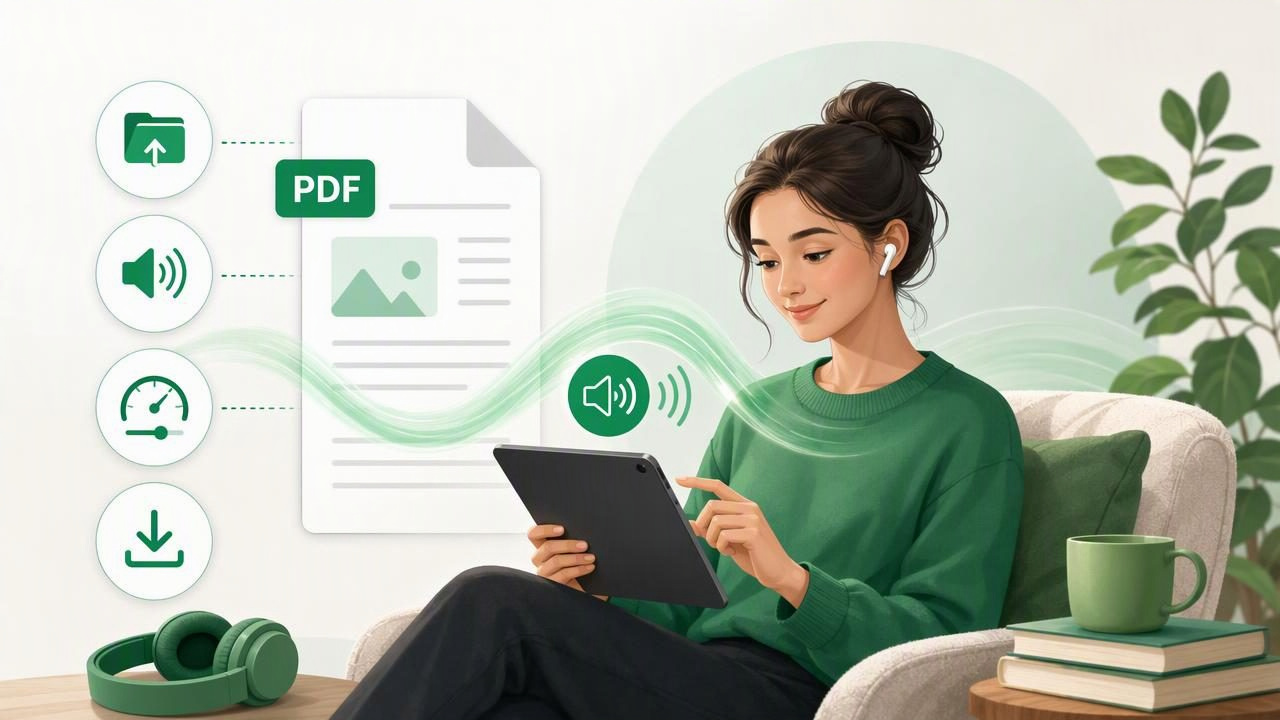
A PDF read aloud app can turn textbooks, reports, work documents, research papers, and downloaded guides into audio you can hear anywhere. Instead of needing to sit in front of a screen for every page, you can listen while commuting, walking, cooking, resting your eyes, or reviewing notes before an exam.
For beginners, text-to-speech can feel surprisingly simple: import a PDF, press play, and listen. But a few small setup choices can make a major difference in clarity, comfort, and how much information you retain. This guide covers practical PDF read aloud app tips for beginners, from preparing your document to choosing a voice and building a sustainable listening routine.
Start With the Right Type of PDF
Not every PDF contains text in the same way. Before importing a file, it helps to know whether it is a text-based PDF or a scanned image PDF.
- Text-based PDFs contain selectable text. You can usually tap and hold a word, highlight a sentence, or search within the document.
- Scanned PDFs are often images of physical pages. They may need optical character recognition, also called OCR, before a text-to-speech app can read them accurately.
Try selecting a sentence in the PDF first. If you can copy the text, it will typically work well with document narration. If you cannot select anything, you may need to scan the pages again, use an OCR tool, or choose an app with camera scan to speech capabilities.
Clean source files also lead to better audio. If possible, download the original PDF rather than a low-quality photocopy. Blurry scans, tilted pages, handwritten annotations, and unusual fonts can create pronunciation errors.
Import Your First Document Carefully
Most iPhone and iPad text-to-speech apps let you add PDFs through the Files app, a share sheet, cloud storage, email attachments, or direct downloads. The first import is a good time to create a simple organizational system.
- Save the PDF to Files, iCloud Drive, or another folder you can find easily.
- Rename unclear files before importing them. A name such as Biology Chapter 4 Notes is more useful than document-final-2.pdf.
- Open the share menu and select your preferred read aloud app, or import it from inside the app.
- Wait for the document to finish processing before starting playback.
- Check the first paragraph for missing text, incorrect reading order, or repeated headers.
For large documents, begin with a short section rather than trying to listen to an entire 300-page book in one sitting. This gives you time to test the voice and playback settings without feeling overwhelmed.
Choose a Natural Voice That Feels Comfortable
The voice is one of the most important parts of your listening experience. A voice that is technically clear may still be tiring if its rhythm, accent, or tone does not suit you. Spend a few minutes sampling available natural AI voices before committing to a long chapter.
When comparing voices, listen for the following:
- Pronunciation: Does it handle common words, names, and technical vocabulary well?
- Pacing: Are pauses placed naturally at commas, periods, and section breaks?
- Clarity: Can you understand it without turning the volume excessively high?
- Comfort: Would you be happy listening to this voice for 30 minutes or more?
There is no universally best voice. Some people prefer a slower, calm narrator for dense academic writing. Others like a more energetic voice for news articles or work reports. If your document uses another language, select a voice designed for that language whenever possible rather than relying on an English voice to pronounce foreign text.
Find Your Best Playback Speed Gradually
Many beginners press play at normal speed and assume faster playback is only for expert listeners. In reality, increasing speed gradually can help you stay engaged, especially with familiar material. The key is to increase speed without sacrificing comprehension.
| Listening situation | Suggested starting speed | Useful approach |
|---|---|---|
| New or difficult material | 0.9x to 1.1x | Pause after important sections and review key ideas. |
| General articles and emails | 1.2x to 1.5x | Use a clear voice and rewind when needed. |
| Reviewing familiar notes | 1.5x to 2x | Listen during a walk or while organizing tasks. |
| Quick revision | 2x to 3x | Use only when you already know the subject. |
A practical method is to increase playback by 0.1x or 0.2x every few minutes. If you notice your mind wandering or cannot summarize the previous paragraph, lower the speed. Faster is not automatically better; the best speed is the one that helps you understand and remember.
Use Highlighting to Follow Along
Synchronized text highlighting is especially useful when you are learning how to listen to PDFs. The app highlights words or sentences as they are read, helping your eyes and ears process the same information together.
This feature can be valuable for:
- Students reading textbooks with unfamiliar terminology.
- People who want support with focus, dyslexia, or ADHD.
- Language learners practicing pronunciation and sentence rhythm.
- Professionals reviewing complex contracts, reports, or policy documents.
Following along is not necessary for every session. For example, you may prefer audio-only listening while commuting. However, pairing visual text with audio during your first pass through difficult material can improve understanding. Then, use audio-only playback for review.
Good listening is active listening: pause, replay, and summarize rather than treating every document like background noise.
Learn the Essential Playback Controls
A PDF read aloud app becomes much more useful once you are comfortable with a few basic controls. You do not need to use every feature, but the following are worth learning early.
- Play and pause: Stop quickly when an idea needs more attention.
- Skip forward and back: Rehear a sentence without hunting through pages manually.
- Jump to a heading or page: Move to the section you need for class or work.
- Sleep timer: Useful for evening listening without leaving audio running all night.
- Bookmarks: Save important pages, chapters, or passages for later.
- Progress memory: Resume where you stopped, even after closing the app.
Try making one bookmark during your first listening session. That small habit prevents frustration when you need to return to an important definition, assignment instruction, or meeting detail later.
Make PDFs Easier to Hear Before You Listen
PDFs are designed for visual reading, so they often include elements that sound awkward when narrated. Page numbers, repeated headers, footnotes, table labels, citations, and multi-column layouts can interrupt the flow.
Before listening, skim the document and consider these adjustments:
- Read the abstract, introduction, or executive summary first.
- Use headings to navigate instead of listening to every front-matter page.
- Review complex tables visually, then listen to the surrounding explanation.
- Copy a crucial passage into notes if a layout-heavy page reads poorly.
- Split an enormous PDF into smaller sections when you only need specific chapters.
For scanned handouts or printed pages, camera scan to speech can be a convenient alternative. Take a clear, well-lit photo, keep the page flat, and avoid shadows. Check the recognized text before listening, particularly if the page contains equations, columns, or handwriting.
Build an Offline Listening Routine
Offline listening is helpful when you travel, ride public transportation, work in areas with unreliable reception, or want to conserve mobile data. Download or process the PDFs you need before leaving home, school, or the office.
Create a short listening queue for the week. For example, a student might add one lecture PDF, one assigned reading, and one set of review notes. A professional might save a project brief, a training document, and an industry report. A smaller queue makes it easier to finish what you start.
Use predictable moments in your day: a 15-minute walk, a train ride, a lunch break, or a quiet evening routine. Consistency is often more effective than trying to complete several hours of audio in one day.
Take Notes While Listening to Important PDFs
Listening is convenient, but it is not always enough for detailed study. When the content matters, combine audio with lightweight note-taking. Pause after a section and write one sentence describing the main idea. This approach helps turn passive listening into active recall.
You can use a simple format such as:
Main point:
Evidence or example:
Question to revisit:
Action item:
For academic PDFs, write down terms you do not understand and revisit them later. For work documents, record decisions, deadlines, and follow-up actions. Avoid trying to transcribe every sentence; the goal is to capture the information you will actually use.
Know When to Use Audio and When to Read Visually
Text-to-speech is excellent for continuous prose, but visual reading may be better for certain content. Equations, detailed spreadsheets, charts, coding examples, and image-heavy pages often require closer visual attention. A blended method works well: inspect the visual elements first, then use narration for explanations and surrounding text.
Similarly, do not feel obligated to listen to every page. Use a PDF read aloud app to make reading more flexible, not more rigid. Skip repetitive material, replay difficult paragraphs, and change methods when the document demands it.
Choose an App Based on Your Actual Needs
When comparing text-to-speech apps, focus less on brand names and more on your daily workflow. Some people mainly need PDF read aloud support. Others need EPUB to audiobook conversion, MOBI reading, web article listening, pasted text, or camera scanning. Features such as natural voices, synchronized highlighting, offline access, and playback up to 3x can be especially useful depending on how and where you listen.
Before subscribing to any service, test it with a real document you regularly use. Listen to a few pages, try changing speed, check whether it remembers your place, and see how it handles headings and formatting. Apps such as Focal Voice can be worth exploring if you want one iPhone or iPad tool for PDFs alongside other document and reading formats.
Final Tips for Better PDF Listening
The best beginner setup is simple: start with a clean PDF, choose a comfortable voice, use a moderate speed, and listen in short sessions. As you become more confident, add highlighting, bookmarks, offline downloads, and note-taking.
A PDF read aloud app is not just a way to avoid reading on a screen. It can help you fit learning, work, and personal reading into parts of the day that might otherwise go unused. With a few thoughtful habits, your documents can become a practical audio library you can take almost anywhere.
