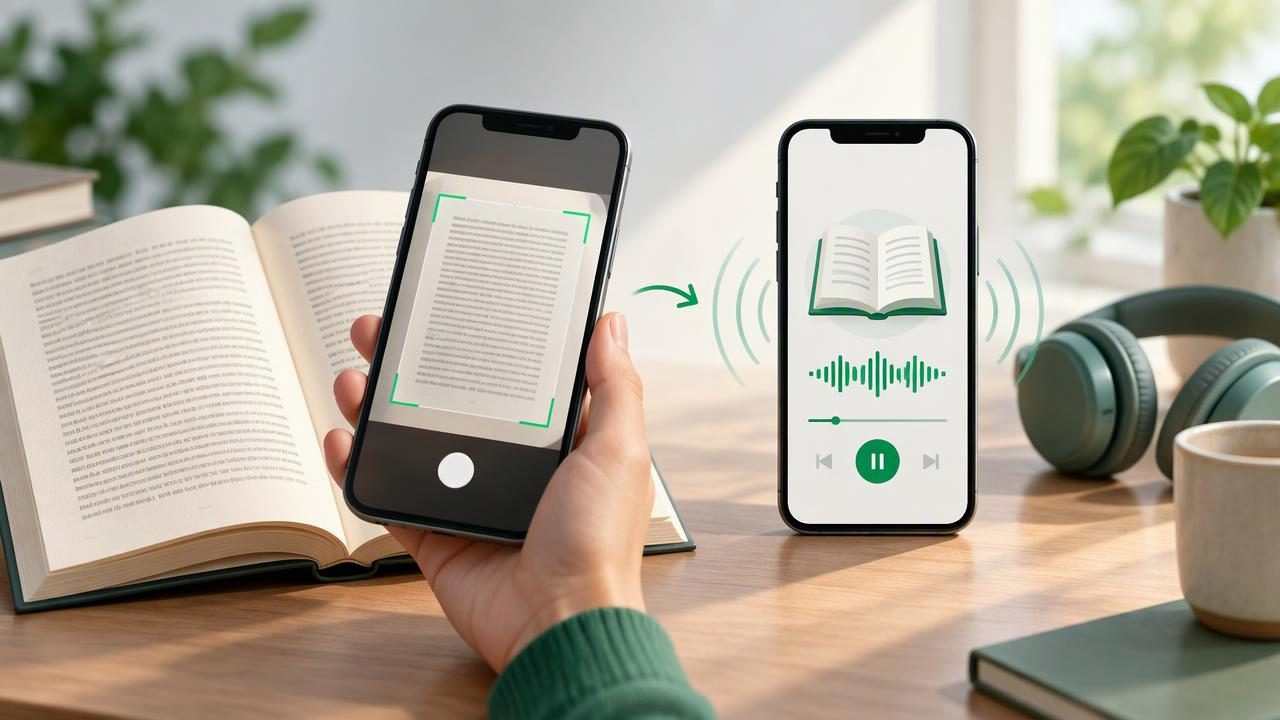
Printed books, handouts, recipes, and reports do not have to stay on the page. With an iPhone audiobook creator that includes camera scanning and text-to-speech, you can capture printed words, convert them into editable text, and listen while you walk, commute, or take a screen break. The key is to treat scanning and listening as one process: a clear photo improves text recognition, and clean recognized text makes better audio.
This guide walks through how to scan printed text and hear it, what to check before you start, and how to fix common problems. Use the checklist whether you want to listen to a few pages or create a longer audio version of printed material.
Why scan printed text into audio?
A camera scan can make paper content easier to access and revisit. Listening may help you review a document while doing a low-attention task, follow along with on-screen text, or reduce the time spent staring at a page. It can also be useful for people who find listening more comfortable than reading, including some readers with dyslexia or ADHD. Individual preferences vary, so try audio alongside text and see which format suits the material.
Unlike a regular photo, an effective scan-to-speech workflow uses optical character recognition (OCR) to identify letters and words in the image. The app then turns that text into spoken narration. OCR is not perfect: a shadow, unusual font, or curved page can lead to mistakes. A quick review before listening can make a noticeable difference.
Before you scan: a quick checklist
Set up the page and your phone before taking pictures. These small steps help the camera capture text clearly and give OCR a better chance of recognizing it correctly.
- Choose a bright, even area. Use natural light or a lamp, and avoid a shadow from your hand or phone.
- Flatten the page. Smooth curled edges and keep the book open as much as possible.
- Check the lens. Wipe away fingerprints so the text does not look hazy.
- Frame the whole page. Include all text, but avoid unnecessary background around the page.
- Hold steady and parallel. Keep the camera level with the paper to limit skew and blur.
- Prepare multiple pages. If you are scanning a chapter, decide on the page order before you begin.
Small print may need a closer, sharper image. If you cannot fit the page clearly in one frame, scan sections separately rather than taking a distant photo with tiny lettering.
How to scan printed text and hear it on iPhone
- Open a scan-to-speech or text-to-speech app. Look for a camera, scan, or import option. Features and names vary by app, but the process is similar.
- Capture the page. Position the printed text inside the camera guides. Take the picture when the page is in focus, then repeat for each page you need.
- Run OCR and review the result. Wait for the app to convert the image into text. Check headings, paragraph breaks, page order, and any words that look uncertain.
- Correct obvious recognition errors. Fix a misspelled name, missing punctuation, or a number that OCR misread. You do not need to polish every sentence, but errors can make narration confusing.
- Choose a voice and language. Select the language that matches the text. If there are several voice options, preview a short section and choose one that is comfortable for longer listening.
- Start playback and follow along. Listen to a paragraph while watching the recognized text. Synchronized highlighting, when available, can help you track the narrator’s place.
- Save or download the content if supported. For listening without a connection, confirm that both the text and any required audio are available offline before you leave Wi-Fi.
That sequence is the practical scan printed text and hear it checklist with an iPhone audiobook creator: capture, verify, select narration, listen, and save. Test it on one page first. Once you know the scan quality and voice work for you, move on to a longer section.
Review OCR before pressing play
OCR can confuse characters that look alike, such as the number 1 and a lowercase l, or mistake a hyphen for punctuation. It may also read columns in the wrong order or include page numbers and headers in the middle of a sentence. Scan quality matters, but so does the structure of the printed page.
Before listening to a full chapter, inspect the first few paragraphs. Check proper names, abbreviations, dates, measurements, and any technical terms. For a table, formula, or diagram, consider whether spoken narration will communicate the information clearly. A voice can read text, but it may not explain a visual relationship that is obvious on paper.
If the scan contains a substantial error, retake the photo instead of correcting a long string of mistakes manually. Improve the lighting, flatten the page, or adjust the camera angle. When a single line is unclear, you can often crop or rescan just that section if the app allows it.
Set up listening for comfort and focus
Start at a natural pace rather than immediately choosing the fastest playback speed. Once the voice feels clear, increase the speed gradually. Some listeners prefer slower narration for unfamiliar or dense material; others can review familiar notes at a quicker pace. Many text-to-speech tools offer adjustable playback, and some support speeds up to 3x, but faster is not always more effective.
Use headphones in noisy places, or play audio through your device when privacy is not a concern. Set a sleep timer for evening listening and use bookmarks or saved positions if you plan to return to the text. If the app offers highlighting, follow the words on screen when learning new terms, then try listening without looking when you want a screen-free break.
Common scan-to-audio problems and fixes
| Problem | Likely cause | What to try |
|---|---|---|
| Words sound garbled | Blur, glare, or small print | Retake the image with better light and a steady, closer frame. |
| Sentences are out of order | Columns or pages were captured incorrectly | Scan one page at a time and check the text order before playback. |
| Narration says headers repeatedly | Page titles or footers were included by OCR | Remove repeated text or adjust the scan area if possible. |
| Pronunciation sounds wrong | Unfamiliar names, acronyms, or language mismatch | Confirm the selected language and edit the recognized word where supported. |
| Audio will not play offline | Content or voice data may not be downloaded | Test offline mode before travel and download the material while connected. |
Choose the right app for your printed material
Not every text-to-speech app handles camera scans in the same way. When comparing options, check whether scanning is included, whether OCR text can be edited, and how the app handles long documents. Also consider voice quality, language choices, playback controls, highlighting, and offline access. If you already use a service such as Speechify, NaturalReader, or ElevenReader, compare its scan workflow with your actual needs rather than relying only on feature lists.
For occasional pages, a simple camera scan and play button may be enough. For coursework or work reports, you may value saved documents, reliable page ordering, and bookmarks. If you want more conversational review, some apps can also generate a two-host, podcast-style discussion from user-provided content. That format can be engaging, but it is not a substitute for checking source material when exact wording matters.
Privacy and practical considerations
Printed pages can contain personal, confidential, or copyrighted material. Before uploading a scan, review the app’s privacy policy and understand whether content is processed on your device or sent to a service. Follow your organization’s rules for sensitive documents, and make sure you have permission to scan and convert material when required. For private paperwork, avoid sharing files or audio through public links.
Also consider the source’s layout. A novel or essay usually converts cleanly into narration, while a chart-heavy report may need visual inspection. Keep the printed original nearby for complex diagrams, footnotes, and formatting that OCR may not preserve.
Final iPhone audiobook creator checklist
- Is the page flat, evenly lit, in focus, and fully inside the frame?
- Did OCR capture every page in the correct order?
- Have you checked names, numbers, punctuation, and layout-related errors?
- Does the selected voice use the right language and sound comfortable?
- Is the playback speed easy to understand for this particular text?
- Have you tested highlighting, bookmarks, and offline playback if you need them?
When the scan is clear and the recognized text is accurate, printed material can become useful audio for review, accessibility, or listening on the go. Focal Voice is one example of an iPhone and iPad app that combines camera scans with text-to-speech, but the best choice is the one that fits your pages, listening habits, and privacy requirements.
