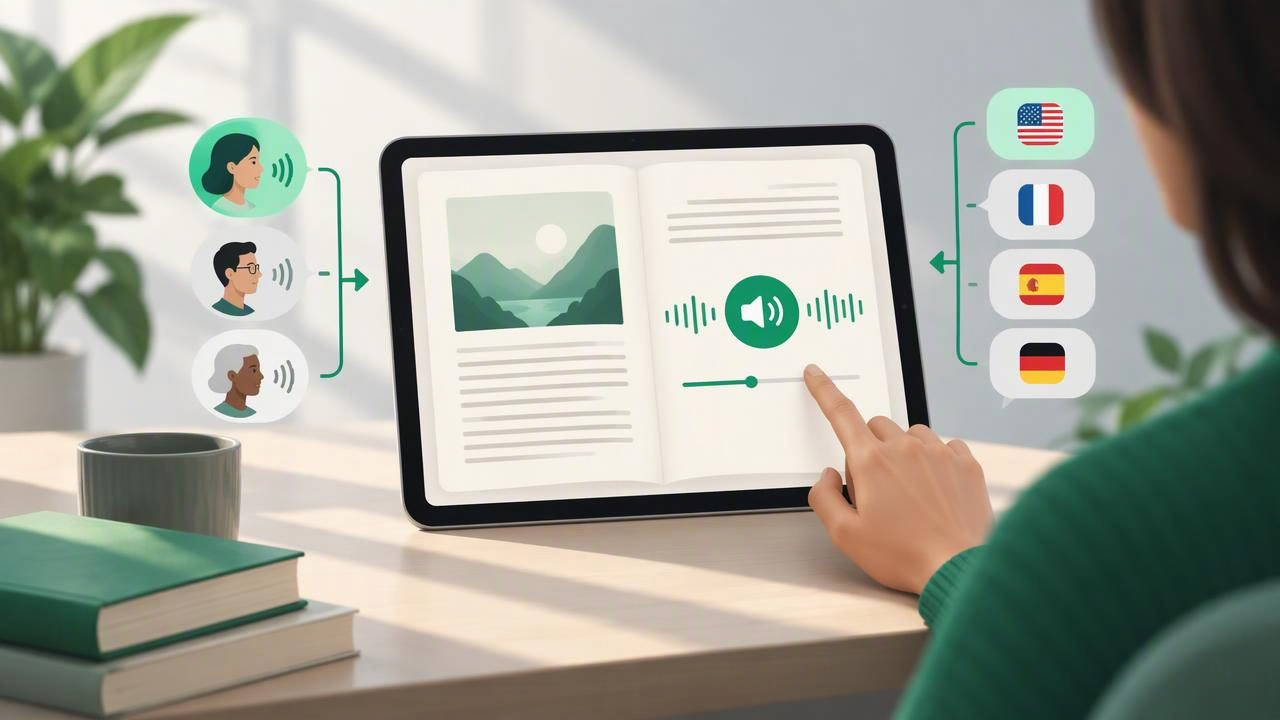
A MOBI reader app can do more than open an ebook on your iPhone or iPad. With text-to-speech, it can turn chapters into audio for a commute, a study session, or a screen break. But listening well depends on more than pressing Play. The voice should suit the book, the narration language should match the text, and switching between settings should be simple enough to do without losing your place.
Use this checklist to evaluate how an app handles voice and language changes when you listen to a MOBI book. It also helps you avoid common problems such as an unsuitable accent, incorrect pronunciation, or a language setting that changes the menus but not the narration.
Why voice and language controls matter
The same voice may not work for every reading task. A clear, steady narrator can be useful for a textbook, while a more expressive voice may make a novel easier to follow. You may also want to change voices to reduce listening fatigue, distinguish a quoted passage, or find a pronunciation style that feels comfortable.
Language settings matter just as much. A reader might have English menus while the book itself is in Spanish, French, or another language. If the speech engine reads the text using the wrong language, pronunciation and rhythm can become distracting. A good MOBI listening workflow lets you check the narration language separately from the app's display language.
The MOBI voice-and-language checklist
Before choosing a text-to-speech reader, test these features with a MOBI file similar to the books you plan to hear.
- Confirm MOBI support. Check that the app can import and read MOBI files, not only PDFs or EPUBs. Open a real book and confirm that chapter navigation, paragraphs, and punctuation appear in a sensible order.
- Preview voices before committing. Look for a way to sample voices on your own text. A voice preview using a short generic sentence may not reveal how the narrator handles dialogue, longer sentences, or names in your book.
- Check language availability. Find the list of supported spoken languages and accents. Confirm that the language you need applies to narration, rather than only to menus or interface labels.
- Test the switch itself. Start listening, change the voice or language, and see whether playback resumes near the same sentence. Easy switching should not force you to search for your place again.
- Listen for natural pronunciation. Try contractions, numbers, abbreviations, character names, and foreign phrases. Notice whether the voice pauses at punctuation and reads chapter headings appropriately.
- Check speed controls. Make sure you can adjust the rate independently of voice selection. A faster pace can help with familiar material, while a slower rate can clarify dense passages or language practice.
- Verify highlighting and navigation. Synchronized text highlighting can help you follow along as the audio plays. Check whether the app can skip by sentence, paragraph, or chapter after a setting change.
- Test downloads and offline playback. Some voices may require an internet connection or a separate download. Try airplane mode after setup to find out what will remain available offline.
- Review language detection. If your MOBI includes more than one language, see whether the app handles changes within the text or whether you need to choose a narration language manually.
- Check accessibility and comfort options. Look for controls that make sessions easier to follow, such as adjustable playback speed, clear highlighting, sleep timers, and reliable bookmarks.
Compare the features that affect listening
Use a short passage from your book to compare apps. Feature names can differ, so focus on what each setting actually does rather than assuming that a label such as natural voice guarantees a particular sound quality.
| What to test | What to look for | Why it matters |
|---|---|---|
| Voice choice | Several usable voices and a sample option | Helps match narration to the book and your listening preferences |
| Language controls | Clear spoken-language and accent options | Reduces mispronunciation and supports multilingual reading |
| Switching behavior | Playback returns close to the current sentence | Keeps a quick adjustment from interrupting your session |
| MOBI structure | Chapters and paragraphs remain in reading order | Makes long books easier to navigate and resume |
| Offline use | Downloaded content and selected voices work without data | Useful for travel, commuting, or limited connectivity |
How to switch voices and languages without losing your place
Exact controls vary by app, but this process works as a practical test:
- Import the MOBI book. Open the file in your reader and allow time for any conversion or processing. Check the table of contents before starting.
- Choose the narration language. Match it to the main text. If the book contains substantial passages in another language, test those sections separately.
- Preview two or three voices. Listen to the same paragraph in each voice. Comparing identical text makes differences in clarity, pace, and pronunciation easier to notice.
- Start playback at a useful speed. Begin at a comfortable rate, then adjust after you understand the narrator's rhythm. Faster playback is not automatically better if it makes you miss meaning.
- Change one setting at a time. Switch the voice first, then the language if needed. Listen to the next few sentences to confirm the change took effect and the reading position stayed correct.
- Bookmark your place. Before leaving the book, pause and check that the app saves your location. This is especially useful if you plan to compare voices later.
Common problems and simple fixes
The narration sounds like the wrong language
Check the spoken-language setting, not just the device language. A MOBI book may contain metadata that does not identify its language correctly, or it may include multilingual sections. Try selecting the language manually and replaying a short passage. If only a few names or phrases sound wrong, the issue may be pronunciation rather than the overall language setting.
The new voice starts at the wrong place
Some apps restart a passage when you change voices. Pause before switching, note the current sentence, and test whether a bookmark or playback-position control can restore it. If the problem occurs consistently, it is worth considering a reader that preserves the current position more reliably.
A voice is unavailable offline
Many speech systems distinguish between built-in voices and voices that need to be downloaded or streamed. While connected to Wi-Fi, check for voice downloads and test playback with your device disconnected. Do not assume that a book being available offline means every narration option is available too.
Reading speed makes speech less clear
Speech that sounds natural at normal speed may become harder to understand at a higher rate. Increase speed gradually and listen for dropped endings, crowded pauses, or difficulty following dialogue. For dense nonfiction or language study, a moderate pace with clear pronunciation may be more effective than the maximum setting.
Make the checklist useful for different reading goals
For novels: Prioritize voices that handle dialogue and changes in tone comfortably. Test a page with several characters rather than judging a narrator from a single description.
For study: Choose dependable pronunciation, adjustable speed, and text highlighting that stays aligned with the audio. Try listening to one chapter while following the text, then replay key sections at a slower pace.
For language learning: Match the narration language to the target language and listen to a passage you can also read. Switching between a native-language voice and a target-language voice may help you compare meaning, but verify that both languages are supported for speech.
For accessibility and focus: A consistent voice, clear controls, and easy bookmarking can reduce friction. People with dyslexia, ADHD, visual fatigue, or other reading needs may find audio helpful, though the most useful settings vary from person to person. Try short sessions and adjust speed, voice, and highlighting to suit the task.
Choose a reader by testing your own book
Feature lists are useful, but they cannot tell you whether a voice is comfortable for an hour or whether a particular MOBI file imports cleanly. Use the same passage to test each app, and include a chapter break, dialogue, numbers, and any language-specific words you expect to encounter. Keep notes on voice quality, switching behavior, offline access, and how easily you can resume.
A dependable MOBI reader should make voice and language controls easy to find, preserve your listening position, and explain which options work offline. If you want one iPhone or iPad app for ebooks and other reading material, compare MOBI support alongside formats such as EPUB, PDFs, documents, and web articles. Focal Voice is one example of an app that supports MOBI narration, multiple languages, and offline listening; as with any reader, check the current feature details and try it with your own file.
The best choice is the one that lets you focus on the book instead of troubleshooting the narrator. A few minutes with this checklist can help you find a voice and language setup that is comfortable, clear, and easy to change whenever your reading needs shift.
