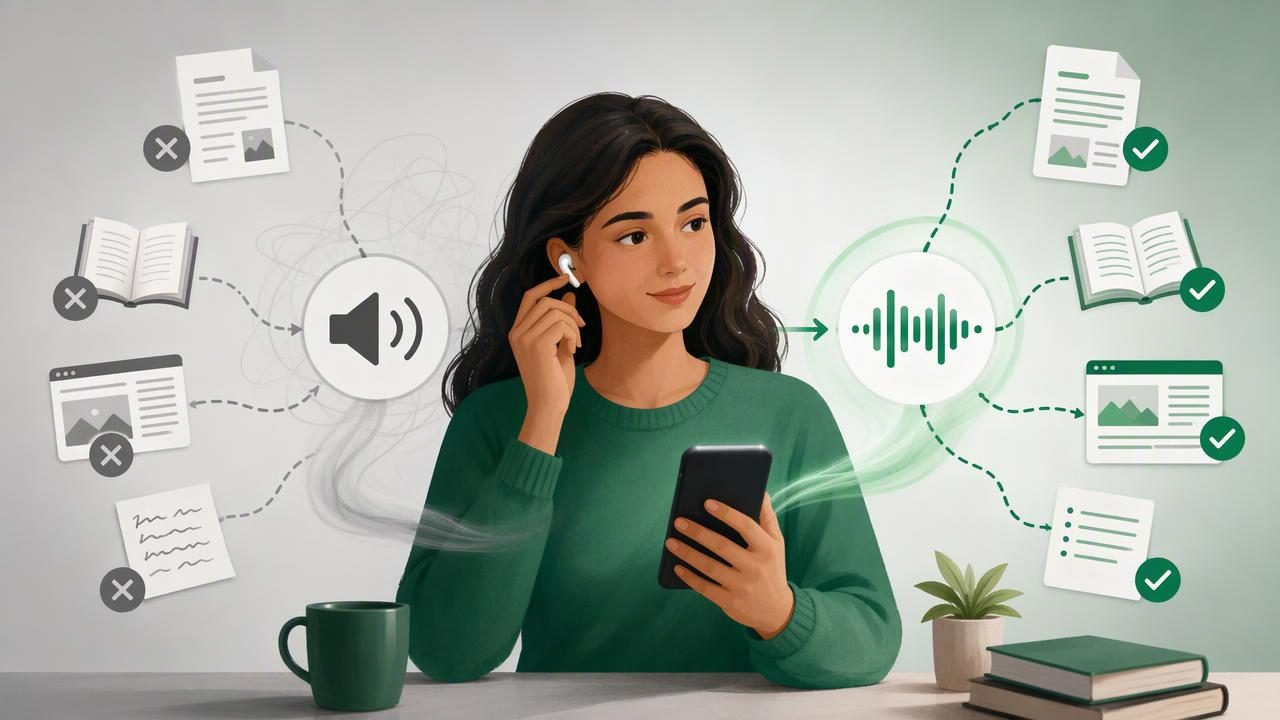
A good text to speech app can turn a long PDF, EPUB book, web article, class note, or printed page into something you can hear while walking, commuting, exercising, or resting your eyes. But simply pressing play does not always create a useful listening experience. Many people abandon text to speech because the voice sounds awkward, the document skips sections, playback moves too quickly, or they cannot find their place later.
In most cases, the problem is not text to speech itself. It is the setup. Knowing the most common text to speech app mistakes to avoid can help you get more from document narration, study listening, and everyday accessibility tools on iPhone and iPad.
1. Choosing an App Based Only on Voice Quality
Natural AI voices matter. A clear voice with natural pacing makes dense material easier to follow, especially when listening to textbooks, reports, and long-form articles. However, voice quality is only one part of a useful text to speech experience.
An app may sound impressive in a short demo but be frustrating when you need to import a PDF, preserve chapter structure, follow highlighted text, or listen without an internet connection. Before choosing a tool, consider the formats and situations you actually use.
- Do you need a PDF read aloud while following charts and headings?
- Do you read EPUB or MOBI ebooks?
- Will you save web articles for a commute?
- Do you need to paste notes or scan printed pages with your camera?
- Is synchronized highlighting important for focus or comprehension?
The best voice is less valuable if the app cannot reliably handle your reading material.
2. Ignoring File Format Compatibility
One of the easiest text to speech app mistakes to avoid is assuming every document will work the same way. PDFs, DOCX files, EPUB books, MOBI files, and web pages are structured differently. A clean EPUB may flow like a traditional audiobook, while a scanned PDF may need optical character recognition (OCR) before it can be read accurately.
Before importing an entire library, test a few representative files. Open a report with headings, an ebook with chapters, and a scanned handout. Check whether the app recognizes the text, keeps the reading order intact, and lets you navigate efficiently.
| Content type | Common challenge | What to check |
|---|---|---|
| Columns, tables, or image-only pages | Text extraction, page navigation, highlighting | |
| EPUB | Chapter structure and reflowable text | Table of contents and chapter transitions |
| MOBI | Legacy ebook formatting | Import support and readable formatting |
| DOCX | Headers, comments, and layout elements | Clean reading order and skipped clutter |
| Camera scan | Blur, shadows, and handwritten notes | OCR accuracy before listening |
3. Starting at 3x Playback Speed Too Soon
Fast playback is useful, but speed should support comprehension rather than become a test of endurance. New users often make the mistake of immediately trying 2x or 3x because they want to save time. If you are constantly rewinding, you are probably not saving time at all.
Start with a pace that lets you retain the main points. For unfamiliar, technical, or academic content, that may be close to normal speed. For a familiar article, meeting notes, or a novel, a faster pace may feel comfortable.
A practical speed-building approach
- Listen at 1x to 1.25x for the first few minutes.
- Increase speed in small increments after you understand the voice and topic.
- Slow down for definitions, data, legal language, formulas, and quotations.
- Use a slightly faster speed for review listening than for first-time learning.
Reading at up to 3x can be effective for the right content, but there is no prize for using the highest setting. The ideal speed is the fastest pace you can understand without repeated rewinds.
4. Listening Without Text Highlighting for Difficult Material
Audio-only listening is convenient, but it is not always the best option. When a document includes unfamiliar terminology, names, citations, dates, or complex arguments, seeing the words while hearing them can improve attention and understanding.
Synchronized highlighting is especially useful for students, language learners, and people with dyslexia or ADHD. It creates a visual anchor, making it easier to notice where you are in a paragraph and recover after a distraction. For many readers, this combination reduces the pressure of decoding every word silently.
Use audio-only mode when your hands and eyes are occupied. Use read-along highlighting when the goal is close study, proofreading, or retention.
5. Forgetting to Prepare for Offline Listening
People often discover too late that their train route, flight, campus building, or workplace has unreliable connectivity. If you depend on a live web connection for every document and voice, your listening plan can stop at exactly the wrong time.
Before leaving home, download or import the material you want to hear. Confirm that the selected voice and document are available offline, then start playback briefly while disconnected if possible. This is particularly important for long PDFs, ebooks, and articles saved for travel.
Simple rule: If you need it during a commute, prepare it before the commute.
Offline listening also helps you avoid wasting mobile data and lets you keep your attention on the content rather than connection issues.
6. Feeding Poor Camera Scans Into Text to Speech
Camera scan to speech can be incredibly helpful for printed worksheets, book excerpts, mail, and research materials. Yet OCR cannot reliably fix every bad scan. Crooked pages, low light, glare, tiny text, and shadows near the binding can create errors that make narration confusing.
To get better results, place the page on a flat, well-lit surface. Hold the camera directly above the text, avoid reflections, and make sure all page edges are visible. Review the recognized text before beginning a long listening session. Correcting a name or number early is much easier than trying to interpret an incorrect narration later.
For handwritten notes, expectations should be lower. Clear block lettering is more likely to be recognized than cursive or heavily annotated pages.
7. Treating Every Web Page Like a Clean Article
Web pages often contain navigation menus, cookie banners, related links, advertisements, comments, and repeated buttons. A text to speech tool that reads everything on the page may sound cluttered, even if the article itself is excellent.
When you want to listen to web articles, look for a clean reading view or a way to save only the article text. Before pressing play, scan the opening paragraph and headings to make sure the main content was captured correctly. This small step can prevent you from hearing a website menu, newsletter prompt, and footer before reaching the information you wanted.
Saving useful articles also creates a personal listening queue. Rather than opening random links during a busy day, collect a few pieces in advance and listen when you have time.
8. Using One Voice and Speed for Every Type of Content
A voice that works well for fiction may not be your preferred voice for a scientific paper. Similarly, a fast speed may be fine for reviewing notes but too quick for a legal document. Treat voice choice and playback speed as part of your reading strategy.
Try assigning different settings to different tasks:
- Novels and EPUB books: a warm, expressive voice at a relaxed pace.
- Study materials: a clear voice with highlighting and easy rewind access.
- Web articles: a moderately fast pace for efficient catch-up.
- Proofreading: a slower voice that makes awkward phrasing easier to notice.
This is also a useful way to compare popular apps such as Speechify, NaturalReader, ElevenReader, and other text to speech options. Instead of asking which app is universally best, test which workflow best fits your own files, voice preferences, accessibility needs, and offline requirements.
9. Not Using Bookmarks, Notes, or a Listening Routine
Text to speech is most helpful when it fits into a repeatable routine. Without bookmarks or a clear stopping point, it is easy to lose your place in a 70-page PDF or forget which chapter you were reviewing.
Build a simple system: save material by project, bookmark key passages, and pause at natural section breaks. If you are studying, write a short note after each section with one idea you remember and one point you need to revisit. This turns passive listening into active learning.
For longer documents, consider listening once for the big picture, then returning with the text visible for important passages. The first pass builds familiarity; the second pass supports detail and recall.
10. Expecting Text to Speech to Replace Every Reading Method
Text to speech is a flexible reading tool, not a universal substitute for visual reading. It is excellent for consuming articles during a walk, revising notes while doing chores, reducing eye strain, and making content more accessible. But visual reading may still be better for spreadsheets, complex diagrams, dense equations, or anything requiring constant comparison across a page.
The most effective approach is usually hybrid: listen when audio is practical, read visually when layout matters, and combine both when you need deeper comprehension. Some users also turn their own documents into conversational, two-host AI podcast-style summaries to make broad themes easier to review before reading the source in detail.
Build a Better Text to Speech Workflow
A reliable text to speech workflow starts with the right file, the right setting, and the right goal. Test format support, choose a comfortable speed, prepare content for offline listening, and use highlighted text for demanding material. These small adjustments can make document narration feel less like a novelty and more like a dependable part of your reading routine.
If you want one place to listen to PDFs, ebooks, DOCX files, web links, pasted text, and camera scans on iPhone or iPad, Focal Voice is one option to explore after comparing its workflow with your needs.
