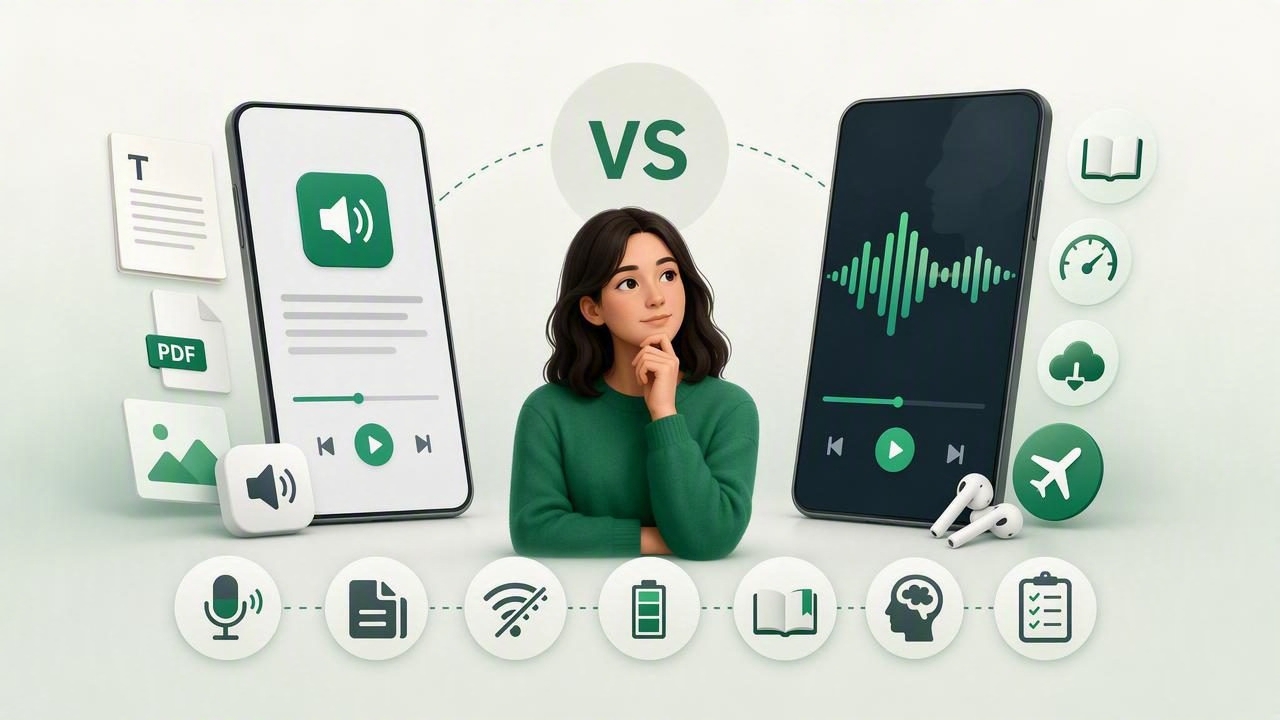
Choosing between a general text to speech app vs Speechify often comes down to a simple question: what do you need to listen to? Some people want to turn a long PDF into audio for a commute. Others need help following textbooks, web articles, EPUB ebooks, or scanned handouts. The best choice is not necessarily the app with the longest feature list; it is the one that fits your reading materials, devices, budget, and daily routine.
Modern text-to-speech tools can do much more than read copied text in a robotic voice. They can narrate documents, preserve reading position, highlight words as they are spoken, support faster playback, and make dense material easier to approach. This guide explains how to compare the options fairly, which features matter most, and how to test an app before committing to a subscription.
What Does a Text-to-Speech App Do?
A text-to-speech app converts written content into spoken audio. On an iPhone or iPad, that content may include PDFs, EPUB files, DOCX documents, web pages, notes, copied text, and images that have been scanned with a camera. The result is a more flexible way to read: you can listen while walking, cooking, commuting, resting your eyes, or reviewing material before an exam.
Speechify is a well-known option in this category, while many other apps offer different combinations of document support, voices, offline playback, and reading tools. Rather than treating every text-to-speech app as interchangeable, compare how each one handles the sources you use most often.
Text to Speech App vs Speechify: The Key Comparison Areas
A useful comparison starts with your workflow, not marketing claims. The features below affect whether listening feels smooth and productive or becomes another task to manage.
| Comparison area | Why it matters | What to test |
|---|---|---|
| File formats | You may read more than web pages. | Import a PDF, EPUB, DOCX, and any ebook format you use. |
| Voice quality | Clear speech reduces listening fatigue. | Try technical, conversational, and dialogue-heavy passages. |
| Synchronization | Highlighting helps you track text and retain details. | Check whether spoken words stay aligned with the page. |
| Offline listening | Reading should not depend on a stable connection. | Download a document, then use airplane mode. |
| Playback speed | The right pace changes by task and familiarity. | Test normal speed, 1.5x, 2x, and faster options. |
| Import process | Friction can stop a useful habit before it starts. | Share a file from Files, Safari, Mail, or a cloud drive. |
1. Document and Ebook Format Support
Format support is one of the biggest practical differences between text-to-speech tools. If you mostly listen to online articles, a browser-focused reader may be enough. But students, researchers, professionals, and book lovers often need a broader document narration workflow.
Look for support for the files already sitting in your library. PDFs are common for academic papers, manuals, and reports. EPUB is widely used for reflowable ebooks. DOCX is useful for drafts, meeting notes, and shared work documents. MOBI support can matter if you have an older ebook collection.
Also consider whether the app handles imperfect files gracefully. A scanned PDF may need optical character recognition (OCR) before it can be read aloud. A well-designed camera scan to speech feature can turn printed worksheets, letters, book pages, and handouts into listenable text without requiring a separate scanner app.
2. Natural AI Voices and Pronunciation
Voice quality is important, but it is not only about sounding human. A useful voice should be understandable for long sessions, pronounce names and technical terms reasonably well, and keep a comfortable rhythm. The most realistic voice may not be the best study voice if it adds too much dramatic variation or makes punctuation unclear.
When comparing a text to speech app vs Speechify, listen to the same sample in each tool. Include headings, citations, numbers, abbreviations, and a few unfamiliar terms. If you read in more than one language, check which languages and voices are available, as well as whether the pronunciation remains clear.
For accessibility, voice choice can be especially personal. A calmer voice, slower delivery, or a regional accent that feels familiar may make it easier for a listener with dyslexia, ADHD, visual fatigue, or a reading-related learning difference to stay engaged.
3. Highlighting and Navigation
Audio-only listening is excellent for simple articles and familiar material. For complex reading, synchronized text highlighting can be more valuable. Seeing each word or sentence as it is spoken helps listeners maintain their place, recover after a distraction, and connect spelling with pronunciation.
Check the navigation controls, too. Can you jump back a sentence? Return to a heading? Resume exactly where you stopped? These small details make a major difference when reviewing a chapter or trying to locate one point in a long report.
Why Offline Listening Should Be a Priority
Offline access is easy to overlook until you lose service on a train, enter a building with weak reception, or want to avoid using mobile data. If you regularly listen to books or documents away from Wi-Fi, make sure the app can store both the source text and the audio experience locally.
Offline listening is particularly useful for:
- Daily train, bus, and air travel
- Study sessions in libraries or low-connectivity areas
- Long walks, workouts, and errands
- Reducing distractions from browser tabs and notifications
- Keeping an important document available when traveling
Before subscribing, import one longer document and test it in airplane mode. Confirm that playback, highlighting, and your saved position still work. This is a more meaningful test than simply seeing an “offline” label in an app description.
Playback Speed: Read Faster Without Losing Understanding
Many listeners begin at normal speed and gradually increase it as they become comfortable. Reading at 1.25x or 1.5x can make routine articles feel more efficient, while 2x or 3x playback may work well for reviewing familiar material. Faster is not automatically better, however. A dense legal document, a new language, or a scientific paper usually deserves a slower pace.
Use speed strategically rather than treating it as a competition:
- Start a new or difficult section at a comfortable speed.
- Slow down for definitions, formulas, quotations, and unfamiliar concepts.
- Increase speed for summaries, repeated information, or review.
- Use synchronized highlighting when comprehension matters most.
This flexible approach supports studying by listening without turning reading into passive background noise.
AI Podcast Generation: A Different Way to Review Content
Some newer tools offer AI podcast generation, which transforms a document or set of notes into a conversational, two-host audio discussion. Instead of hearing every sentence read aloud, you hear a summary or explanation in a podcast-like format.
This can be useful for a first pass through a report, a refresher before a meeting, or a way to make dry source material feel more approachable. It should not replace the original document when precision matters. AI-generated discussions can simplify, omit nuance, or frame points differently from the author.
Best practice: use podcast-style audio to orient yourself, then return to synchronized document narration for close reading, citations, decisions, or exam preparation.
How to Test a Text-to-Speech App Before Paying
Free trials are most useful when you test a realistic reading week rather than a single paragraph. Build a small sample pack: one PDF, one web article, one ebook, one work or school document, and one scanned page. Then evaluate the experience using the checklist below.
- Does importing content take only a few taps?
- Does the text read in the correct order, including headings and columns?
- Can you choose a voice you would enjoy for 30 minutes or more?
- Are playback speed and skip controls easy to use?
- Does highlighting accurately follow the narration?
- Can you listen offline and resume where you left off?
- Does the subscription unlock features you will genuinely use?
Do not judge solely by the number of voices. A smaller selection paired with reliable import, smooth PDF read aloud controls, and consistent offline playback can be more useful than a large catalog that does not fit your documents.
Which Option Is Right for You?
There is no universal winner in a text to speech app vs Speechify comparison. Speechify may be worth exploring if its interface, voice selection, and supported workflow match your needs. Another app may be a better fit if you prioritize a specific file type, an iPhone and iPad reading experience, camera scanning, or a simpler offline library.
Choose based on the material you read repeatedly. A student with textbook PDFs has different needs from a professional listening to articles between meetings. Someone managing dyslexia or ADHD may prioritize word highlighting and low-friction navigation. A frequent traveler may value downloadable content above all else.
The strongest solution is the one that makes listening easy enough to become a habit. If you want to test an iPhone and iPad option that combines document narration, ebook support, natural voices, offline playback, and podcast-style summaries, Focal Voice is one tool to consider during your comparison.
