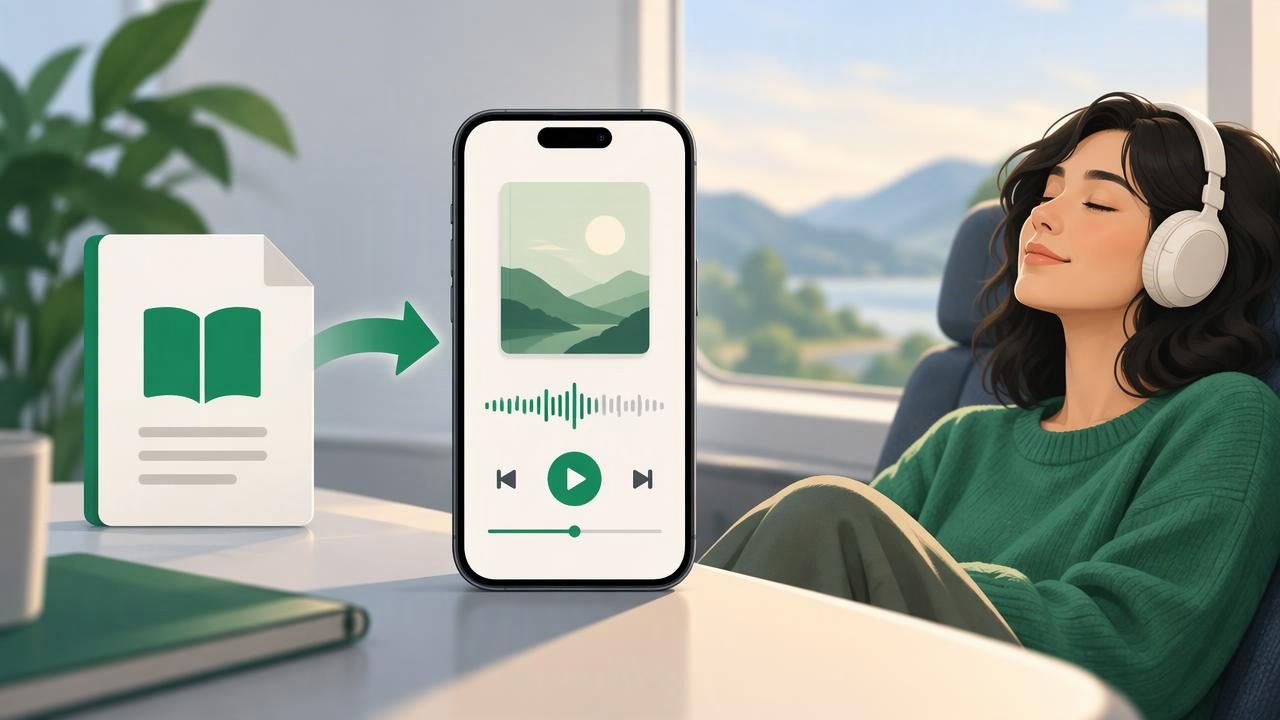
An EPUB is convenient to carry, but reading on a screen is not always practical. You may want to listen while commuting, walking, cooking, or resting your eyes. With the right text-to-speech app, you can turn an EPUB into audio and keep listening when you do not have an internet connection.
The process is usually simple: find a compatible file, open it in an app that can read EPUBs aloud, select a voice, and download or cache the book for offline playback. The details matter, though. File protection, voice downloads, chapter navigation, and playback controls can all affect how well the experience works. This guide explains what to check and how to build a reliable listening routine on iPhone or iPad.
What does it mean to turn an EPUB into audio?
Many text-to-speech apps do not create a separate audiobook file. Instead, they read the words in your EPUB aloud in real time using a synthetic voice. The book stays in text format, while the app converts each section into speech during playback. Some apps may let you export audio, but that is different from simply listening inside the app.
This distinction is useful. Text-to-speech can work with books that do not have a professionally narrated edition, and it may offer adjustable speed, voice choices, and synchronized highlighting. The audio may sound different from a human performance, so try a sample before committing to a long book.
How to turn an EPUB into audio with an offline listening app
- Check the EPUB file. Make sure the book is saved in Files, Books, or another location you can access. If you are downloading it from a library or store, check whether it has digital rights management (DRM). Protected books may only open in the service that supplied them, and many third-party readers cannot import them.
- Choose an app that supports EPUB narration. Look for an iPhone or iPad text-to-speech app that can import EPUB files, not just PDFs or web pages. Confirm that its offline mode works with imported books and with the voices you want to use.
- Import the book. Use the iOS share menu or the app’s file-import option to open the EPUB. If the file does not appear, check the Files app, try saving a local copy, and confirm that the book is not DRM-protected.
- Review the book structure. Open the table of contents and check that chapters appear in a sensible order. EPUBs vary in formatting, and a poorly structured file can make navigation or pauses between sections confusing.
- Select a voice and test it. Listen to a page with dialogue, punctuation, and longer sentences. Adjust the voice and speed until it feels clear and comfortable. A short test can reveal awkward pronunciation before you begin a full listening session.
- Prepare for offline playback. While connected to Wi-Fi, download any required voice data or book content using the app’s offline controls. Then switch on airplane mode briefly and play a section to verify that it works without a connection.
What to look for in an offline EPUB reader
“Offline” can mean different things from one app to another. The EPUB might be stored locally while the voice still needs an internet connection. Or the app may require a one-time download of voice data before it can speak without Wi-Fi. Test the complete setup before relying on it during a flight, subway ride, or trip outside mobile coverage.
| Feature | Why it matters | What to test |
|---|---|---|
| EPUB import | Lets you listen to books you already own or can legally access. | Open a sample book and check whether chapters and formatting are retained. |
| Offline playback | Keeps listening available without mobile data or Wi-Fi. | Play a downloaded section in airplane mode. |
| Voice options | A clear, pleasant voice makes longer sessions easier to follow. | Listen to a sample with names, dialogue, and punctuation. |
| Playback controls | Speed, skipping, bookmarks, and sleep timers make listening more flexible. | Try the controls while walking or using headphones. |
| Text highlighting | Helps you follow along and return to a passage. | Check that highlighting stays synchronized with narration. |
Make an EPUB easier to listen to
Choose a comfortable voice and pace
A natural-sounding voice is not necessarily the same as the fastest voice. Start at a moderate pace and increase it gradually if the words remain clear. Some listeners enjoy reading at up to 3x for familiar material, but dense nonfiction, unfamiliar terminology, and fiction with multiple characters may need a slower setting. The best speed is the one that lets you understand and remember the content.
Try more than one voice if the app offers a choice. A voice that sounds pleasant in a short sample might become tiring over an hour. If the book includes specialized names or technical terms, listen to a few pages and note whether pronunciation is understandable.
Use chapters, bookmarks, and highlighting
Listen by chapter rather than treating a book as one continuous track. This makes it easier to pause, resume, and find a specific section later. A bookmark can mark a useful idea or a place where you want to reread the text. Synchronized highlighting is especially helpful when you want to alternate between listening and looking at the screen.
If the narration stops at strange points, check the EPUB’s chapter structure or try another copy from a legitimate source. Extra spaces, unusual punctuation, and poorly converted files can affect how text-to-speech handles pauses. You can also adjust the app’s reading settings if it offers controls for skipping footnotes, headers, or other repeated elements.
Offline listening: storage, battery, and privacy
Before a long trip, download the book and any voice components over Wi-Fi. Check how much storage the app uses, particularly if you plan to keep several books available. Some apps store only the text locally and generate speech as you listen; others may download additional voice data. Their requirements differ, so use the app’s own offline guidance.
Audio playback uses battery, and a higher volume or extended screen use can drain it faster. Lower the screen brightness, lock your device while listening, and bring headphones or a power bank when appropriate. For a real-world test, start playback with the screen off and confirm that it continues as expected.
Also consider privacy. Imported books may contain personal notes or sensitive material. Review the app’s privacy information and understand whether processing happens on the device or requires sending text to an online service. If offline access and privacy are priorities, check both rather than assuming that an app works entirely on-device.
Using text-to-speech for study and accessibility
Listening to an EPUB can support studying by giving you another way to engage with written material. You might listen to a chapter after reading it, replay a difficult section, or follow the synchronized text while taking notes. Breaking a book into focused sessions can make it easier to review than listening for hours without pauses.
Text-to-speech can also help readers with dyslexia, ADHD, visual fatigue, or other accessibility needs, though the right setup varies by person. Adjustable speed, highlighting, and the option to listen while moving around may make reading more manageable. These tools are not a replacement for individualized accessibility support, but they can provide useful flexibility.
Comparing EPUB listening apps
Apps such as Speechify, NaturalReader, and ElevenReader are among the options people may consider for reading digital text aloud. Features, pricing, voice availability, and offline support can change, and capabilities may depend on the subscription or platform. Instead of relying on a general ranking, test the app against your actual needs: EPUB import, DRM compatibility, offline playback, voice quality, and chapter navigation.
Some text-to-speech tools focus on documents and web content as well as books; others may emphasize particular voice styles or listening experiences. If you also want PDF read-aloud, web article listening, or narration for DOCX files, check those formats separately. Support for one document type does not guarantee support for another. A free trial or sample import can help you compare before choosing.
Common problems and quick fixes
- The EPUB will not import: Confirm the file extension, save a local copy, and check whether DRM limits it to a particular reading service.
- The book is silent offline: Connect to Wi-Fi and download the required voice or content, then test again in airplane mode.
- Chapters are missing or out of order: Review the table of contents, try another legitimate edition, or use the app’s navigation list.
- The voice sounds unclear: Lower the playback speed, try a different voice, and test with the screen reader’s text highlighting enabled.
- Playback stops when the screen locks: Check the app’s background playback settings and update it to the latest version.
Build a dependable listening routine
For reliable offline listening, prepare before you leave home: import the EPUB, download any necessary voice data, confirm the chapters, and test playback without internet access. Save your place with bookmarks, adjust the voice and speed for the material, and keep an eye on battery and storage.
Once those basics are in place, an EPUB can become a flexible audio companion for a commute, study session, or quiet break. If you want one iPhone or iPad app for books and other reading material, Focal Voice is one option to explore alongside a sample of your own files.
