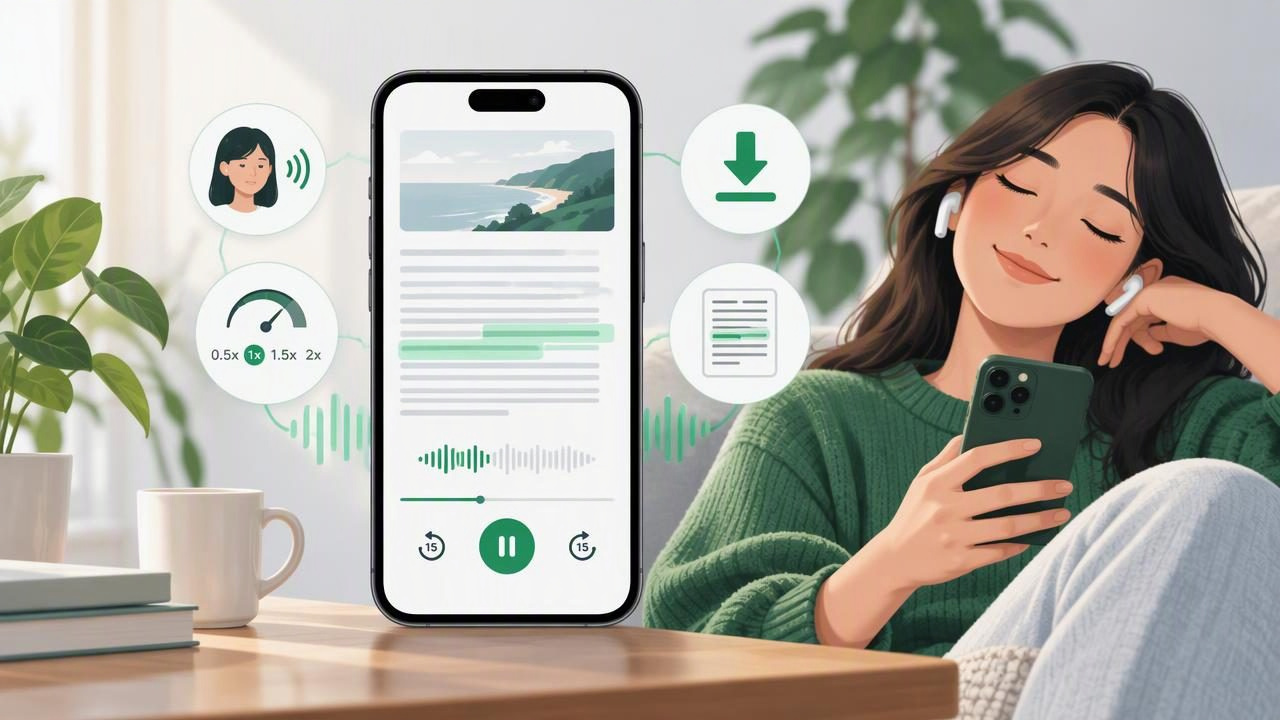
Listening to online articles can make reading fit more easily into a busy day. Instead of staring at a screen, you can hear a story while walking, doing chores, or taking a break from reading. A text-to-speech app can also help you revisit research, catch details you missed, or make long pages more accessible.
If you are new to listening to web articles, the first few minutes can involve more than pressing play. You may need to choose a useful article, get a clean version into an app, and set a voice and speed that feel comfortable. These practical beginner tips will help you build a listening routine on iPhone or iPad without making it complicated.
1. Start with an article that works well as audio
Not every web page is equally easy to listen to. A clear feature, how-to guide, or news analysis usually has a logical beginning and end. Pages with lots of menus, captions, pop-ups, or short snippets can sound disjointed when read aloud. For your first test, choose an article with a descriptive title, readable paragraphs, and a topic you genuinely want to understand.
Think about your goal before you press play. Are you trying to catch up on the news, learn a concept, or review information you have already read? A familiar subject can be a good first choice because you can focus on the listening experience rather than decoding unfamiliar terms. Save dense reports or technical pieces for a quiet place where you can pause and take notes.
2. Send the article to a text-to-speech app
There are several ways to turn a web article into audio. Some apps can open a link directly; others let you use the iPhone or iPad share sheet to send a page to the app. You may also be able to paste the web address into an import field. If the page is behind a login or does not import cleanly, copying its text may be a useful alternative, provided you have permission to access and use it.
After importing, check that the app has captured the article rather than the whole website. A clean reading view should begin with the headline and main text, not a string of navigation labels, advertisements, or recommended links. If the page looks cluttered, try another import method or use a reader view in your browser before sharing. A few seconds of checking can prevent a frustrating listening session.
3. Make a quick pre-listening check
Before starting playback, scan the title and section headings. This gives you a simple map of the article and helps you notice whether the import missed a section. Check for an author name, publication date, and source, especially when the article includes health, financial, or current-event claims. Text-to-speech makes content easier to consume, but it does not verify that the information is accurate or up to date.
Look for elements that often sound awkward aloud, such as image descriptions, long link lists, footnotes, or tables. If your app lets you select or remove text, you can skip material that interrupts the main point. For a page with complex data, consider viewing the table on screen while listening to the surrounding explanation. Audio is useful, but some information is simply easier to compare visually.
4. Choose a voice you can listen to comfortably
A voice that sounds pleasant for a short sample may become tiring over a long article. Try a few available voices and languages, then listen to a full paragraph rather than judging from a single sentence. Natural AI voices can make narration feel smoother, but the best option is personal: clarity, pronunciation, pacing, and comfort matter more than a particular label such as “natural.”
Check how the voice handles names, abbreviations, and specialist terms. If a word is pronounced incorrectly, you may be able to adjust pronunciation or use a different voice. For multilingual content, choose a voice that matches the language of the article when the app supports it. Avoid switching voices repeatedly in the middle of a piece unless a change will genuinely improve understanding.
5. Begin at a manageable playback speed
Start at normal speed or slightly slower if the subject is unfamiliar. Once you can follow the narration without effort, increase the pace gradually. Many listeners eventually prefer faster playback for familiar material, but speed is not a measure of comprehension. If you keep rewinding, lose the thread, or feel tense trying to keep up, slow down.
Use a short test: listen for two or three minutes, then summarize the main point in your own words. If you can do that comfortably, your speed is probably workable. For a detailed tutorial, study article, or text full of new vocabulary, choose a slower pace and pause between sections. For a quick update or a piece you have already read, a faster setting may save time. Some apps support playback up to 3x, but you do not need to use the maximum.
6. Follow along when the content is difficult
Synchronized highlighting can show which words are being spoken, giving your eyes a place to return when your attention wanders. This can be helpful with long paragraphs, unfamiliar terminology, or reading-related differences such as dyslexia. Some people with ADHD also find that pairing audio with a visual cue helps them stay engaged, while others prefer to listen without watching the screen. Try both approaches and keep the one that works for you.
Following every word is not essential. You might glance at the screen for a tricky passage, then put your device away for an easier section. If the article contains a key definition or instruction, pause and reread that part. Listening should support your attention, not become another task you have to perform perfectly.
7. Match the article to the moment
Choose listening situations with safety and concentration in mind. A familiar, low-stakes article may suit a walk on a quiet route or routine housework. A complex report is better saved for a place where you can pause, take notes, and give it your full attention. Do not let audio distract you while driving, crossing streets, cycling in traffic, or operating equipment; follow local laws and use your judgment.
For a commute, prepare a short queue before you leave rather than searching while moving. Keep the phone accessible without needing to look at it, and use headphones only where they are safe and permitted. If you tend to lose your place, use bookmarks or playback controls to return to a section. A dependable routine is more useful than trying to fit every article into every spare minute.
8. Prepare for listening without a connection
Web pages can disappear, change, or fail to load when reception is poor. If your text-to-speech app supports offline listening, import the article and confirm it is available before you lose internet access. Some apps need you to download the audio or content explicitly; others store it automatically. Check the app’s instructions and test one saved article in airplane mode before relying on offline playback.
Offline access is especially useful for flights, underground travel, or areas with unreliable service. Remember that an app may need an internet connection to import a new link or generate certain voices, even if previously saved content plays offline. Download only material you are entitled to access, and remove finished items if you need to manage storage on your device.
9. Use simple notes to remember what you hear
Listening can make it easy to move through several articles, but hearing information once does not guarantee that you will remember it. After each piece, capture one or two takeaways in a notes app. For a work or study article, write down the main claim, one supporting detail, and a question you still have. You can also bookmark an important passage or replay a short section instead of starting the whole article again.
For longer reading, divide the article into sections and take a brief pause after each one. This creates natural checkpoints and makes it easier to return later. If the app supports notes or bookmarks, keep them tied to the article. A small amount of active recall—trying to restate an idea without looking—can make listening more useful than simply letting audio play in the background.
10. Troubleshoot common beginner problems
- The narration starts with menus: Try reader view, share the article again, or import a clean copy of the text.
- The voice misreads a name: Check pronunciation settings, switch voices, or note the correct pronunciation for later.
- You lose your place: Use section headings, synchronized highlighting, bookmarks, or shorter listening sessions.
- The speed feels uncomfortable: Reduce it and give yourself time to adjust before increasing it again.
- The link will not import: Confirm that the page loads in your browser, then try copying its text or using another supported import route.
Features vary between apps, so check what a service actually supports before building a workflow around it. Some tools focus on browser pages, while others can also narrate PDFs, ebooks, documents, notes, or camera scans. If you compare options such as Speechify, NaturalReader, ElevenReader, and other text-to-speech apps, test them with the same article and pay attention to import quality, voice comfort, playback controls, offline access, and pricing.
Build a listening habit that fits you
The best web article listener setup is the one you will use consistently. Start with one interesting page, make sure the text imported correctly, and listen at a comfortable speed. Then adjust one thing at a time: the voice, highlighting, playback pace, or listening environment. Over time, you will learn which articles suit audio and when you need a screen, a pause, or a notebook instead.
Whether you want to listen to web articles during a commute, review material by ear, or make reading more accessible, keep your expectations practical. Audio is another way to engage with information—not a replacement for careful reading whenever detail matters. Focal Voice is one option for iPhone and iPad users who want to turn web links and other personal content into narrated audio, with features that can be explored during a free trial.
